Select your preferred language and currency for the best experience.
Language
No results found.
Currency
No results found.
Top 12 Best CODM BR Settings You Must Know in 2026
Written by Mitra Mohammadpour
0
If you feel your Aim is weak, movement is slow, or you’re falling behind in close-range fights in Call of Duty Mobile, the problem probably isn’t your weapon or skill; it’s your settings. In this comprehensive guide, we review the Best CODM BR settings based on a professional 2026 configuration to help you play like a pro.
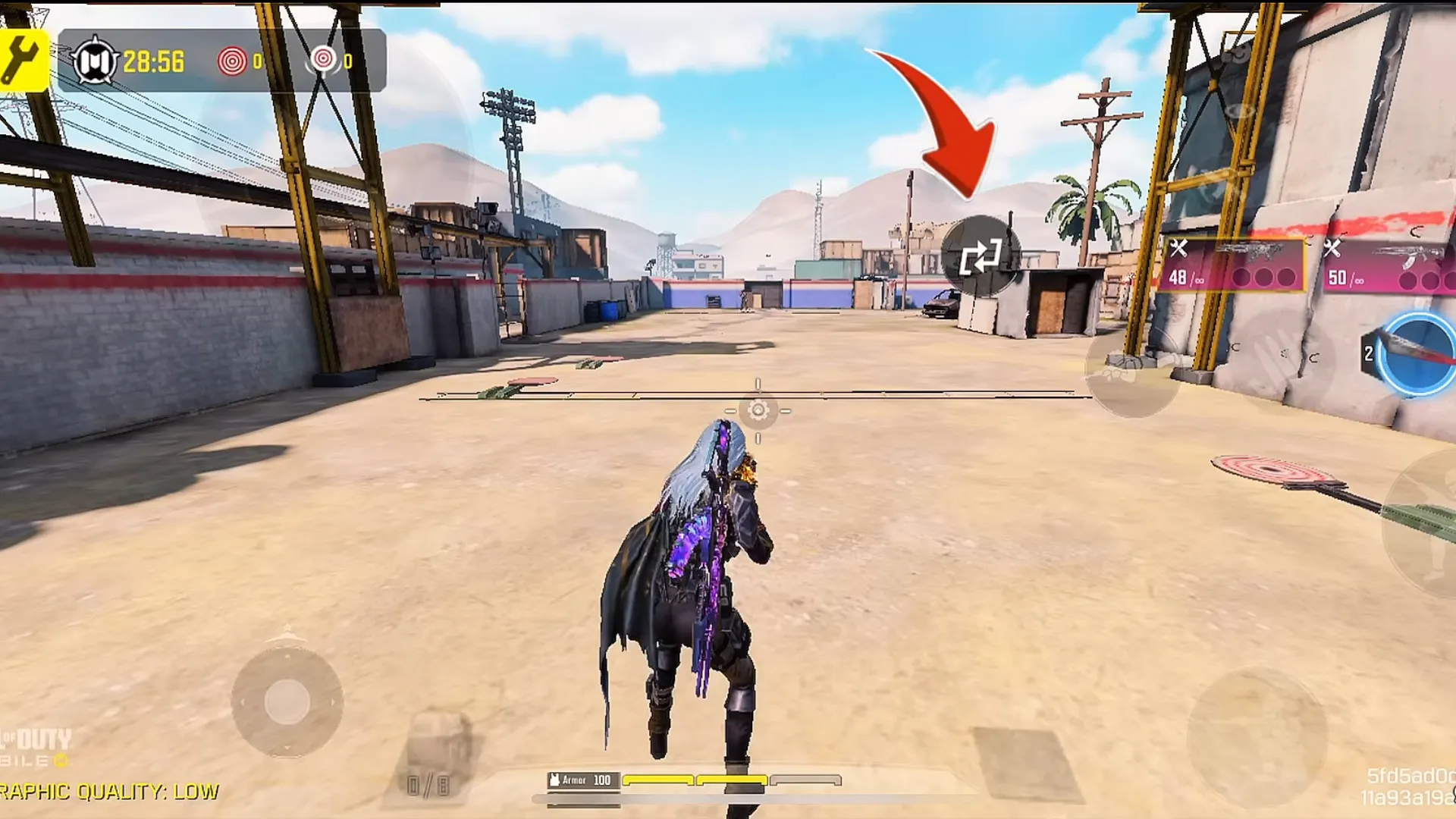
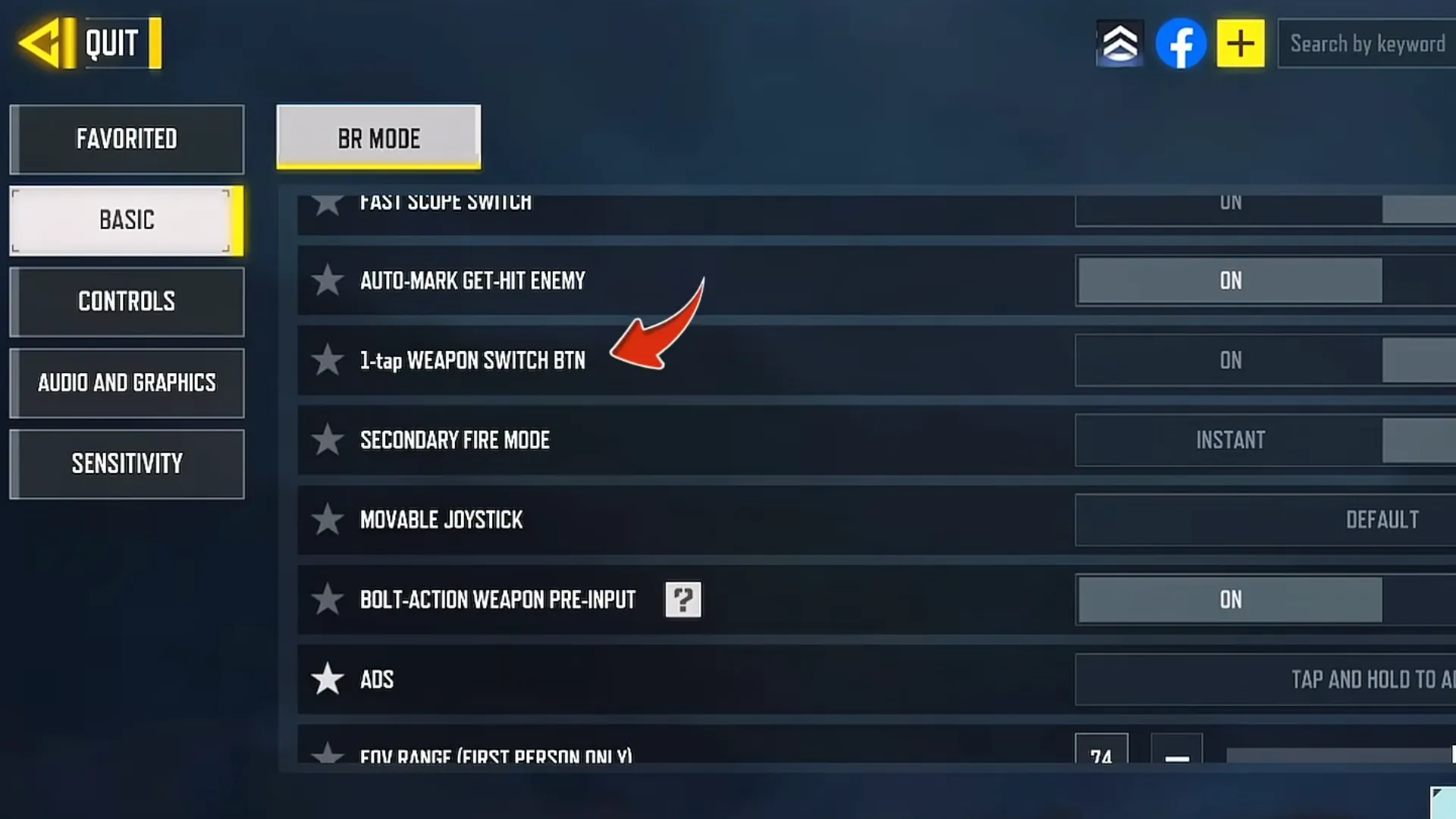
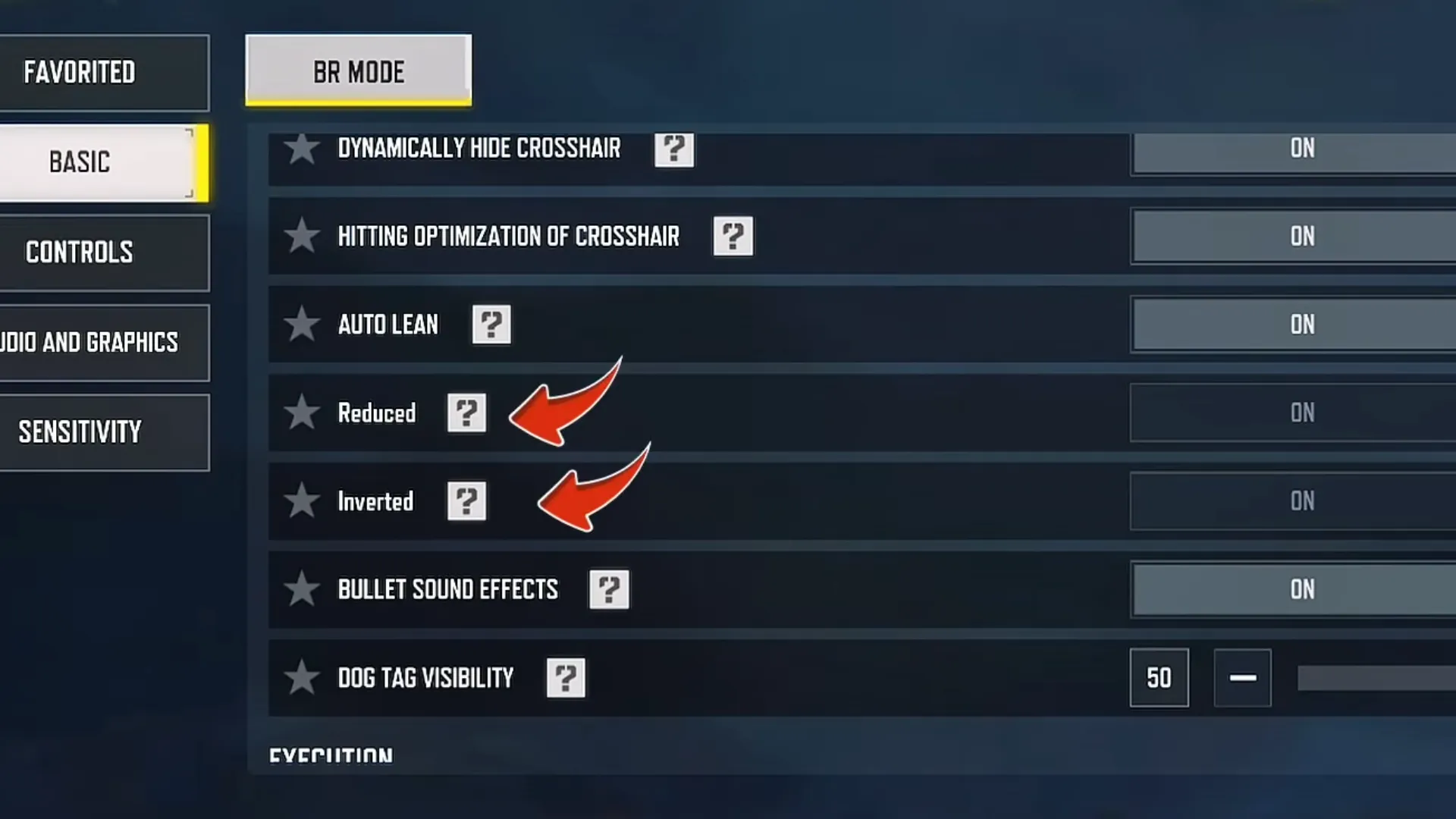
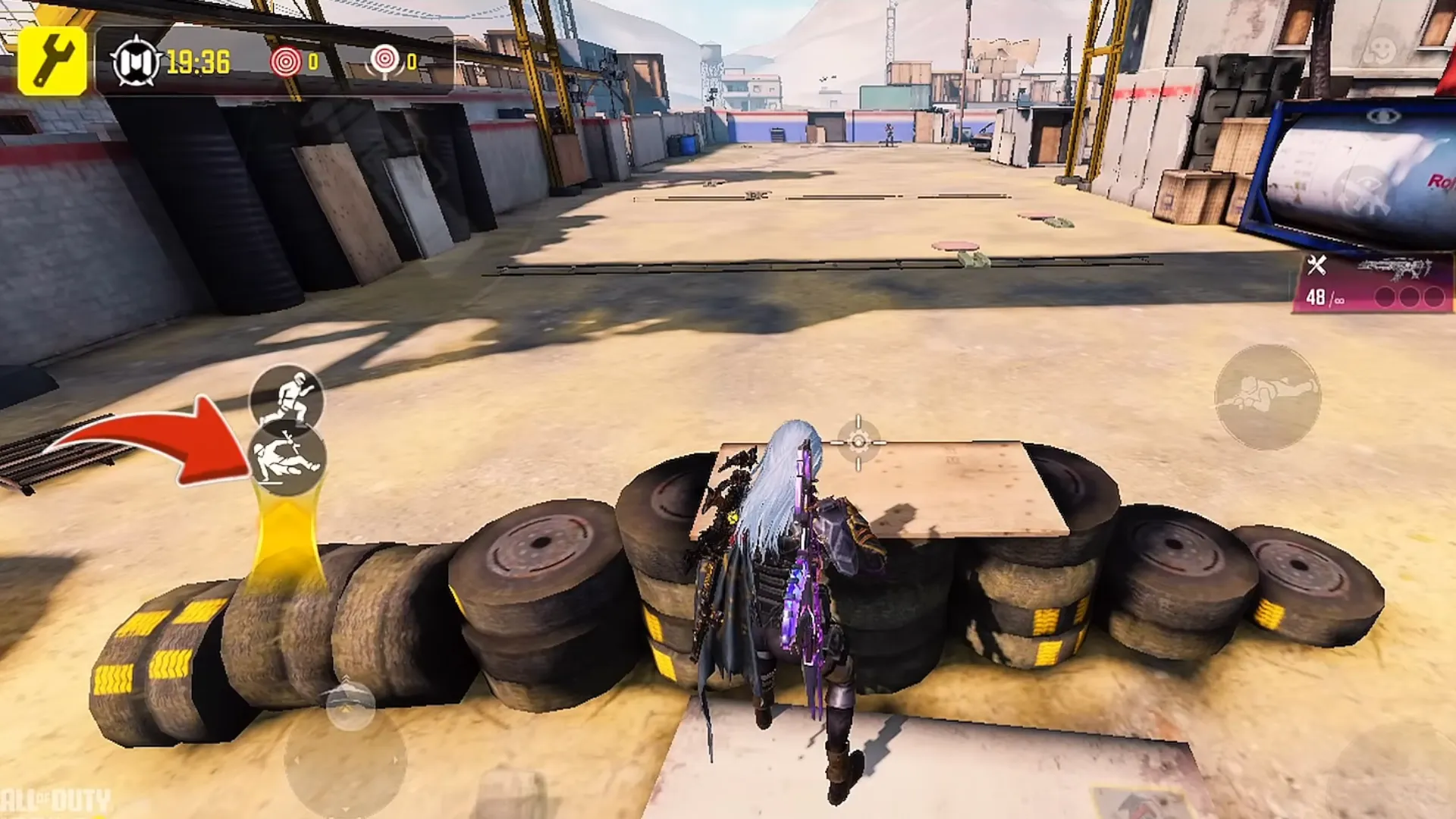
By enabling this, an extra button is added to your HUD for rapid weapon swapping.
✅ Extremely useful for Close-range combat
✅ Faster reactions during sudden gunfights
In Battle Royale, especially inside buildings, even a half-second delay can mean defeat. Instead of reloading, this setting allows you to switch to your secondary weapon instantly, keeping the pressure on your enemy.
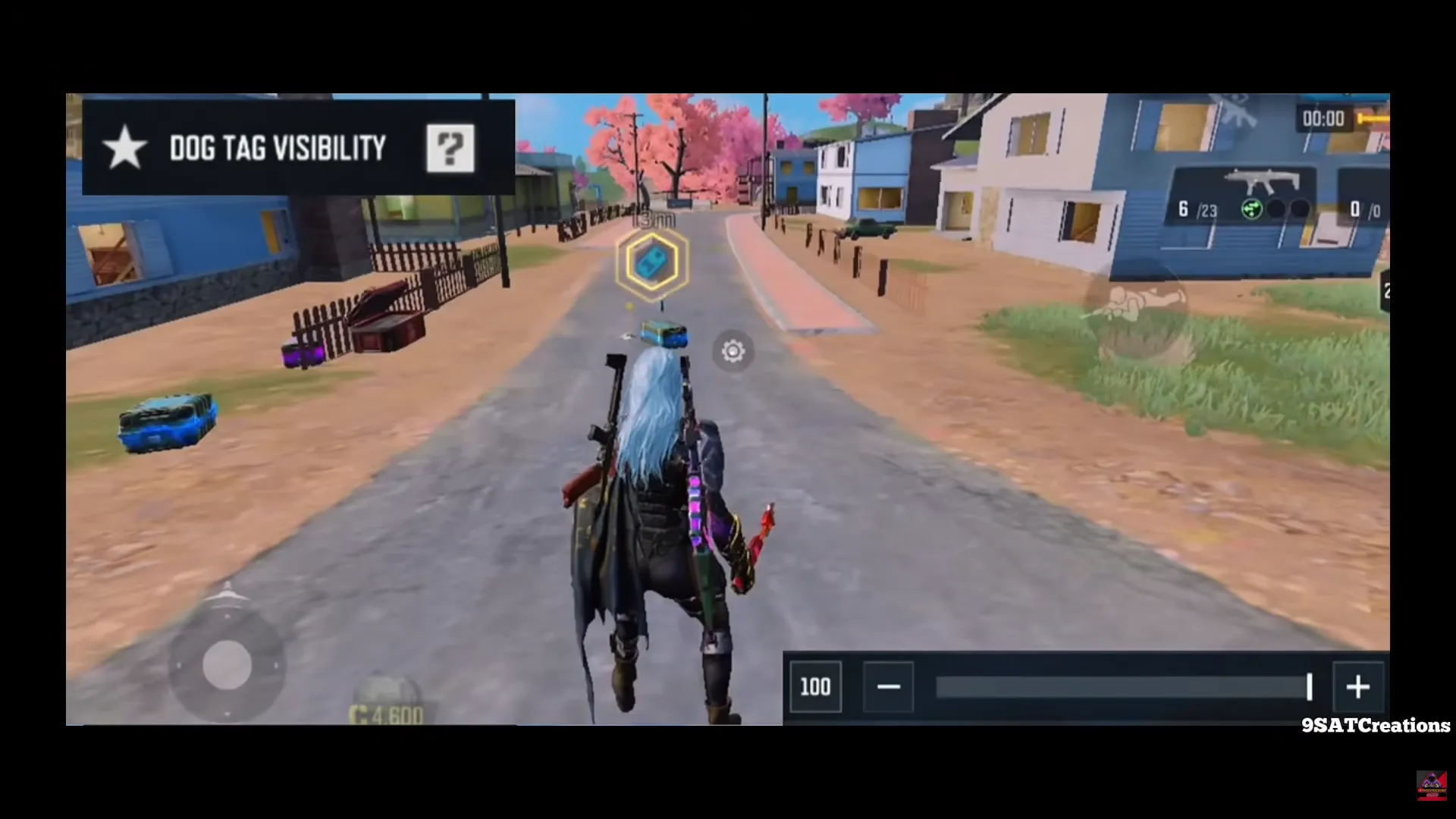
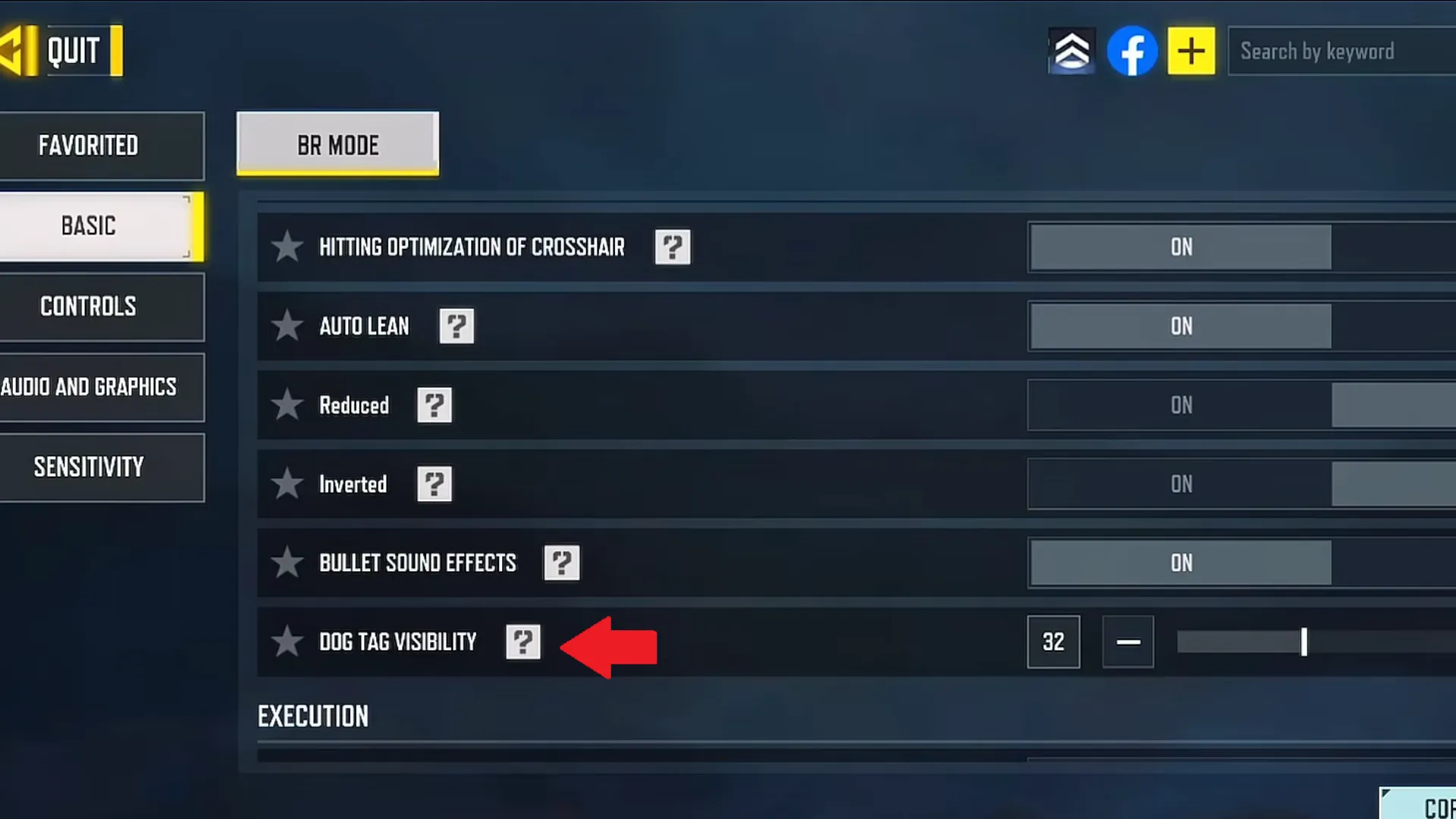
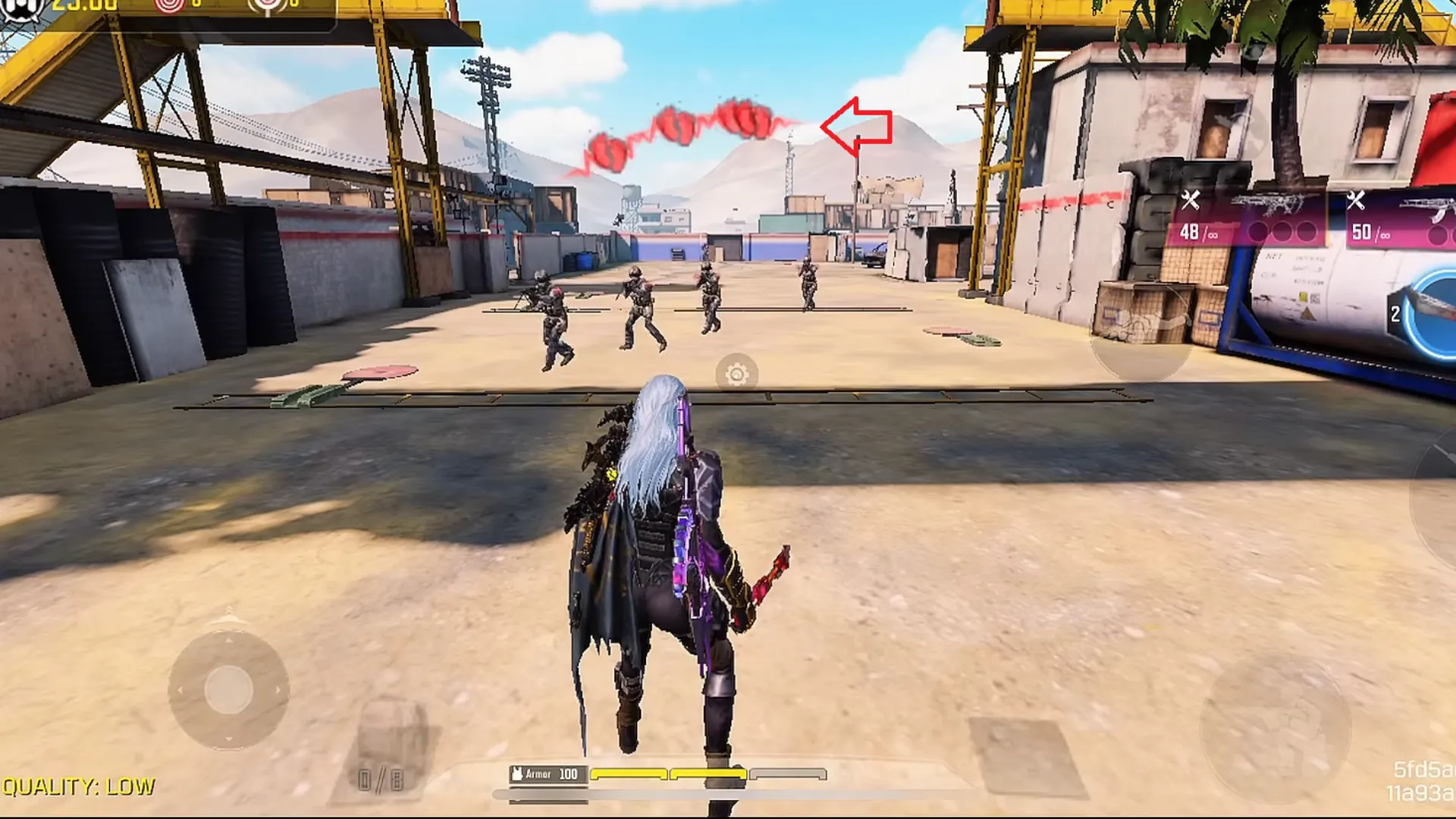
This setting adjusts the transparency of the Dog Tag icon on your screen. High visibility can block your sight (ADS) and make headshots harder. Setting it to 50 ensures you see your teammates’ tags without them obstructing your aim.
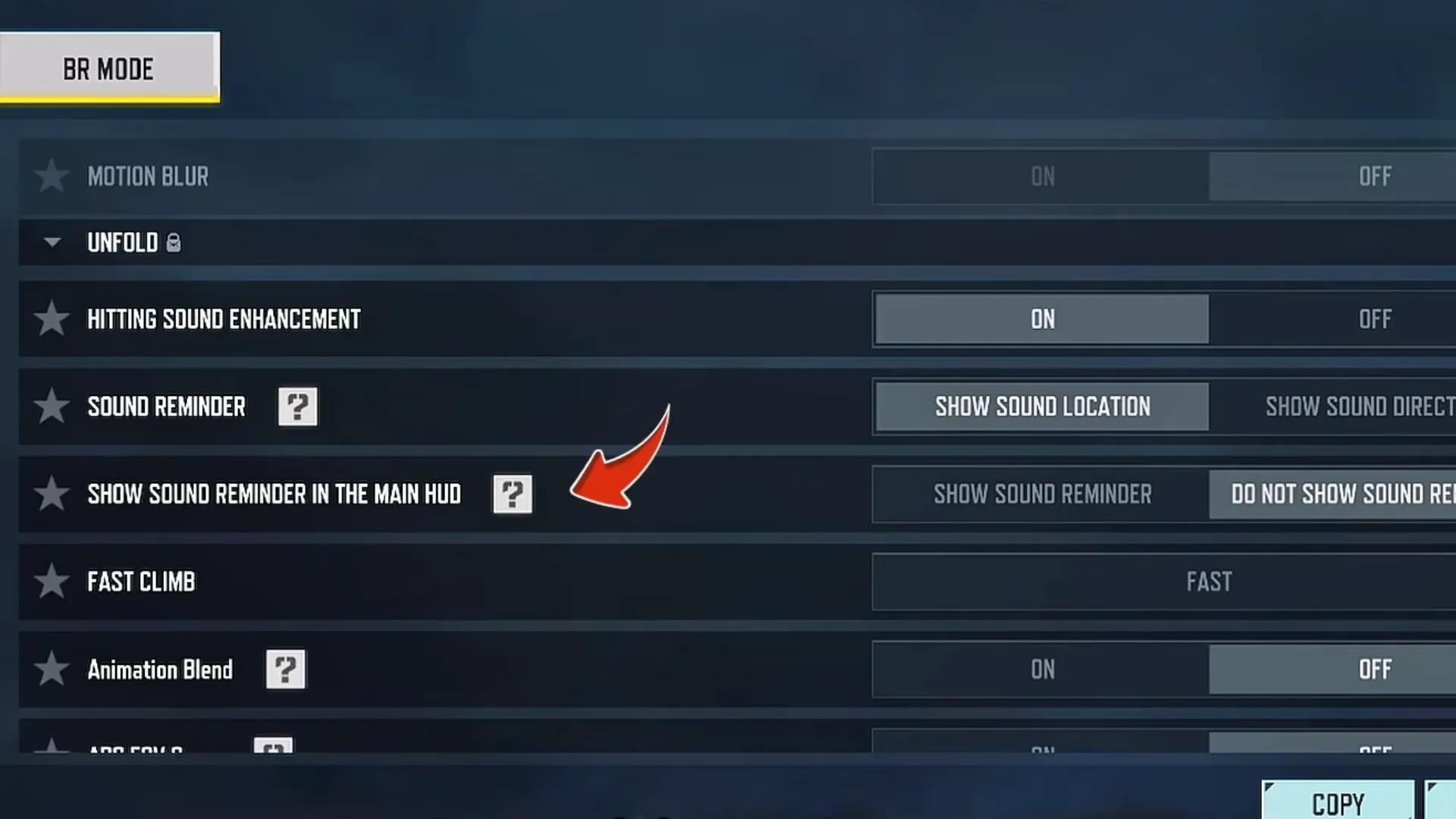
3. Show Sound Reminder
Path: Settings > Basic
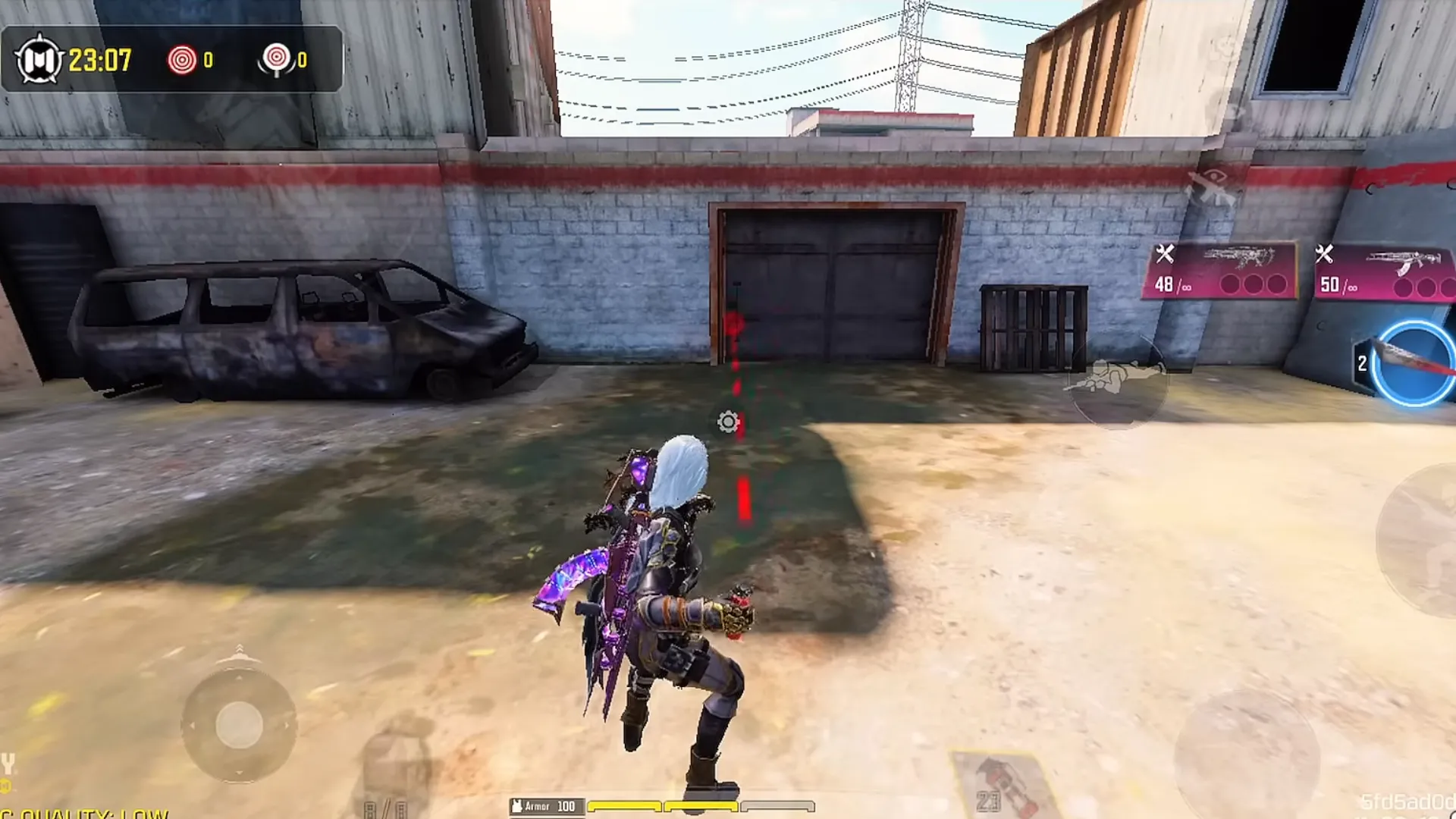
This setting displays enemy footsteps visually on your HUD. It is a “legal wallhack” for players who struggle with sound direction or don’t use headphones. It also tracks vehicles and helicopters from a distance.
4. Flash Grenade Settings coll of duty
Path: Settings > Basic
You can now customize the color and intensity of the flash effect. This reduces full blindness, allowing you to maintain partial vision of the environment even after getting flashed, which is crucial for survival.
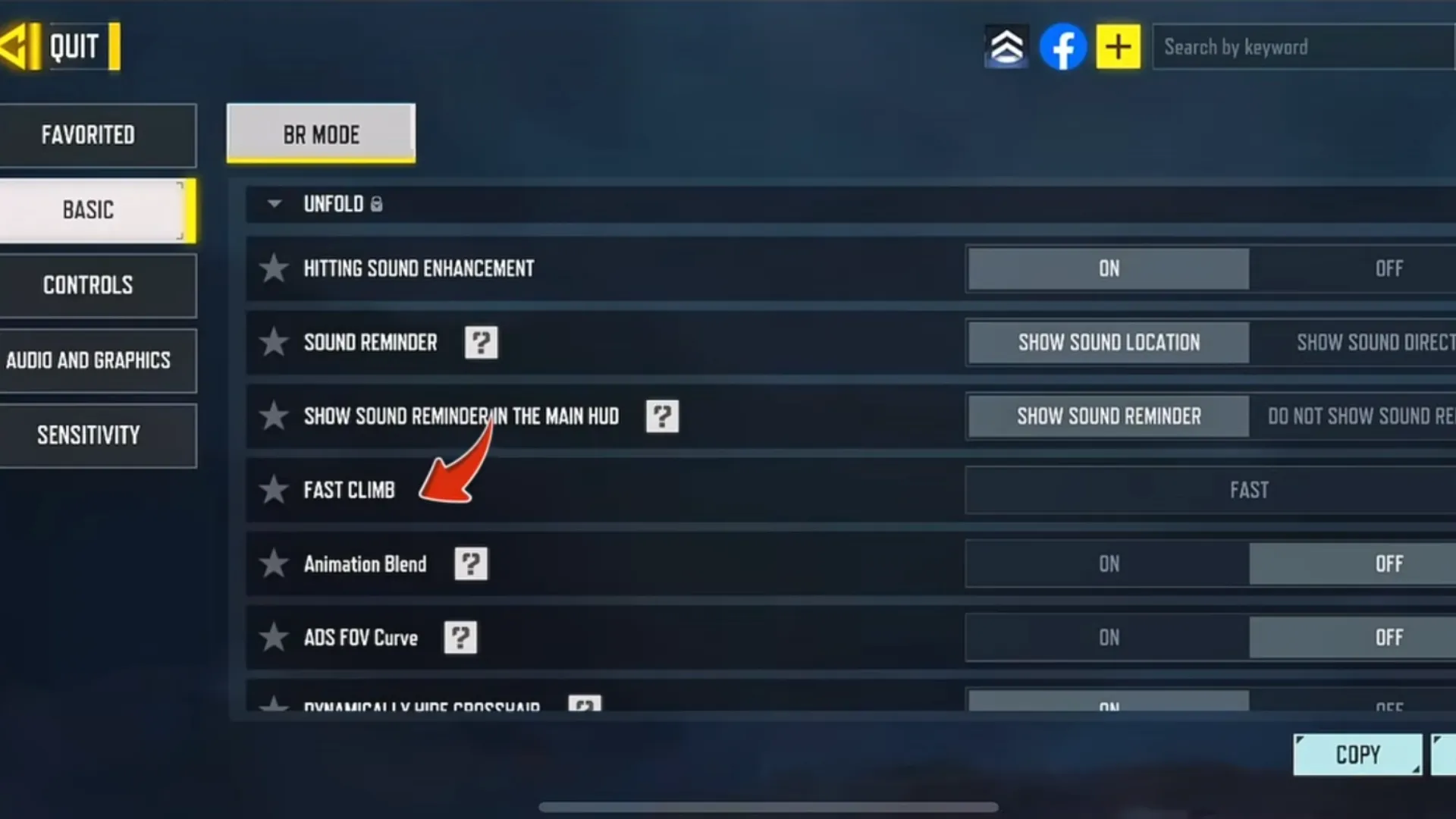
5. Fast Climb Settings
Path: Settings > Basic
Modes: Fast, Auto (Recommended), Off.
The Auto mode is the best choice for 90% of players. It allows your character to climb obstacles automatically, reducing the need to press extra buttons and making your movement fluid and fast.
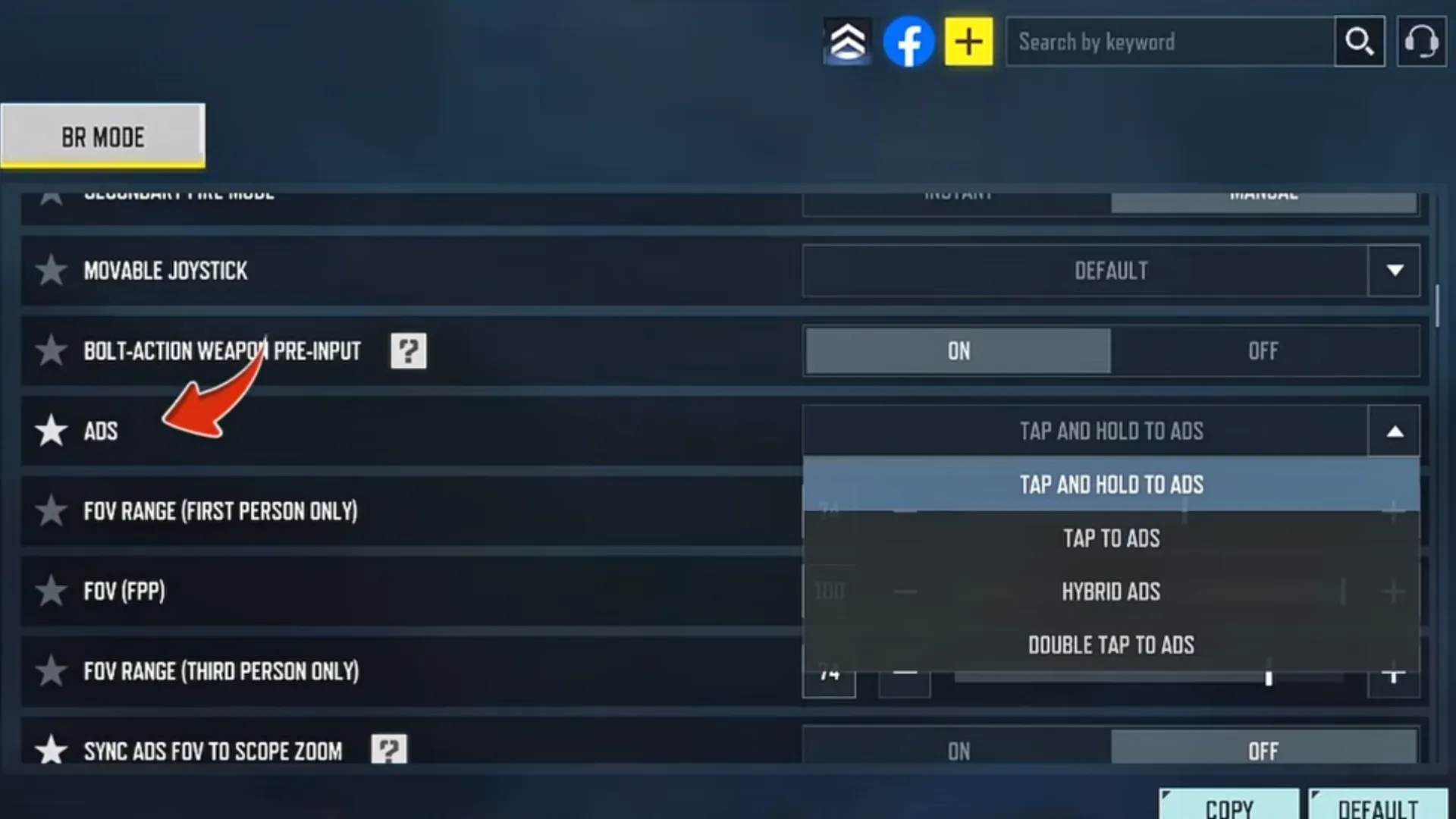
6. Pro Aim Settings coll of duty
Path: Settings > Basic
Modes: Double Tap, Tap and Hold (Recommended), Tapped, Hybrid.
Pro players prefer Tap and Hold to Aim. It allows for faster transitions between aiming and sprinting, and it is the “life or death” setting for Quick Scoping with Snipers.
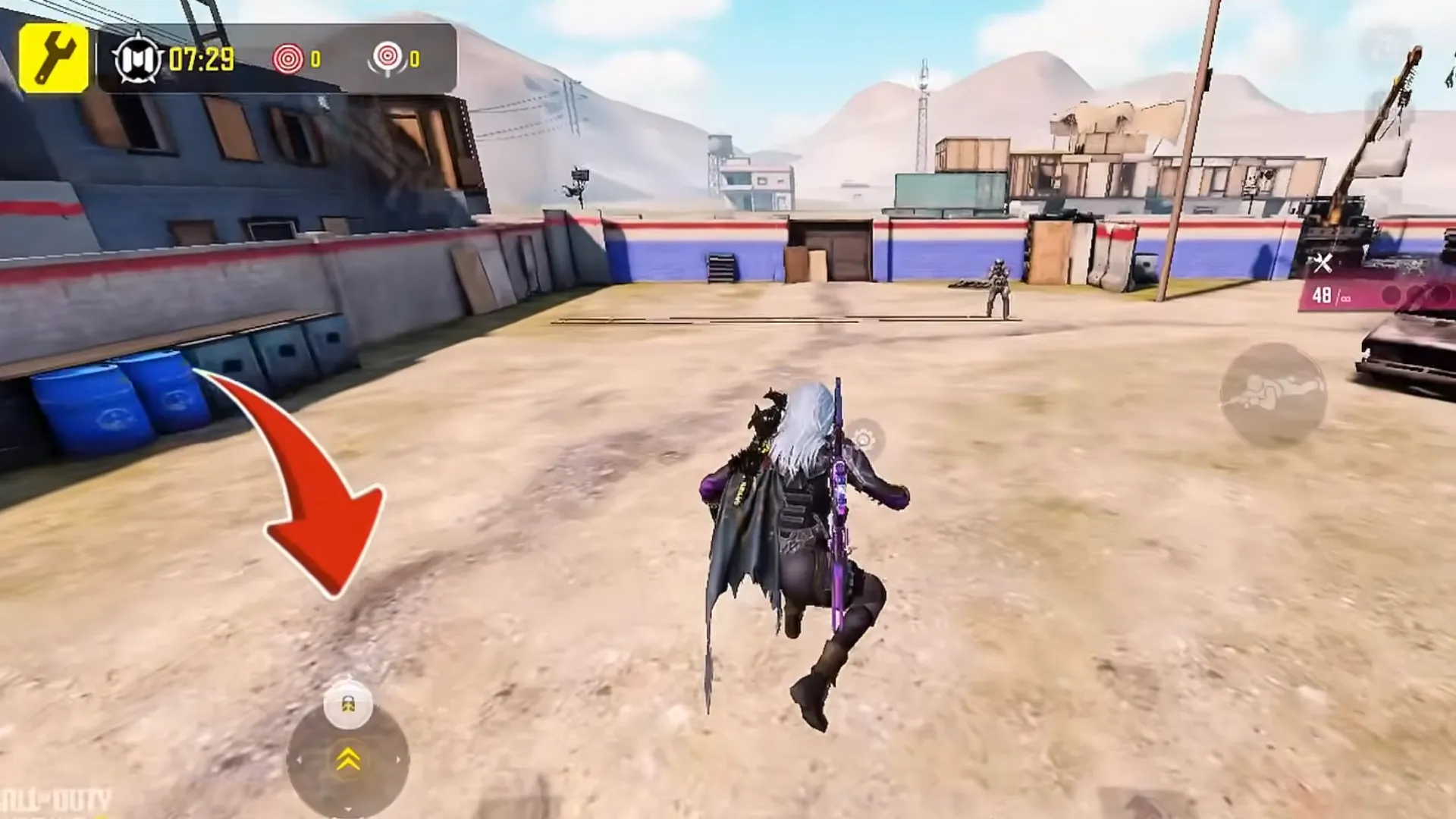
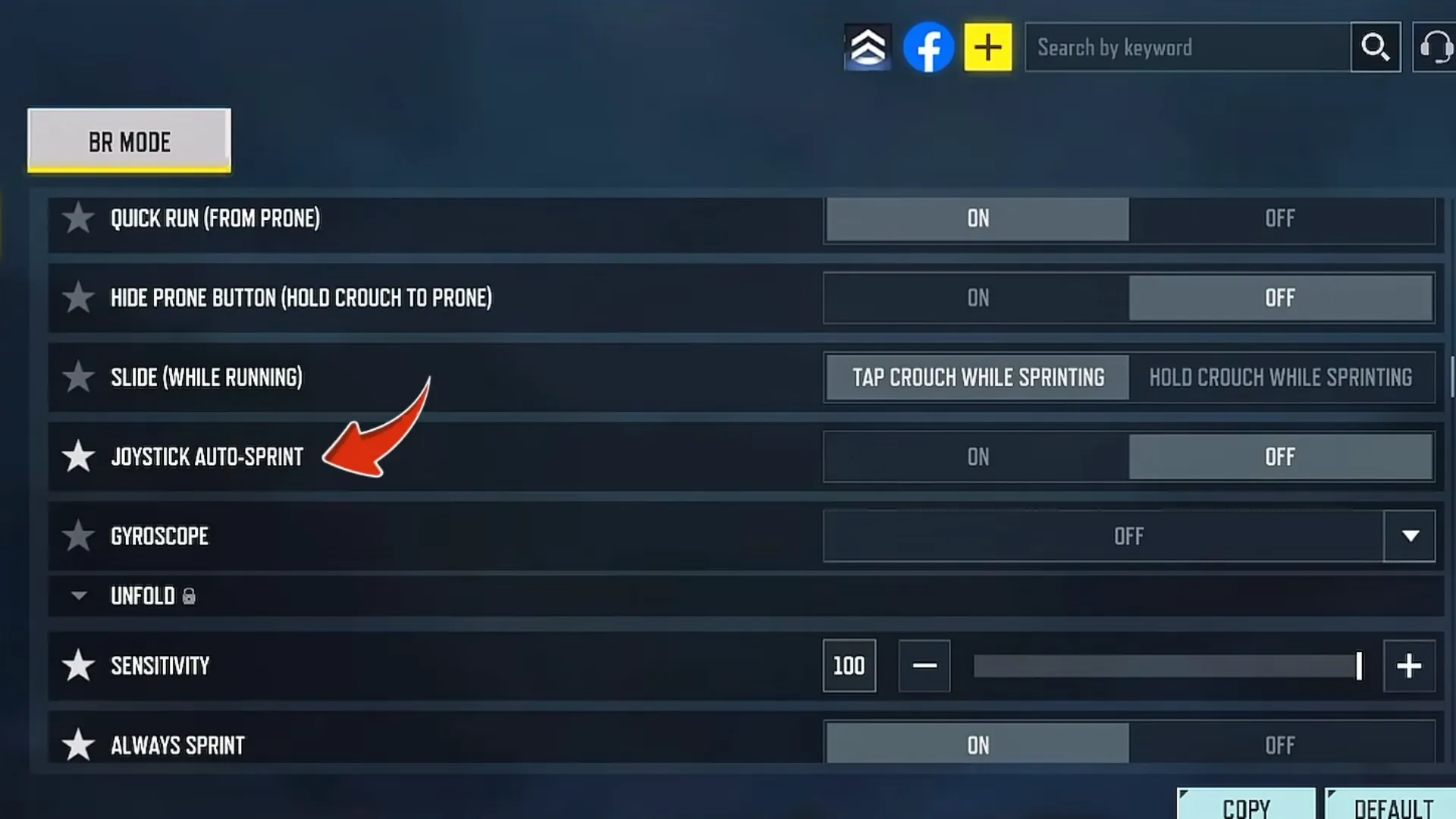
7. Joystick Auto Sprint
Path: Settings > Basic
This locks your movement into a sprint automatically. It fixes the annoying “accidental crouch” issue and ensures your movement is as fast as world-class players like Broken.
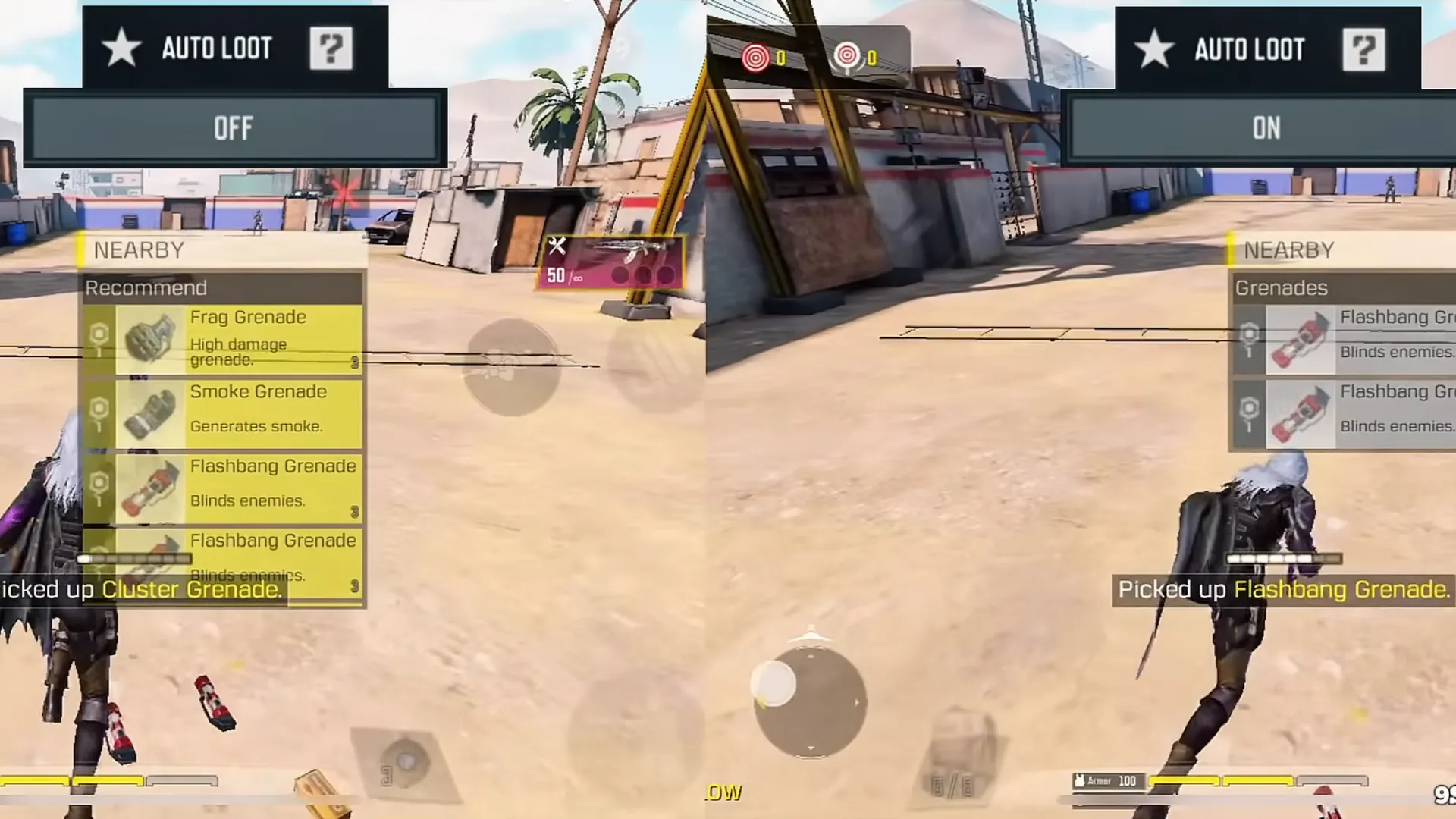
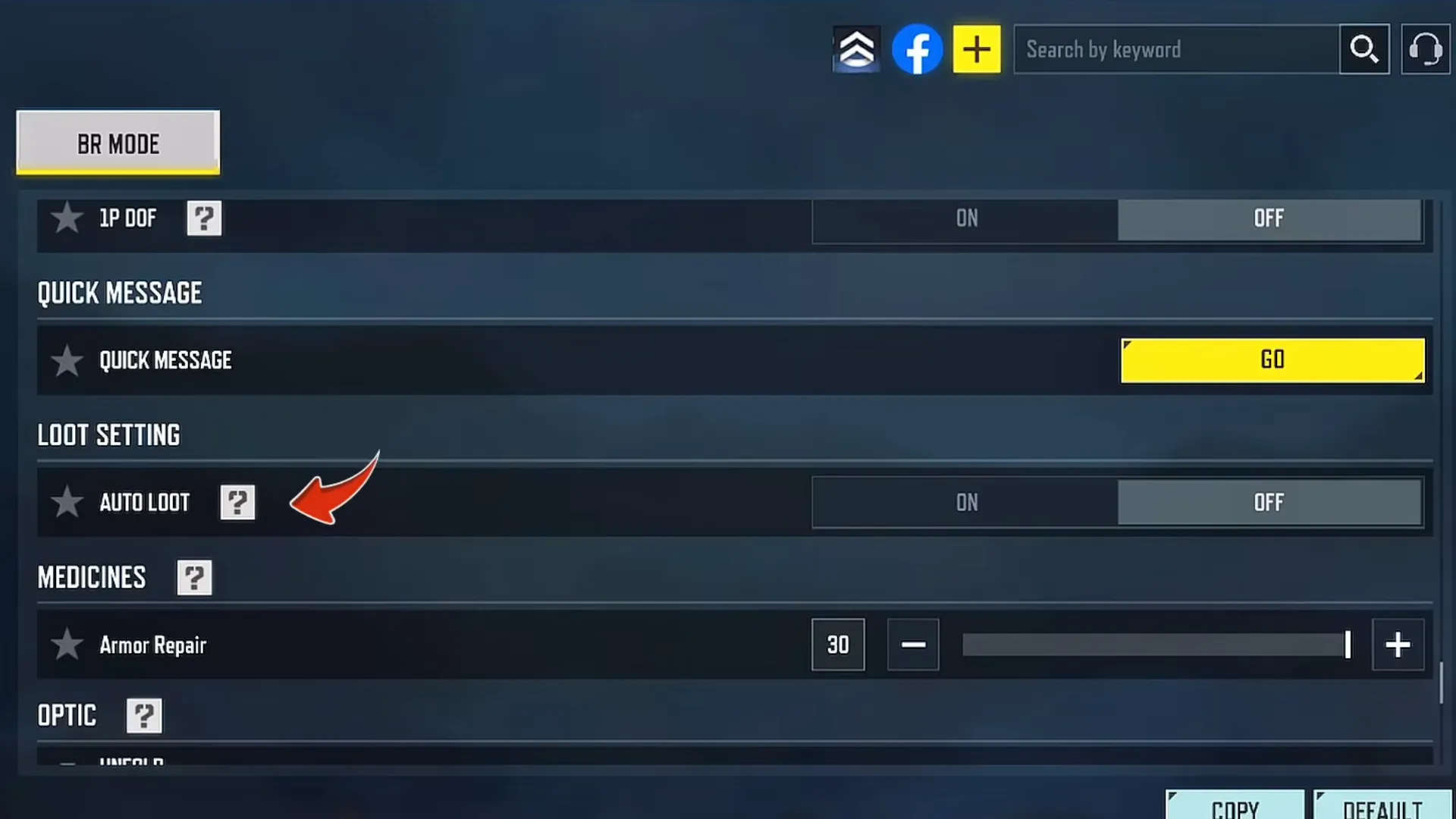
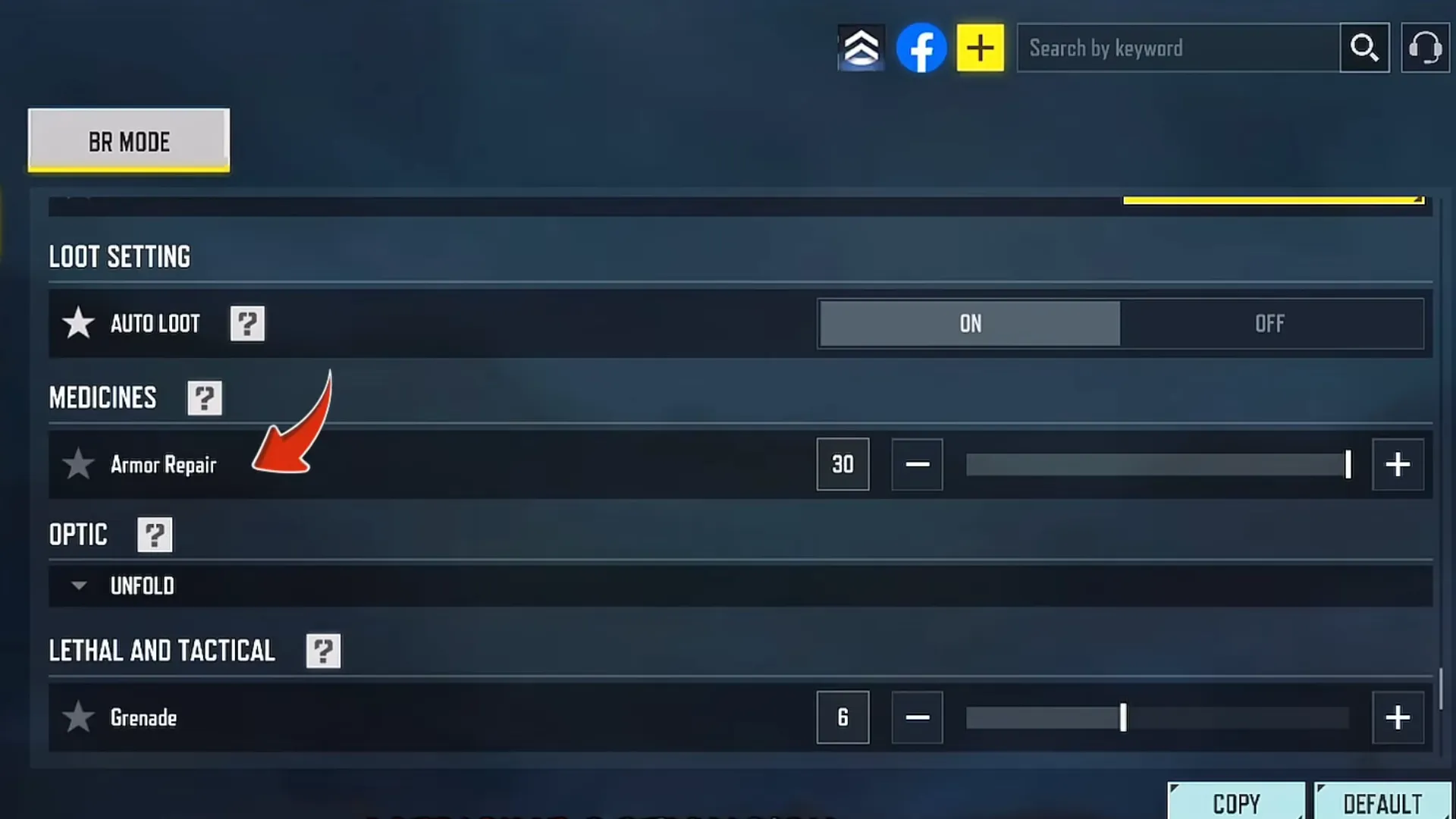
8. Auto Loot Optimization
Path: Settings > Basic
Enabling Auto Loot speeds up your early game significantly. It frees up your HUD space by removing the need for manual loot buttons, allowing you to focus entirely on combat and surroundings.
9. Armor Repair Setting coll of duty
Path: Settings > Basic > Medicine
You can set a cap (up to 30) for automatically picking up armor plates. This manages your inventory space and ensures you always have enough plates for intense combat.
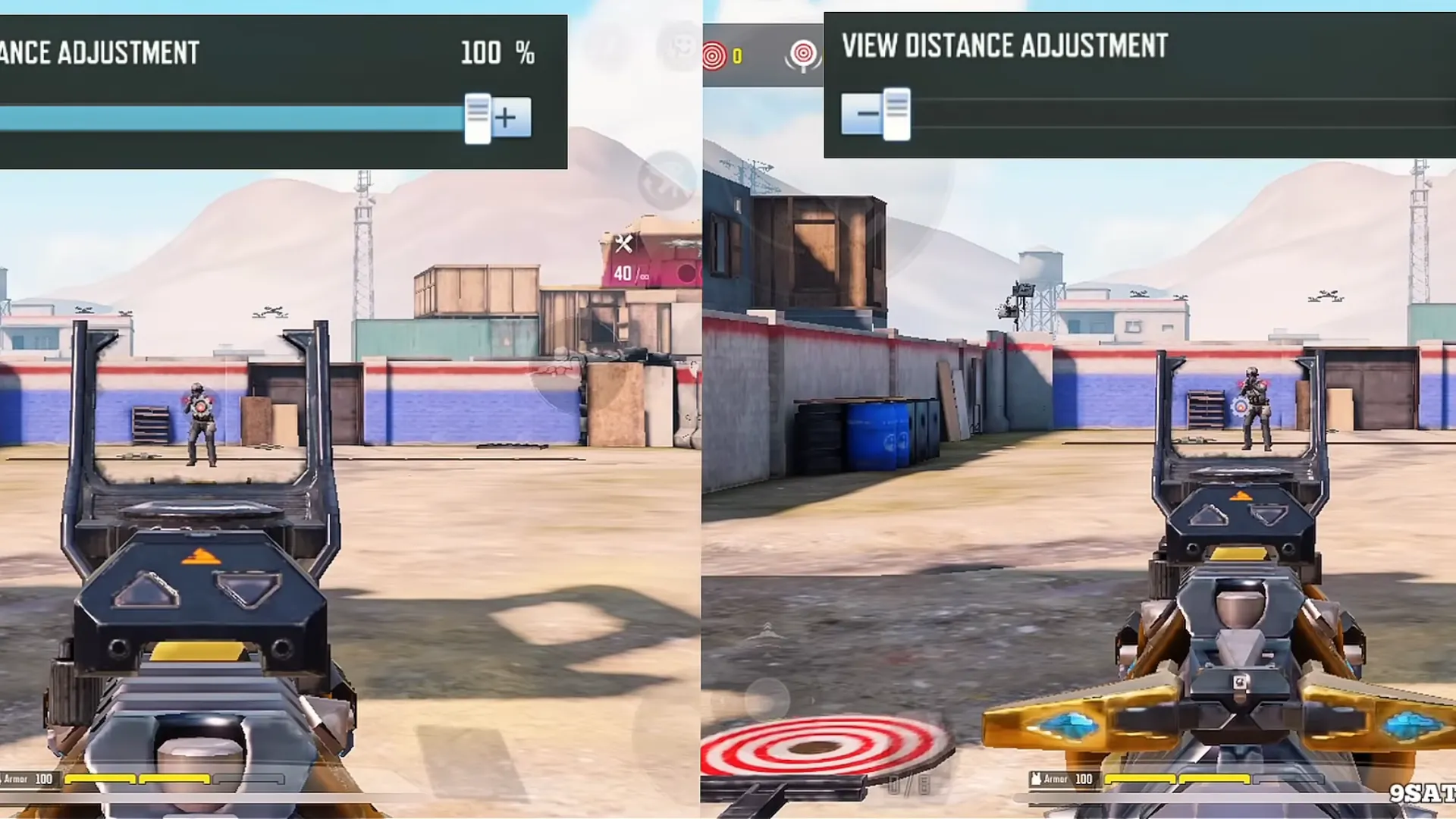
10. Weapon Distance
Path: Loadout > Gun with Optics > Settings
Low Value: The weapon takes up less screen space.
High Value: The full weapon model is visible. Choose based on your preference for peripheral vision.
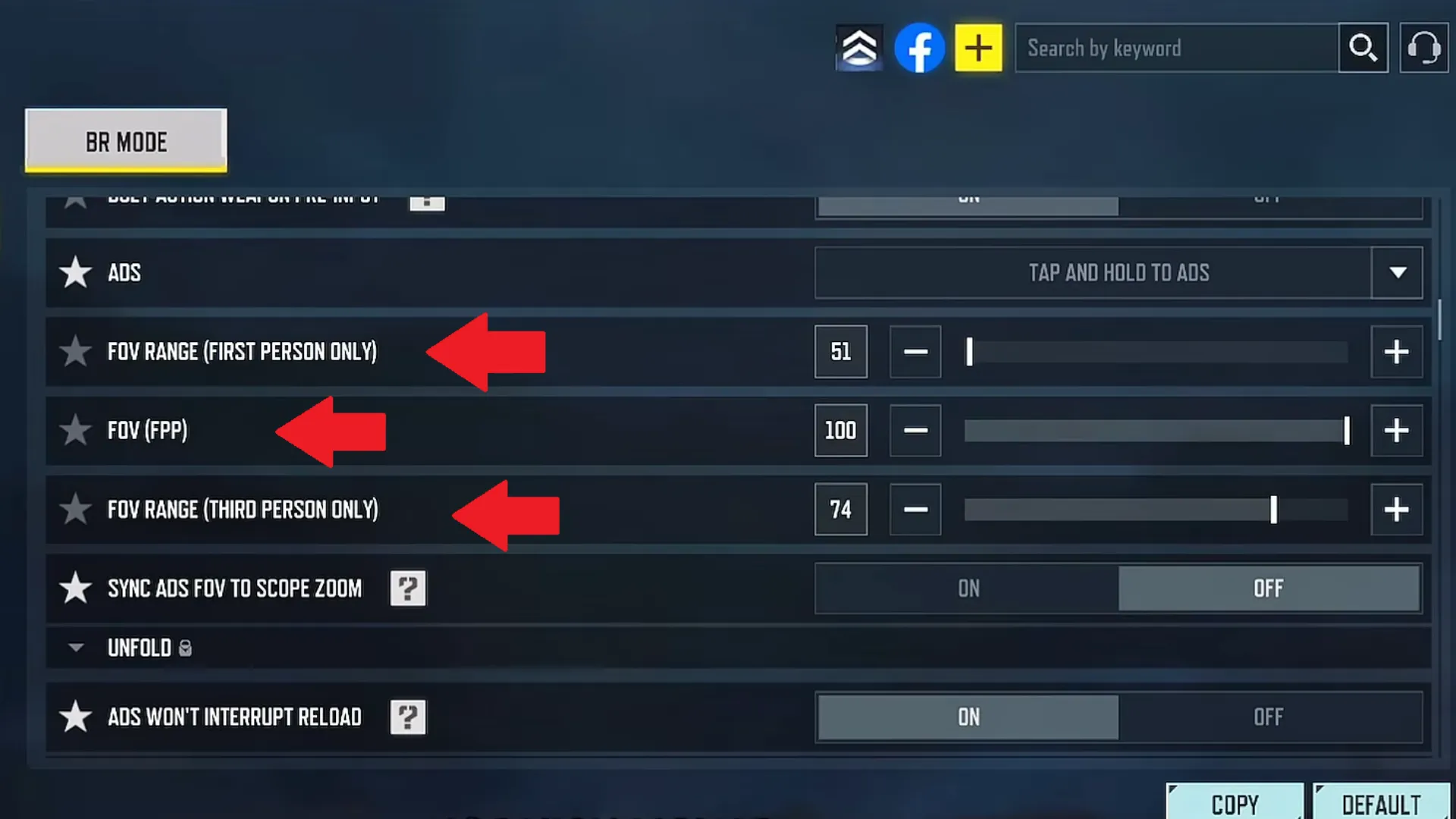
11. Best FOV Settings coll of duty
FPP FOV (Mobile): 74 – 76
FPP FOV (iPad): Higher/Max
TPP FOV: Set to High for better awareness and a sense of speed.
Increasing FOV might feel strange at first, but it increases your survival chance by 40% because you can see enemies in your periphery much sooner.
12. Sensitivity (No Recoil)
Focus on your Standard and Gyroscope Sensitivity. Personalized sensitivity is the foundation of professional aiming. Adjust these based on your specific device to achieve a “No Recoil” experience.
Fix Lag and Ping Issues
If you are experiencing high ping or lag in CODM BR, using network optimization services via Item 4 Gamer can provide a smooth, ban-free gaming experience.
Get Cheap CP with Installments
For the cheapest CP with the option to pay in installments, visit Item 4 Gamer. Get your discounts, spin the draws faster, and collect your favorite items today!
⚡ Fast delivery, real discounts, and installment plans.
For cheap COD Mobile CP purchases with secure payment options, head over to Item4Gamer — you’ll get real discounts, faster spins, and collect your favorite items even quicker! ⚡ Secure payment · Instant delivery · Real discount
Conclusion
Applying the Best CODM BR settings is the main difference between a casual player and a pro. With these adjustments, you will have more precise aim, faster movement, and higher situational awareness.
Follow us on social media 🚀
FAQ
What is the best Aim Mode?
Tap and Hold to Aim is the top choice for pro players.
Should I use Auto Loot?
Yes, it increases efficiency and keeps your screen clear for combat.
How to fix lag in CODM 2026?
Use the optimization tools and stable network services provided by Item 4 Gamer.