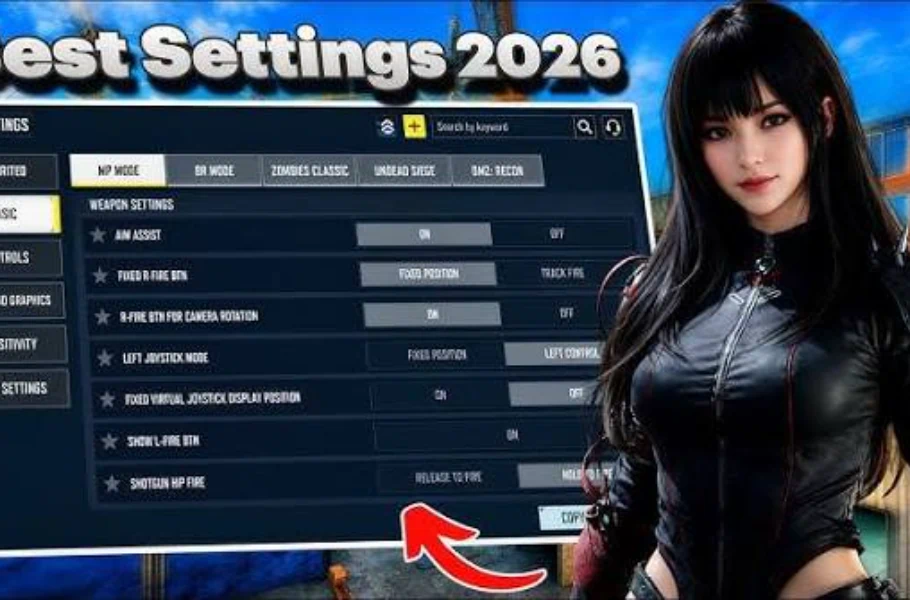
If you are still using default Call Of Duty:Mobile settings in Season 6, you are putting yourself at a significant disadvantage. The difference between an average player and a high-level competitor often comes down to optimized settings and hidden configurations that many players overlook. In this guide, we dive into every setting required to dominate the battlefield—from sensitivity and graphics to pro-tier Battle Royale setups.
Table of contents
Combat & Reaction Settings
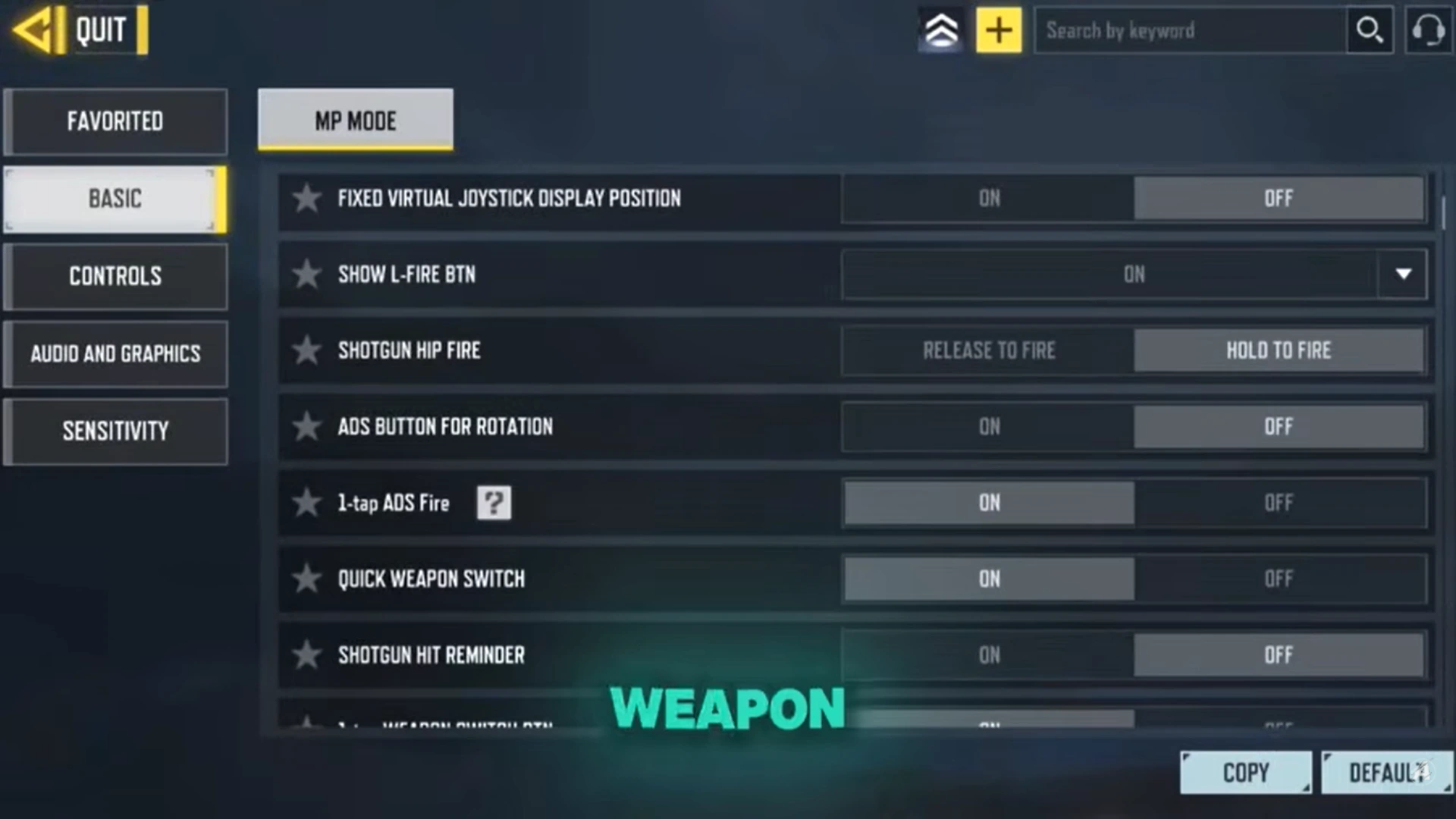
Every millisecond counts in a gunfight. These base settings are essential for maximizing your reaction time and aim consistency:
- Aim Assist: Always keep this enabled. It provides the consistency needed for mid-range and close-quarter combat.
- ADS Fire: Enable “One-tap ADS Fire.” For 3 or 4-finger HUD users, this is a game-changer. It ensures your gun starts shooting the moment you press the fire button, even before the scope is fully open.
- Weapon Switch: Enable “Quick Weapon Switch.” If you frequently use snipers or switch between primary and secondary guns, adding the dedicated “One-tap weapon switch” button to your HUD makes swapping gear much faster and more reliable.
- ADS Mode: Use “Tap and Hold to ADS.” This configuration offers smoother movement and better control during intense firefights.
Movement & FOV Optimization
Precise movement control is the key to winning competitive matches:
- FOV (Field of View): We recommend keeping your FOV between 70 and 80. Going higher makes enemies at long distances too small to track, while going lower severely limits your peripheral vision.
- Always Sprint: In competitive modes like Search and Destroy, consider disabling “Always Sprint.” By keeping your sprint sensitivity around 70, you can subtly move your joystick to walk quietly, preventing enemies from hearing your footsteps.
- Slide Hint: Always keep this enabled. It shows exactly when you are able to slide, preventing accidental crouching in the middle of a gunfight.
Ready to dominate with the Mythic FSS Hurricane Shadow and Shade? Having the right settings is only half the battle—the rest is having the right gear. Don’t let your loadout fall behind. Secure your PSN Gift Cards at G4A4 Store today for the best prices and instant delivery. Unlock the draw, claim your rewards, and max out your Mythic weapon to Level 5 right now.
Graphics & Visual Clarity
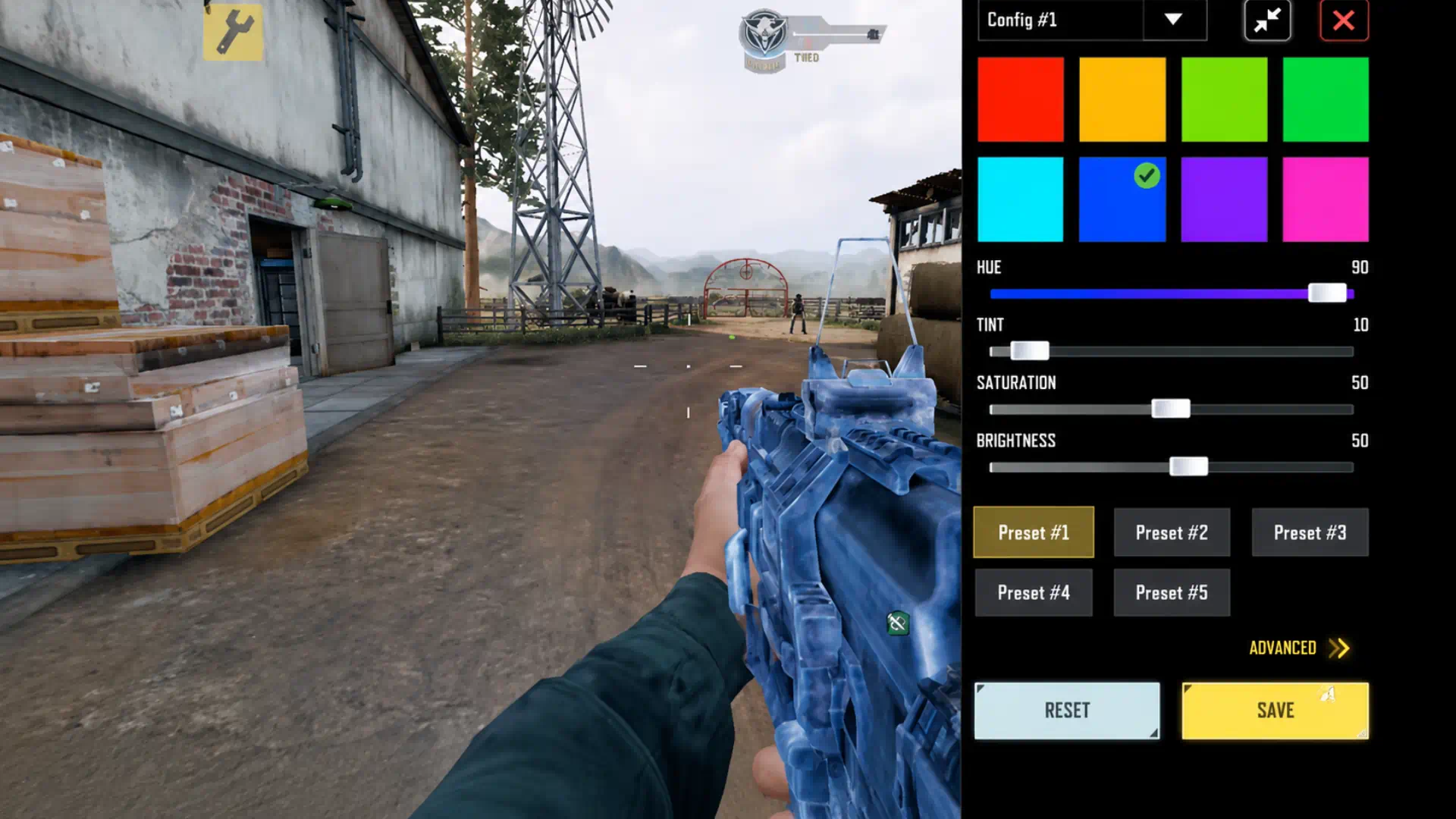
Optimizing your graphics profile isn’t just about visuals; it’s about spotting enemies faster:
- Color Profile: Using an optimized color profile helps characters stand out against the background. You can enter the color values manually or use pre-configured codes from reliable community sources to track enemies with ease.
- Hit Effect: This is a setting many players ignore. Personally, using “Yellow” instead of the default red is less distracting during chaotic gunfights, helping you maintain focus when there is a lot of action on the screen.
Audio, BR & Gyroscope
- Audio: Turn “Ambient Volume” all the way down. Background sounds like wind or birds do not provide tactical value and often drown out critical audio cues like enemy footsteps.
- Battle Royale: Use specialized BR color profiles to improve visibility across vast maps.
- Gyroscope: If you do not play with Gyro, ensure all gyroscope sensitivities are set to zero. This prevents accidental aim drift while keeping your preferred control layout.
Related article:Mythic FSS Hurricane Shadow and Shade Draw Review: A New COD Mobile Masterpiece
Conclusion
Small changes in your settings can yield massive improvements in your gameplay performance. By applying these configurations, which are utilized by top-tier players, your reaction speed and aiming accuracy will see a significant boost. We recommend testing these changes in the Practice Range to build muscle memory before jumping into ranked matches.






FAQ
Yes, especially in modes like Search and Destroy. Disabling it gives you the ability to move silently, which is vital for flanking enemies without being heard.
Aim for 70 to 80. This provides the best balance between seeing your surroundings and ensuring enemies in the distance remain visible enough to track.
Red is a common color in game environments and can blend in with blood effects or map textures. Yellow offers higher contrast, ensuring you always get clear visual feedback when you land a shot.