
Steam is one of the most popular gaming platforms for PC players, offering access to thousands of games, community features, and the Steam Community Market. However, protecting your account and accessing certain trading features requires an important security feature: Steam Guard.
In this guide, we’ll explain how to enable Steam Guard, choose between email authentication and the mobile authenticator, and safely remove it if necessary. You’ll also learn how Steam Guard affects trading and the Community Market, so you can keep your account secure while enjoying everything Steam has to offer. For trusted gaming products and secure delivery, you can also explore the services available at Item4Gamer.
Table of contents
Unlike Game Keys and CD Keys, Steam Gift Cards add funds directly to your Steam Wallet, giving you the freedom to purchase any eligible game, DLC, or in-game content you want. Buy your Steam Gift Card from Item4Gamer and enjoy a convenient purchase experience with secure delivery and online suppor🔥
What Is Steam Guard and Why Is It Important?
Steam Guard is an additional security layer that helps protect your Steam account through two-factor authentication (2FA). When it is enabled, Steam asks you to verify your identity whenever you sign in from an unrecognized device.
Depending on your security settings, the verification code is either sent to your registered email address or generated through the Steam Mobile app. This means that even if someone knows your password, they may still be unable to access your account without the additional verification code.
For gamers, Steam Guard is especially important because Steam accounts can contain valuable games, in-game items, wallet funds, and trading inventory. Keeping your account protected helps reduce the risk of unauthorized access and item theft.

How Is Steam Guard Related to the Steam Market?
If you want to buy or sell eligible items through the Steam Community Market or trade items with other players, your account must meet certain requirements. Steam applies these restrictions to protect users and prevent unauthorized transactions.
Here are some of the most important requirements:
Steam Guard Must Be Enabled: Steam Guard must be active on your account. If it has recently been enabled, you may need to wait before accessing the Community Market.
The 15-Day Requirement: Steam generally requires Steam Guard to have been enabled for at least 15 days before you can use the Community Market. Disabling and re-enabling Steam Guard can trigger a new restriction period.
A Qualifying Steam Purchase: Your account must have a successful purchase that is more than 7 days old but less than one year old. Simply redeeming a Steam Wallet gift card does not satisfy this Community Market requirement.
An Eligible Account: Your account must also meet Steam’s account eligibility requirements. For example, limited accounts need to spend at least $5 USD directly through Steam to unlock certain community features, including adding friends.
Keep in mind that meeting one requirement does not automatically remove every restriction. Steam may apply additional limitations depending on your account activity, security settings, and purchase history.
How to Enable Steam Guard on Your Steam Account (Mobile and Email)
Setting up Steam Guard is simple, and you can choose between email authentication and the Steam Mobile Authenticator. However, using the mobile authenticator provides an additional layer of security and allows you to approve sign-ins and confirm eligible trades directly from your phone.
Follow these steps to enable Steam Guard:
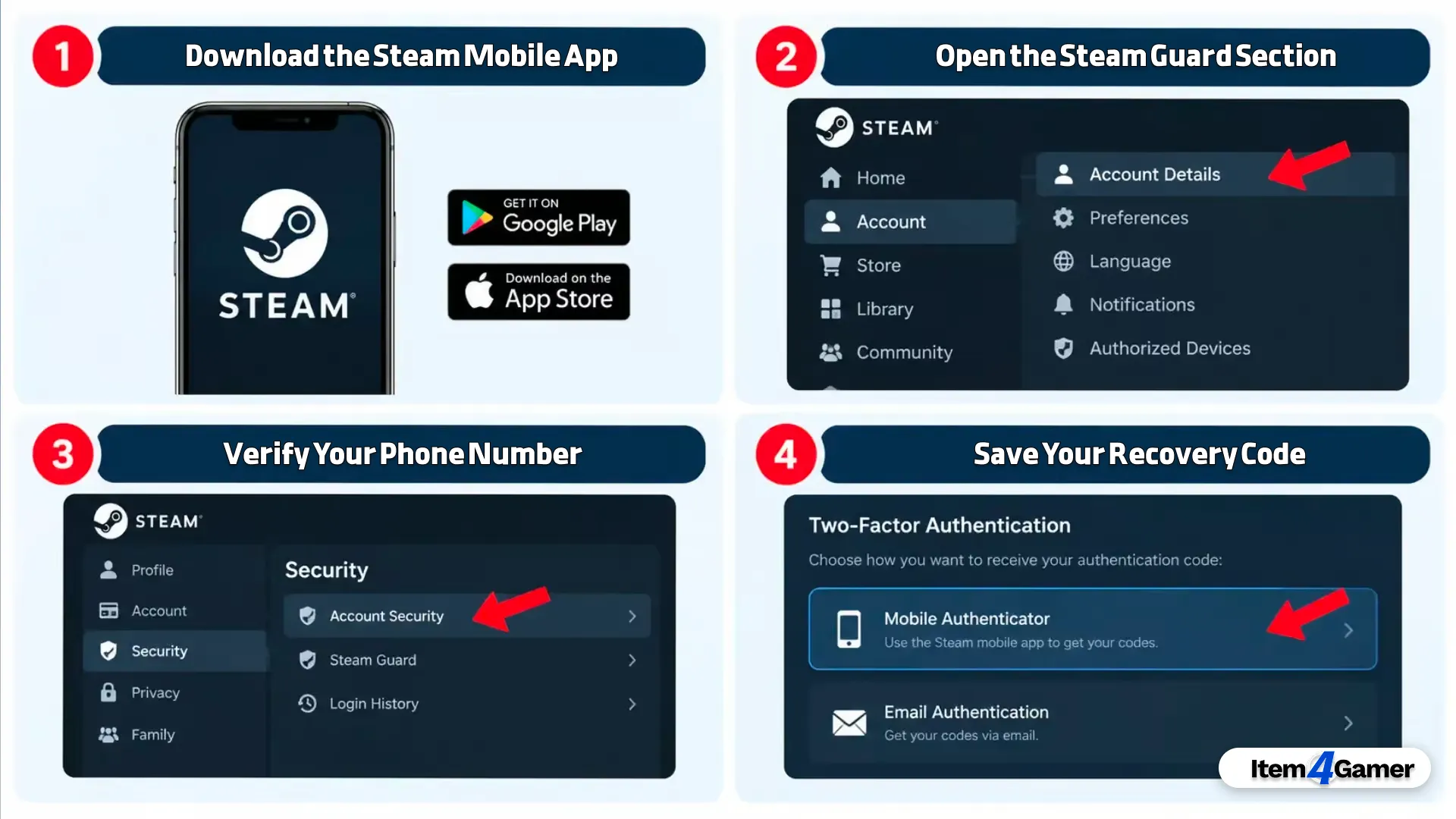
Step 1: Download the Steam Mobile App
Download and install the official Steam Mobile app on your Android or iOS device. Open the app and sign in using your Steam account credentials.
Step 2: Open the Steam Guard Section
After signing in, navigate to the Steam Guard tab in the mobile app. Select the option to add an authenticator and begin the setup process.
Step 3: Verify Your Phone Number
Steam may ask you to enter a phone number that can receive text messages. Enter your number and follow the instructions to verify it using the SMS code sent by Steam.
Step 4: Save Your Recovery Code
Once your phone number is verified, Steam will provide a recovery code. Save this code somewhere secure. You may need it if you lose access to your phone or need to recover your authenticator.
Never share your recovery code or Steam Guard verification codes with anyone.
How to Enable Steam Guard Through Email
If you prefer email authentication, you can enable it through the Steam desktop client:
- Open the Steam client and sign in to your account.
- Click Steam in the top-left corner and select Settings.
- Open the Security section.
- Select Manage Steam Guard.
- Choose Get Steam Guard codes by email.
Make sure your email address is verified and that you can access its inbox. Steam will send verification codes to this address when you sign in from an unrecognized device.
Gamer Tip: For stronger account protection, consider using the Steam Mobile Authenticator. It generates unique verification codes and lets you approve sign-in attempts and eligible market transactions through your phone.
What Happens When You Disable Steam Guard?
Some users consider disabling Steam Guard to make signing in easier. However, removing this security feature can affect both account protection and access to Steam trading features.
Here are the main consequences of disabling Steam Guard or removing the Mobile Authenticator:
Reduced Account Security: Your account will lose an important layer of protection, making unauthorized access more difficult to prevent.
Steam Market and Trading Restrictions: Removing the Steam Guard Mobile Authenticator triggers a 15-day restriction on trading and selling items through the Community Market.
Additional Waiting Periods: If you disable Steam Guard and later enable it again, Steam may apply a new 15-day restriction before restoring Community Market access.
For these reasons, it is generally better to keep Steam Guard enabled. If you are switching phones, transferring your authenticator to the new device is usually a better option than removing it.
Conclusion
Steam Guard is an essential security feature for anyone who wants to protect their Steam account, games, wallet balance, and valuable in-game items. Whether you choose email authentication or the Mobile Authenticator, keeping this feature enabled helps reduce security risks and protects your account from unauthorized access.
If you plan to use the Steam Community Market or trade items, make sure your account meets all of Steam’s requirements before attempting a transaction. Avoid disabling your Mobile Authenticator unless absolutely necessary, and always keep your recovery code in a safe place.
At Item4Gamer, you can explore a range of trusted gaming products with secure delivery and online support, making it easier to get the digital products you need for your gaming experience.
Related article: How to Activate a Game Key on Steam (Quick & Easy Guide)






Frequently Asked Questions (FAQ)
No. Removing the Steam Guard Mobile Authenticator places a 15-day restriction on trading and selling items through the Steam Community Market. You should keep in mind that enabling the authenticator again does not automatically remove an existing restriction.
Having Steam Guard enabled for 15 days and being able to add friends are not the only requirements. Your account must also have a qualifying Steam purchase that is more than 7 days old but less than one year old. Redeeming a Steam Wallet gift card does not count as a qualifying purchase for Community Market access.
No. Steam Guard is completely free to use. You do not need to pay anything to enable email authentication or the Mobile Authenticator. The $5 requirement is related to removing limited account restrictions and unlocking certain Steam community features. It is separate from the Steam Guard activation process.