
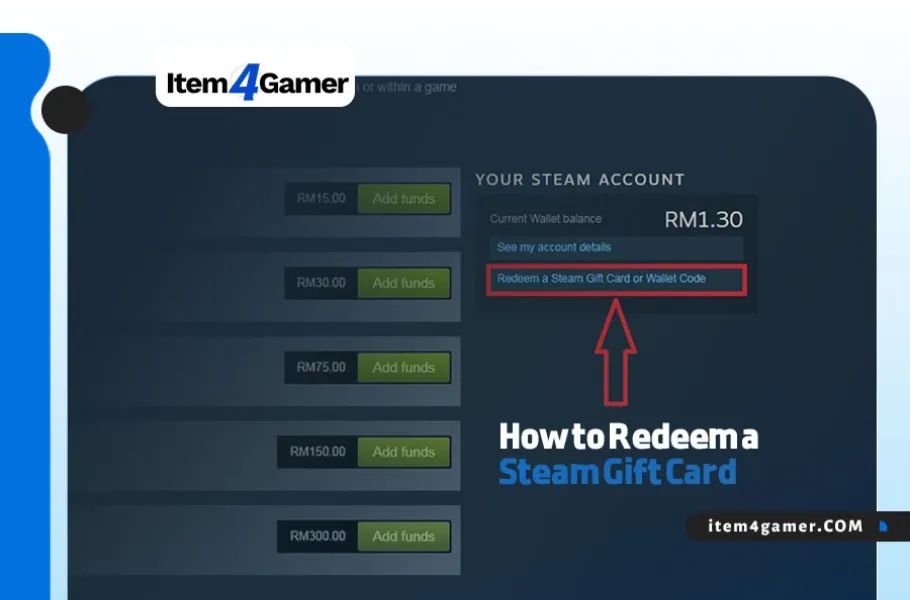
Steam is one of the most popular platforms for PC gaming, offering a huge library of games, automatic updates, cloud saves, multiplayer features, and a vibrant gaming community. To enjoy everything Steam has to offer, you need funds in your Steam Wallet to purchase games, downloadable content (DLC), and in-game items.
One of the easiest ways to add funds to your account is by redeeming a Steam Gift Card or Wallet Code. In this guide, Item4Gamer walks you through how to redeem a Steam Gift Card step by step, helping you add funds to your Steam Wallet and avoid common redemption issues.
Table of contents
Important Things to Know Before Redeeming a Steam Gift Card
Before following the steps in this Steam Gift Card redemption guide, keep these important points in mind to make sure your code works correctly:
Check Your Steam Wallet Currency: Steam Wallet Codes are converted into the currency of your Steam Wallet when redeemed. The final balance may therefore appear in a different currency from the one printed on your gift card. You can check your current wallet currency in your Steam Account Details.
Understand Your Steam Store Country: Your Steam Store country is based on your actual country of residence and applicable payment methods. A Steam Wallet Code cannot be used to change your Store country. If you have moved to another country, follow Steam’s official country-change process.
Choose a Compatible Gift Card: Before purchasing a code, check its value, currency, and any restrictions stated by the seller. Item4Gamer provides gaming products and digital gift cards, helping players find a suitable option for their gaming needs.
Use Your Own Account Details: Always redeem the code while signed in to the Steam account you want to top up. Never share your password, Steam Guard code, or Wallet Code with someone you do not trust.
Looking to add funds to your Steam Wallet? With a Steam Gift Card, you can easily top up your account and purchase your favorite games, DLCs, and in-game content. Explore the available Steam Gift Cards at Item4Gamer and enjoy secure delivery and online support 🔥
Step-by-Step Guide to Redeem a Steam Wallet Code
You can redeem a Steam Gift Card or Wallet Code through either the Steam desktop client or the official Steam website. The process is almost identical on both platforms.
Sign In to Your Steam Account: First, open the Steam client or visit the official Steam website at https://store.steampowered.com/. Click Login and sign in to the account you want to top up.
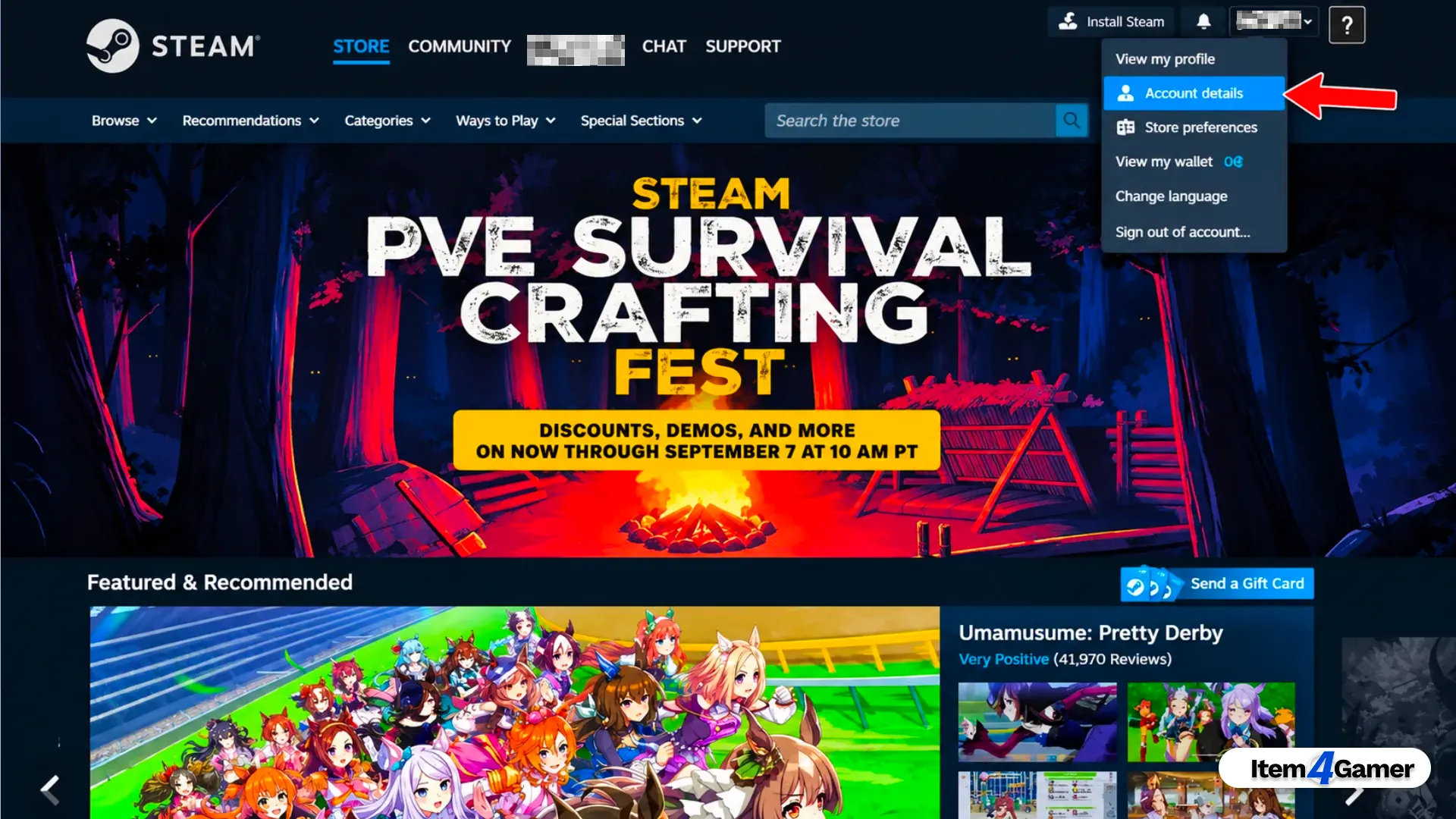
Open Your Account Details: Click your profile name in the upper-right corner of the page, then select Account Details from the menu.
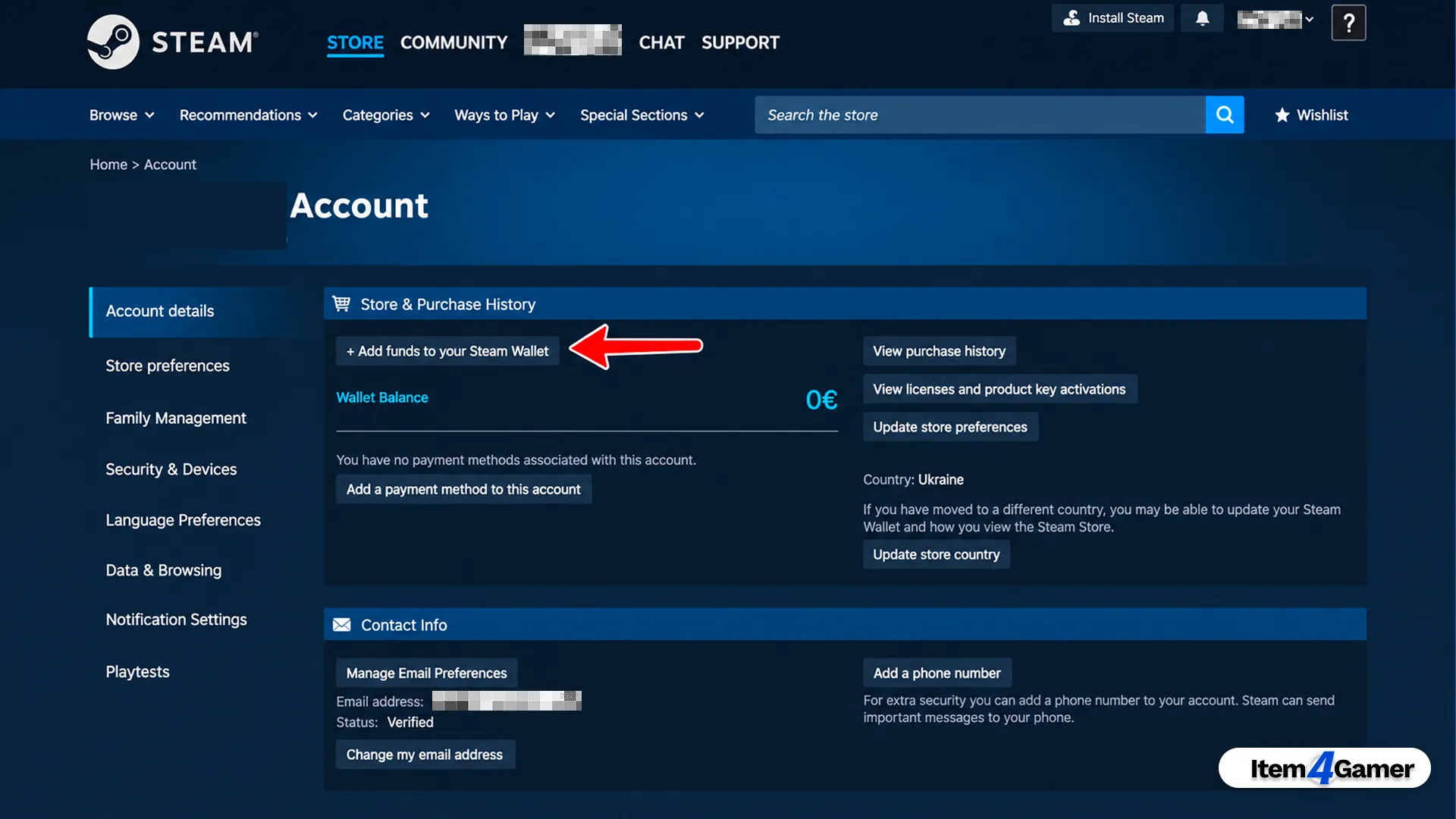
Go to the Wallet Section: On your Account Details page, select Add funds to your Steam Wallet.
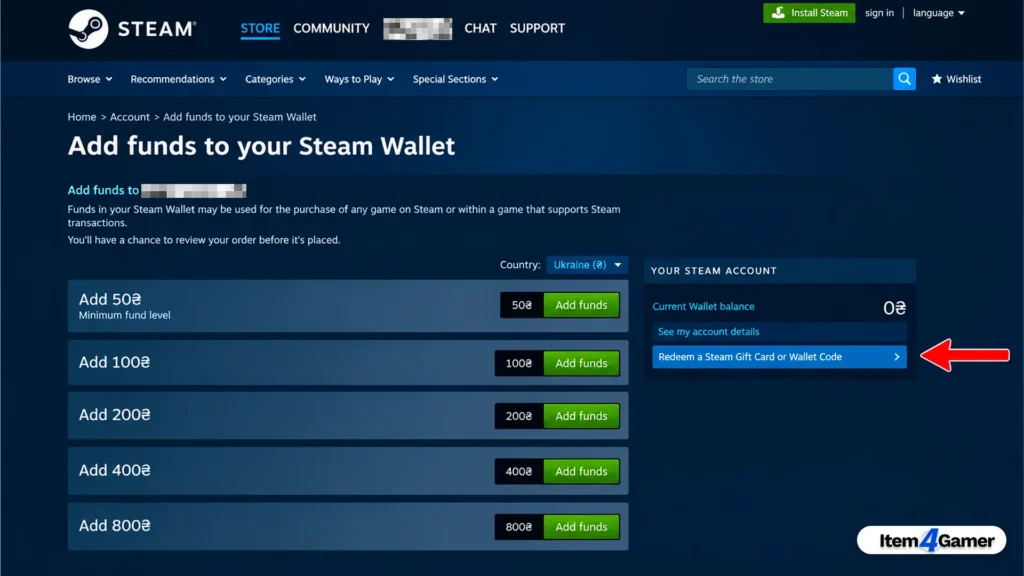
Select the Redeem Option: On the next page, choose Redeem a Steam Gift Card or Wallet Code.
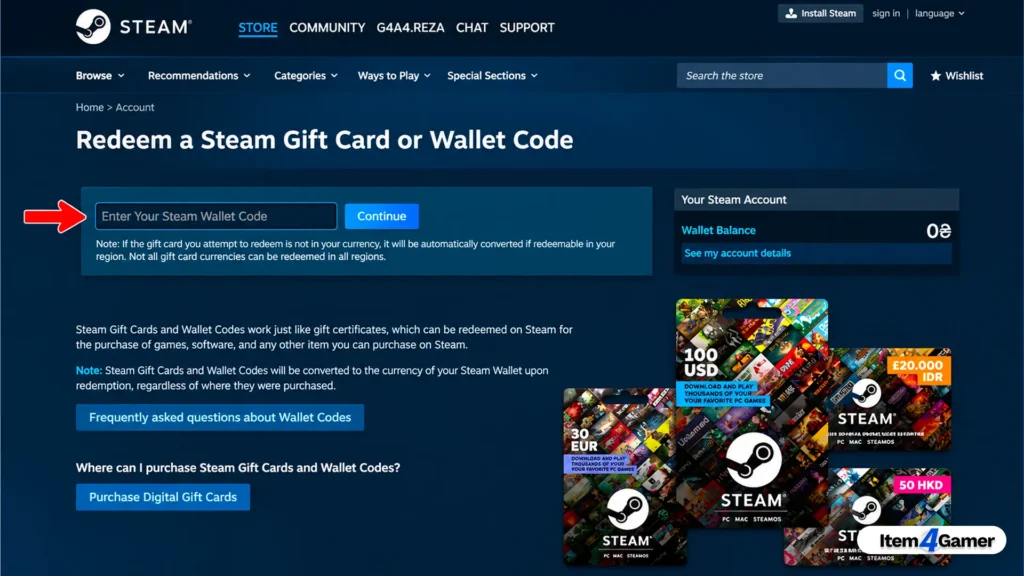
Enter Your Wallet Code: Carefully type or paste the digital code you purchased into the designated field, then click Continue. Double-check the characters before submitting the code, especially similar-looking letters and numbers.
Once the code has been accepted, the funds will be added to your Steam Wallet. You should see a confirmation message showing the amount credited to your account.
An Important Note for New Steam Accounts: Billing Address
In some situations, Steam may request billing information during a purchase. If this happens, provide accurate billing details that match your actual residence and payment method.
A billing address is not a standard requirement for redeeming every Steam Wallet Code. If Steam does not request this information during redemption, you do not need to enter an address.
If you are making a purchase and Steam asks for billing details, you may see fields such as:
Street Address: Your street name and building address.
City: Your city of residence.
State/Province: Your state, province, or region, if applicable.
Country: Your actual country of residence.
ZIP or Postal Code: The postal code associated with your billing address.
Always use accurate information. Do not enter a random or fabricated address, and do not attempt to change your Steam Store country by providing incorrect details.
What Can You Use a Steam Gift Card For?
Once you have funds in your Steam Wallet, you can use them to access a wide range of features and content on the platform:
Unlocking Limited Account Features (Add Friends): New Steam accounts may have limited access to certain community features. To remove these restrictions, an account must spend at least $5 USD on Steam. Adding the equivalent of $5 or more to your Steam Wallet with an eligible Wallet Code can count toward this requirement. Simply receiving a digital gift card from another user does not count.
Buying Games Directly: Browse Steam’s extensive game library and purchase your favorite titles using your available Wallet balance.
Purchasing In-Game Items: If you play games such as Dota 2 or Counter-Strike 2, you can use your Steam Wallet funds to purchase eligible in-game content and items from the Steam Community Market.
With Item4Gamer, you can explore digital gaming products and gift cards that make it easier to enjoy your favorite games.
How to Check Your Steam Wallet Balance
After redeeming your code, you can check your Steam Wallet balance in a few simple ways:
On the Steam Website or Desktop Client: Open Account Details from your profile menu. Your current Steam Wallet balance will be displayed on the account page.
On the Steam Mobile App: Open the Steam app, go to your account or wallet details, and check the available Wallet balance. The exact menu layout may vary depending on your app version.
Related article: How to Create a Steam Account: Quick Step-by-Step Guide
Conclusion
Redeeming a Steam Gift Card is a simple way to add funds to your Steam Wallet and purchase games, DLC, and eligible in-game content. By following the steps in this guide and checking your account details before redeeming a code, you can complete the process with greater confidence.
Whether you are adding funds for a new game or preparing to purchase your next in-game item, choosing a reliable seller matters. Item4Gamer offers digital gaming products, secure delivery, and online support to help make your gaming purchases more convenient.






Frequently Asked Questions (FAQ)
This error can occur for several reasons, including entering an incorrect code, using a code that has not been activated by the retailer yet, or experiencing a temporary Steam issue. Carefully re-enter the code and check similar-looking characters. If the problem continues, contact the retailer or Steam Support.
Steam Wallet Codes are converted into the currency of your Steam Wallet when redeemed. For example, if your Steam Wallet uses USD, a code purchased in another currency may be converted and displayed as a USD balance. This does not necessarily mean your Steam Store country has changed.
Steam Gift Cards and Wallet Codes generally do not expire. However, it is a good idea to redeem your code after purchase and keep your purchase receipt until the funds have been successfully added to your Steam Wallet.