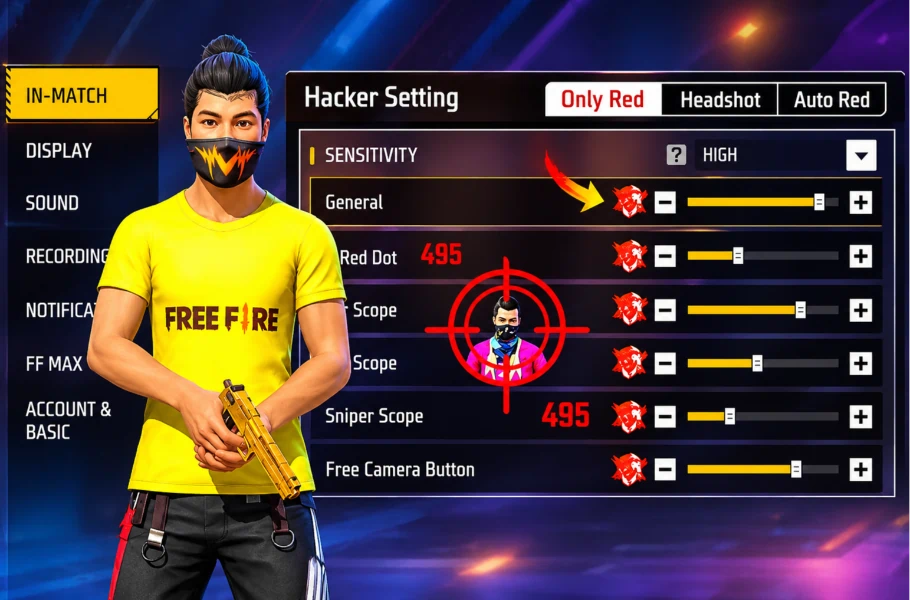
Every Free Fire player knows the frustration: an enemy suddenly pops up right in front of you, your crosshair goes everywhere, and instead of a clean one-tap headshot, your bullets just hit body armor. If you are tired of missing your shots and want your crosshair to lock onto heads like a pro player, getting your Free Fire Headshot Sensitivity and custom settings right is everything. In this guide, we break down five secret steps to level up your accuracy.
Table of contents
Step 1: Optimize Your Display Settings

If your game lags or drops frames, your crosshair will never move smoothly. Head to Free Fire’s Settings and configure Display:
Graphics Settings by RAM
- 1GB to 4GB RAM phones: Set Graphics to Smooth to avoid lag and freezing. Avoid Standard or Ultra.
- 6GB to 12GB+ RAM phones: You can use Standard or Ultra, but keeping it on Standard is recommended for stable performance. Wait three seconds and hit OK.
High FPS & Experimental Frame Rate Boost

- Set High FPS to High and confirm.
- If you use DPI settings, turn Experimental Frame Rate Boost OFF. If you don’t use DPI, turn it ON.
Other Display Settings
- HD Textures: ON
- Visual Effects: OFF
- Notch Screen: OFF
- Lobby Style: Classic
- Display Your Own Lobby: OFF
- Display Team Leaders’ Lobby: OFF
- Zero Scope Effect in Lobby: OFF
Step 2: Enable Quick Weapon Switc
Manual switching ruins your reaction time and aim control.
- Go to Controls.
- Turn Quick Weapon Switch ON.
- Open Custom HUD and place the button where your fingers can easily reach it (e.g., top area for three-finger players).
- Use this button instead of manual slot tapping to switch guns instantly during intense fights.
Step 3: Find the Perfect Fire Button Size and Position
Your fire button must fit your thumb ergonomically:
Button Size
Hold your phone normally and place your thumb over the Fire Button. Your thumb should cover it completely. Adjust the size up or down until it fits your thumb precisely without sticking out or getting lost.
Button Position
Do not copy other YouTubers blindly. When a panic situation hits, your thumb will automatically move to where you are used to tapping. Place your Fire Button right where your thumb naturally rests.
Step 4: Master Aim Lock for Perfect Headshots
Knowing how your crosshair color and drag mechanics work is crucial for landing consistent headshots with proper Free Fire Headshot Sensitivity:
Short-Range Aim Lock
- Keep your aim low, near the enemy’s legs.
- Ensure your aim indicator is WHITE (never use red at close range initially).
- Perform a fast rotational drag upward toward the enemy’s head to lock on.
Mid-Range Aim Lock
- Keep your aim indicator WHITE for better consistency.
- Position your aim correctly and execute a smooth rotational drag toward the head.
Long-Range Aim Lock
- Set your aim indicator to RED on the enemy’s body.
- If the enemy is standing still, drag straight up. If they are moving, drag in their movement direction.
Step 5: Best Character Combination for Headshots
- D-Bee: Improves accuracy while moving and boosts movement speed.
- Hayato: Increases armor penetration damage against protected enemies.
- Jota: Restores HP instantly when you knock down enemies.
- Wukong: Perfect for camouflage, resetting fights, and close-range ambushes.
Related article:Free Fire New Event Rewards Leaked!
Conclusion
Reaching pro-level accuracy takes the right tools and setup. By following these five steps, practicing your reflexes, and applying proper aim lock techniques alongside your Free Fire Headshot Sensitivity, your body shots will turn into clean one-taps. Jump into your settings right now, apply these changes, and see the difference in your next match!






Frequently Asked Questions (FAQ)
For 1GB to 4GB RAM phones, set Graphics to Smooth and enable High FPS to eliminate lag.
It should be white and positioned low near the legs so you can execute a rotational drag to the head.