Steam is one of the most popular gaming platforms for PC players worldwide. One of its most useful features is the ability to request refunds for eligible game purchases. If you’ve changed your mind about a game or purchased something by mistake, there’s no need to worry. In this guide, we’ll explain how to refund a game on Steam and walk you through the entire process step by step.
Whether you’re dealing with an accidental purchase, performance issues, or simply a game that didn’t meet your expectations, Steam provides a straightforward refund system. However, you need to understand Valve’s refund policy and eligibility requirements before submitting your request.
Table of contents
Important Requirements for Steam Game Refunds
Before submitting a refund request, make sure you understand Steam’s main eligibility requirements. The standard refund policy for games and software applications includes the following conditions:
1. The 14-Day Purchase Window
Your refund request should be submitted within 14 days of purchasing the game. Requests made after this period may not qualify under the standard refund policy.
2. The 2-Hour Playtime Limit
You must have played the game for less than two hours. This includes online, offline, and shared library playtime. You can check your total playtime by opening your Steam Library and selecting the game.
3. VAC Ban Restrictions
If your account has received a Valve Anti-Cheat (VAC) ban in a particular game, you lose the right to request a refund for that game.
Important Note: Steam’s standard refund policy does not cover CD keys or game codes purchased from third-party retailers. If you activated a game using an external product key, you’ll need to contact the original seller regarding its refund policy.
Even if your purchase doesn’t meet the standard 14-day and 2-hour requirements, you can still submit a refund request. Steam Support will review it, although approval is not guaranteed.
If you’re looking for a convenient way to add funds to your Steam Wallet and purchase your favorite games, DLCs, and in-game content, a Steam Gift Card is a great option. You can redeem your gift card directly on your Steam account and use the available balance to shop on the Steam Store. Explore the available Steam Gift Cards at Item4Gamer and find the right option for your gaming needs.🛒
Step-by-Step Guide to Request a Steam Refund
To better understand how to refund a game on Steam, follow the steps below in the Steam Client:
First, open the Steam Client and log in to your account.
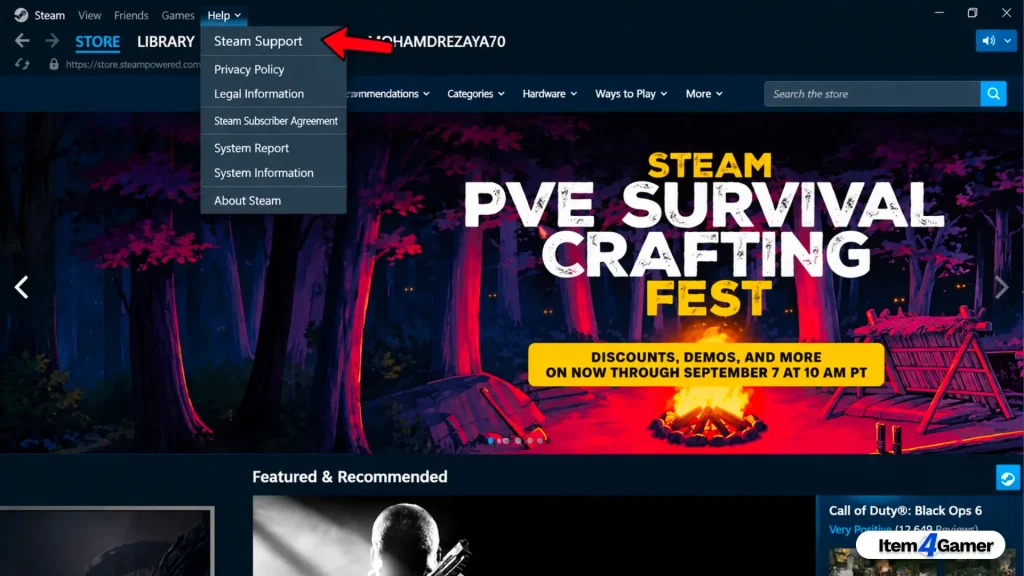
1. From the top menu, click Help, then select Steam Support.
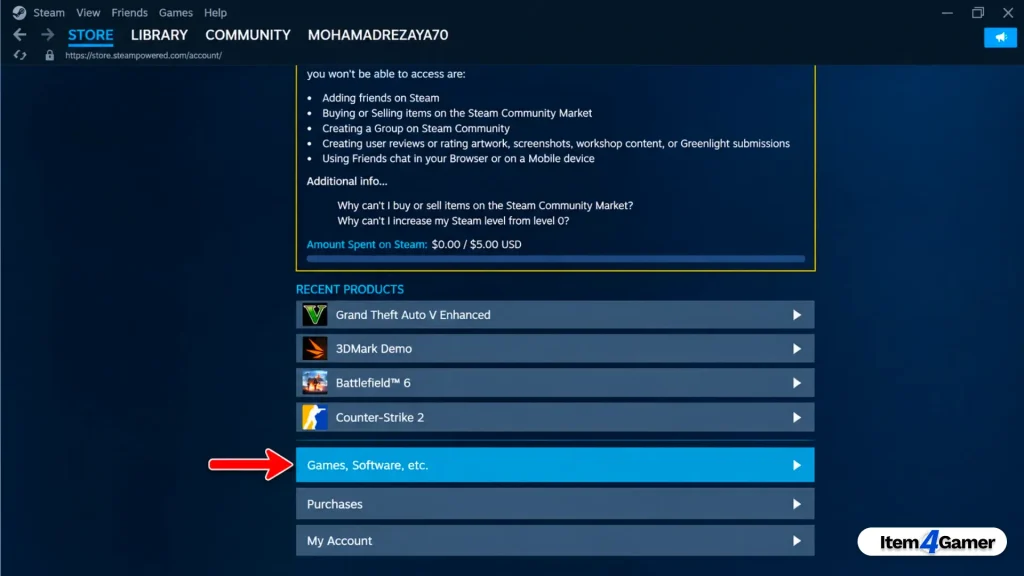
2. On the page that opens, click Games, Software, etc. Find the game you want to refund in the list and select it.
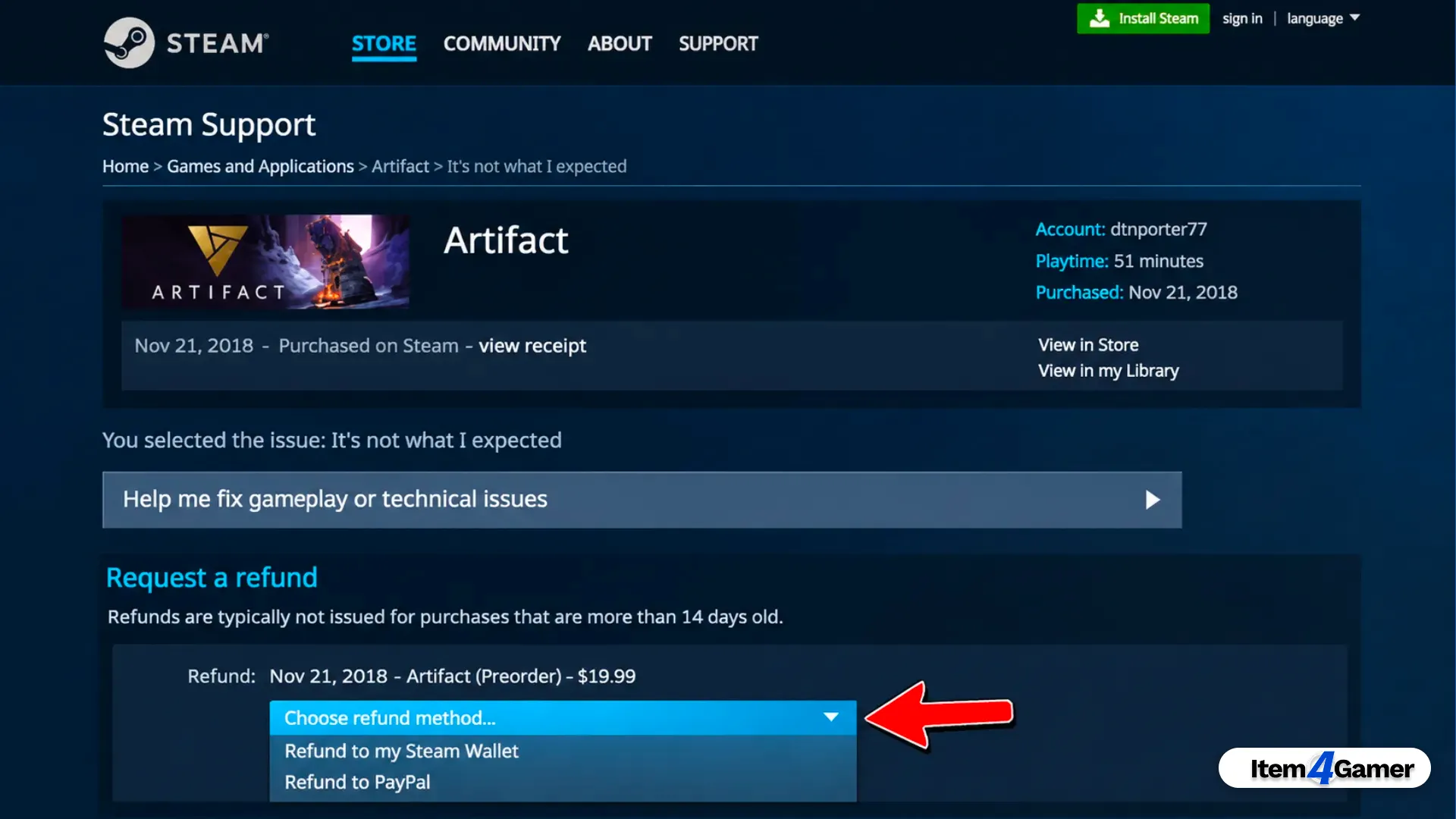
3. Click I would like a refund. On the next page, select I’d like to request a refund.
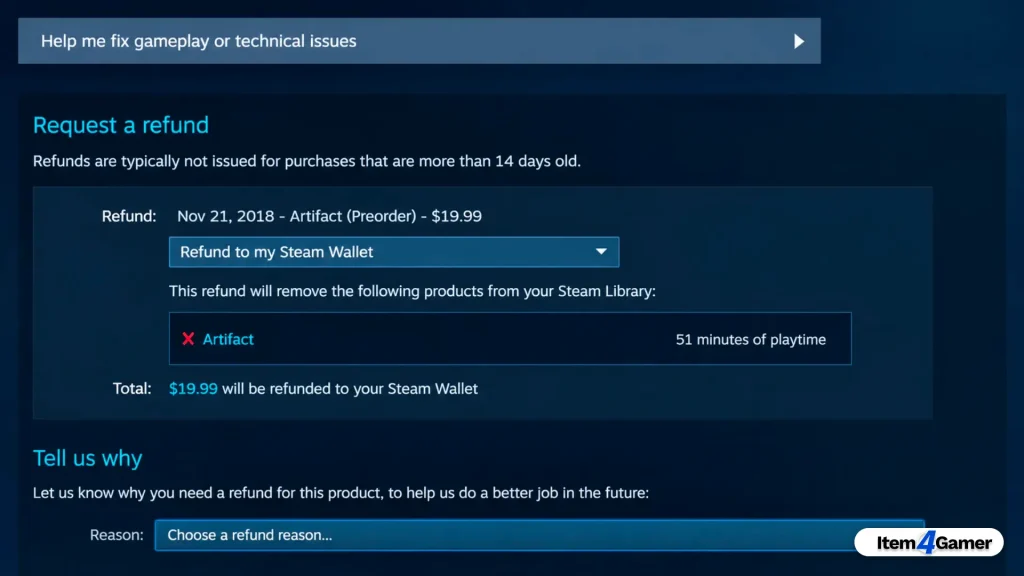
4. Choose your preferred refund method. Select Refund to my Steam Wallet if you want the refunded amount credited to your Steam Wallet.
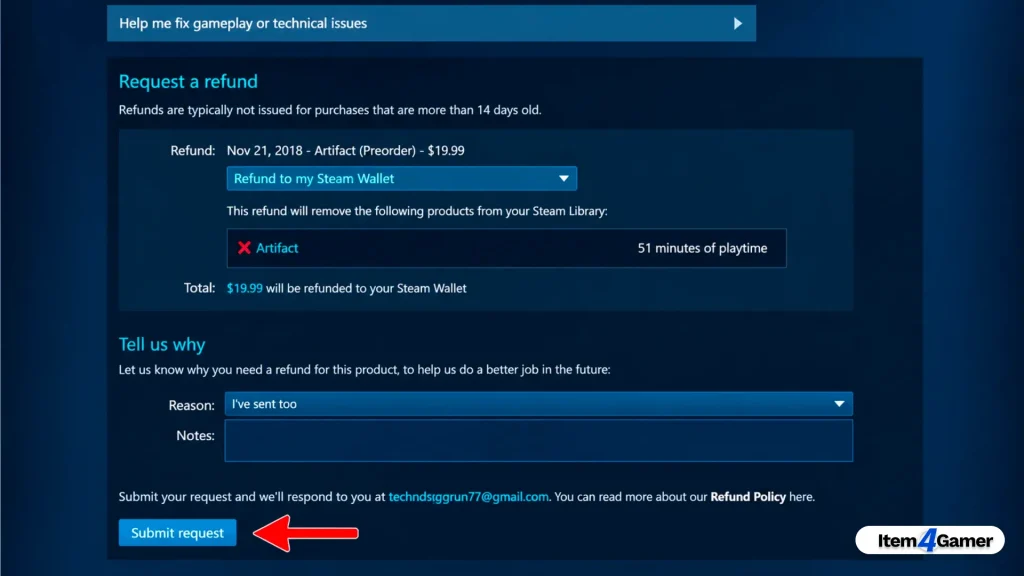
5. Under Reason, select the reason for your refund from the dropdown menu, such as poor gameplay or accidental purchase. Adding extra comments is optional.
6. Finally, click Submit request to send your refund request.
Steam will send you a confirmation email once your request has been submitted. The review process may take anywhere from a few hours to several days. If approved, the refund will be issued through your selected payment method.
Steam Refund Rules for DLCs and In-Game Items
Steam’s refund policy also covers certain DLCs and in-game purchases, but different conditions apply depending on the type of content.
DLC Refunds
DLC purchased directly from the Steam Store may be eligible for a refund if:
- The DLC was purchased within the last 14 days.
- The base game has been played for less than two hours since the DLC purchase.
- The DLC has not been consumed, modified, or transferred.
Some third-party DLCs cannot be refunded, especially when they make permanent changes to a game. For example, DLC that permanently levels up a character may be marked as non-refundable on its Store page.
In-Game Purchase Refunds
In-game purchases made in Valve-developed games may qualify for a refund within 48 hours of purchase, provided the item has not been consumed, modified, or transferred.
Third-party game developers can also choose to enable refunds for in-game purchases under similar conditions. Steam will indicate whether an item is eligible for a refund when you purchase it.
Refund Policy for Steam Gifts and Pre-Orders
After learning how to request a Steam refund, it’s also important to understand how the policy applies to gifted games and pre-orders.
Pre-Ordered Games
If you pre-purchase a game on Steam, you can request a refund at any time before its official release.
Once the game is released, the standard refund conditions apply:
- The refund request must be submitted within 14 days of release.
- Total playtime must be less than two hours.
For games that offer Early Access or Advance Access, playtime before the official release can count toward the two-hour limit.
Gifted Games
Steam gifts have specific refund requirements:
- If the gift has not been redeemed, the original purchaser can request a refund.
- If the gift has already been redeemed, the recipient must first initiate the refund and approve the removal of the game from their account.
- Once the recipient approves, the original purchaser can submit the refund request.
If approved, the refund goes back to the original purchaser, using the original payment method when supported or Steam Wallet credit when necessary.
Conclusion
Steam’s refund system makes it easier for gamers to request their money back when a purchase doesn’t meet their expectations. By understanding the Steam refund policy, including the 14-day purchase window and two-hour playtime limit, you can avoid common mistakes and submit your request correctly.
Always remember that refunds are not guaranteed outside the standard eligibility requirements, and purchases made through third-party CD keys are handled by the original seller rather than Steam.
At Item4Gamer, we understand how important a smooth and reliable gaming experience is. That’s why we offer a wide range of digital gaming products with secure delivery and online support, helping gamers make informed purchasing decisions.
Have you ever requested a refund on Steam? What was your experience? Share your questions and experiences in the comments below!
Related article: How to Activate a Game Key on Steam (Quick & Easy Guide)






Frequently Asked Questions (FAQ)
Yes. You can request a refund for a discounted game as long as it meets Steam’s standard refund requirements. You can also request a refund for a game purchased at full price shortly before a sale and buy it again at the discounted price, provided it is eligible for a refund.
No. Steam does not provide refunds for game keys purchased from third-party retailers. If you purchased a CD key and activated it on your account, you must contact the original seller to check whether a refund is possible.
You can still submit a refund request, even if you’ve played for more than two hours. However, your request will be reviewed individually, and approval is not guaranteed. Steam generally follows its standard two-hour playtime requirement.