Steam, developed by Valve, is undoubtedly one of the best platforms for PC gamers! It offers amazing features such as automatic game updates, voice and text chat, and online multiplayer with friends. If you’ve recently purchased a CD key or a random game key and want to add it to your Steam Library, you’ve come to the right place. In this guide, we’ll walk you through how to activate a game key on Steam, step by step, so you can add your favorite game to your account and start playing without unnecessary hassle.
What Is a Steam CD Key?
A Steam CD key, also known as a product key or activation code, is a unique combination of letters and numbers used to activate a game on your Steam account. These keys are often purchased from third-party retailers and allow you to add a specific game to your Steam Library. Depending on the product, a key may unlock a particular game or provide access to a random game, commonly known as a random game key.
Ready to discover more games on Steam? With a Steam Gift Card, you can add funds to your Steam Wallet and use your balance to purchase games, downloadable content (DLCs), software, and other items available on Steam. It’s a convenient way to manage your gaming budget and enjoy new releases or your favorite titles. Visit our Steam Gift Card collection at Item4Gamer to explore available options and choose the right card for your account 🔥
Why Do Gamers Use Game Keys?
Affordable Prices: Game keys are sometimes available at lower prices than purchasing games directly from the Steam Store.
Gifting: You can easily share an unused game key with a friend as a gaming gift.
Quick Access: Once successfully activated, the game is added to your Steam Library, allowing you to download and install it.
When purchasing a Steam CD key, choosing a reliable seller is important. item4gamer offers a wide selection of digital gaming products, with secure delivery and online support to help customers with their purchases.
Note: Refunds for third-party game keys are handled by the seller, not Steam. Valve cannot issue refunds for purchases made outside the Steam Store.
How to Activate a Game Key on Steam
Adding a game to your Steam account is simple. Just follow these steps:
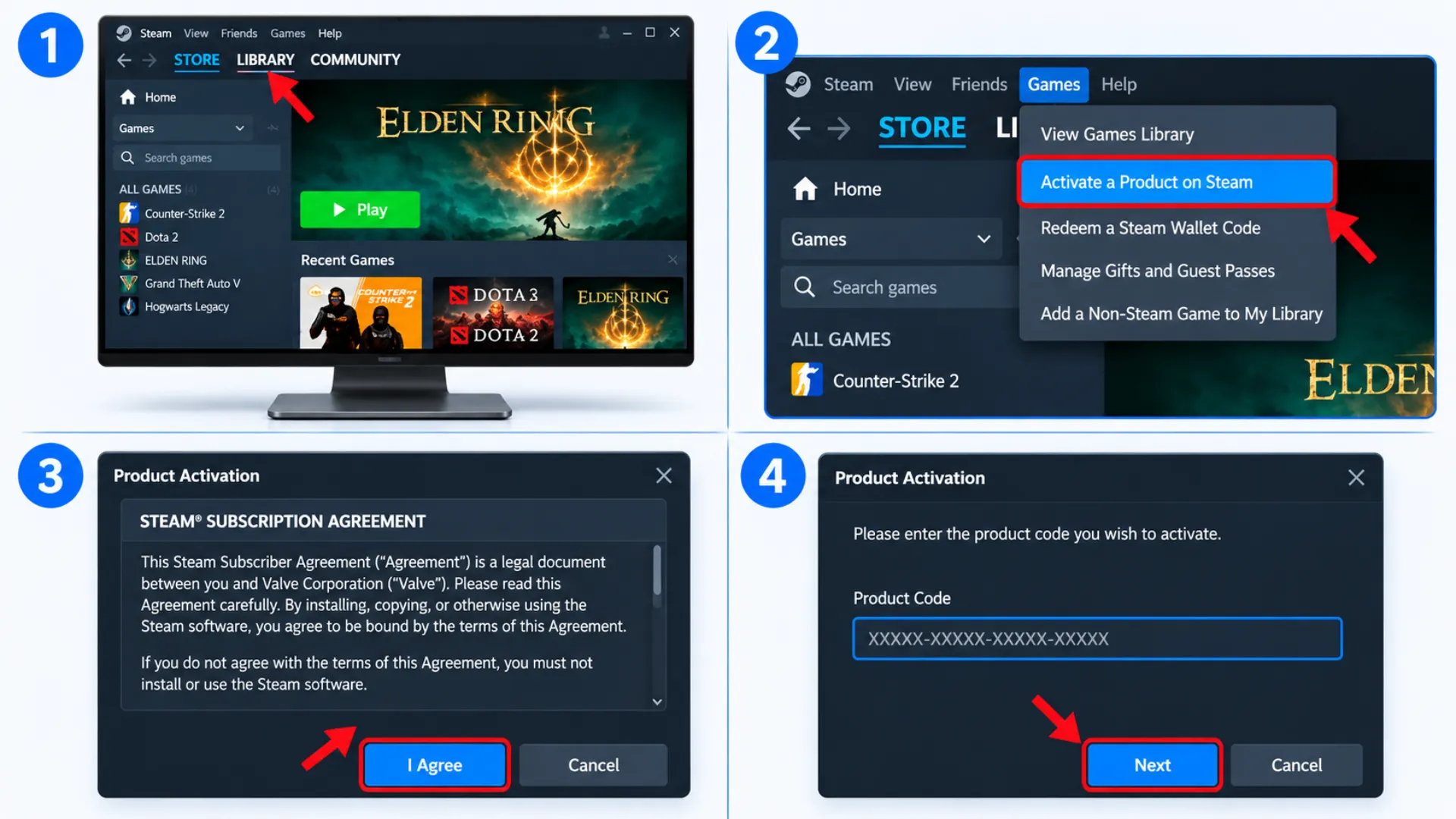
1. Open the Steam Client
Launch the Steam desktop client on your PC and sign in to your account.
2. Open the Games Menu
Click the Games tab at the top of the Steam client.
3. Select Activate a Product on Steam
From the dropdown menu, choose Activate a Product on Steam….
Alternatively, you can click + Add a Game in the bottom-left corner of the Steam client and select the same option.
4. Accept the Terms and Conditions
A new activation window will appear. Click Next, then select I Agree to accept the Steam Subscriber Agreement.
5. Enter Your Game Key
You will now see a field where you can enter your Steam CD key or product code. Carefully type or paste your code into the box and click Next.
6. Confirm Your Game Activation
If your key is valid and compatible with your account’s region, Steam will display the game associated with it. Click Finish to complete the activation process.
Congratulations! Your game has now been added to your Steam Library. You can find it in your Library, download it, install it, and start playing!
Important Tips to Keep Your Steam Keys Safe
Never Share Your Keys: Avoid sharing your unused activation codes with strangers. Once a key has been redeemed, it cannot be activated again.
Store Your Keys Securely: Keep your purchased game keys in a secure location, such as a password-protected file or a trusted cloud storage service.
Enable Steam Guard: For better account security, activate Steam Guard and use two-factor authentication to protect your Steam account.
Buy from Reliable Sellers: Avoid purchasing game keys at unusually low prices from unknown sources. Some keys may have been obtained fraudulently or may later be revoked by the publisher.
Check Region Compatibility: Before purchasing a game key, make sure it can be activated in your country. Some Steam keys have regional activation restrictions. Always check the product details before completing your purchase.
Related article: How to Create a Steam Account: Quick Step-by-Step Guide
Conclusion
In this guide, we’ve covered how to activate a game key on Steam using a simple step-by-step process. By following these instructions, you can easily redeem your CD key, add your game to your Steam Library, and get ready to play.
Remember to check your key’s validity and regional compatibility before purchasing. Choosing a reliable seller also makes your gaming experience smoother and more convenient.
At Item4Gamer, you can explore a wide range of digital gaming products and enjoy secure delivery and online support. Whether you’re looking for a new game or a digital gaming product, Item4Gamer is here to make your gaming purchases easier.
Have you encountered an error while activating your Steam key? Share your issue in the comments below and let the Item4Gamer support team help you find the right solution!






Frequently Asked Questions (FAQ)
Steam does not provide refunds for game keys purchased from third-party retailers. If you need a refund, you must contact the seller from whom you purchased the key. Steam’s refund policy applies to eligible purchases made directly through the Steam Store.
This error usually means that the game key cannot be activated in your current region. Check the product’s regional restrictions and make sure the key is compatible with your location and Steam account. If the issue persists, contact the retailer for assistance. Using a VPN to bypass Steam’s regional restrictions is not recommended and may violate Steam’s terms of service.
No. Steam CD keys are generally single-use activation codes. Once a key has been successfully redeemed on a Steam account, it cannot be used again or transferred to another account.