
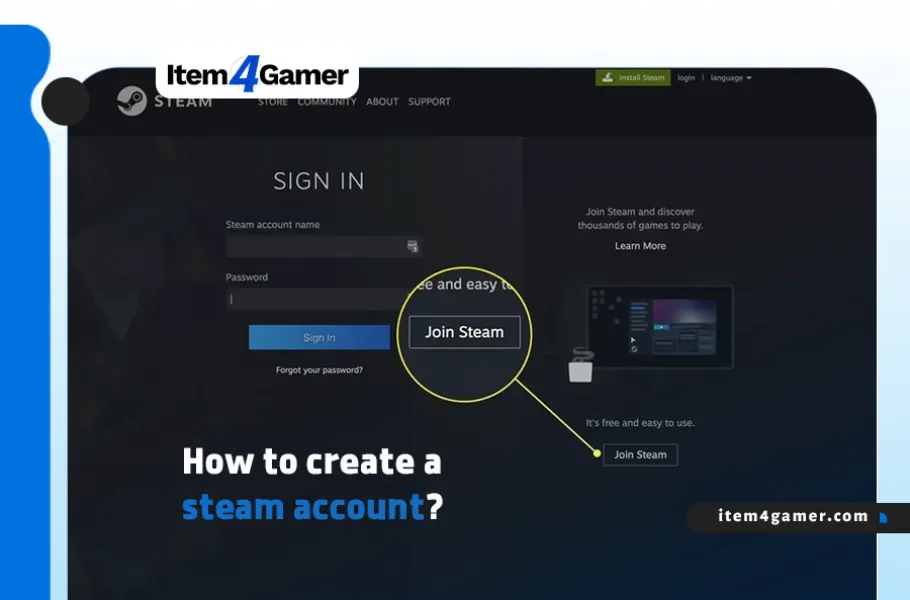
If you are a gamer who wants to explore the latest PC games, Steam is one of the first platforms you should know about. Launched by Valve in 2003, Steam has grown into one of the world’s largest digital gaming platforms and gaming communities.
With a Steam account, you can download free-to-play games, purchase popular titles, use Steam Cloud to sync supported game data, and connect with friends through chat and community features. An account is required to access most of Steam’s features.
If you are new to the platform, this guide on how to create a Steam account will walk you through the registration process on both PC and mobile. We will also cover common sign-up issues and essential account security tips. Once your account is ready, item4gamer can help you explore digital gaming products and services.
Table of contents
What Is a Steam Account and Why Do You Need One?
A Steam account is your personal identity on the Steam platform. Without signing in, you can browse the store, but you cannot access most account-based features, such as purchasing games, downloading your library, or interacting with the community.
With your own Steam account, you can:
- Download and play free-to-play and purchased games.
- Access Steam Cloud for supported games and sync compatible save data.
- Write reviews, join discussions, and share content through Steam Community.
- Upload and explore user-created content through Steam Workshop for supported games.
- Browse seasonal sales and special offers on the Steam Store.
- Build a friends list and communicate with other players.
Important Note: Avoid using shared or publicly advertised Steam accounts. These accounts may be accessed by multiple people, putting your game library and personal information at risk. Creating your own Steam account is free and gives you control over your account and purchases.
How to Create a Steam Account on PC
You can create a Steam account using any modern web browser on your desktop or laptop. Follow these steps to complete the registration process.
1. Open the Steam Sign-Up Page
Open your preferred browser and visit the official Steam account creation page:
You can also visit the Steam Store, select Login, and then choose the option to create a new account.
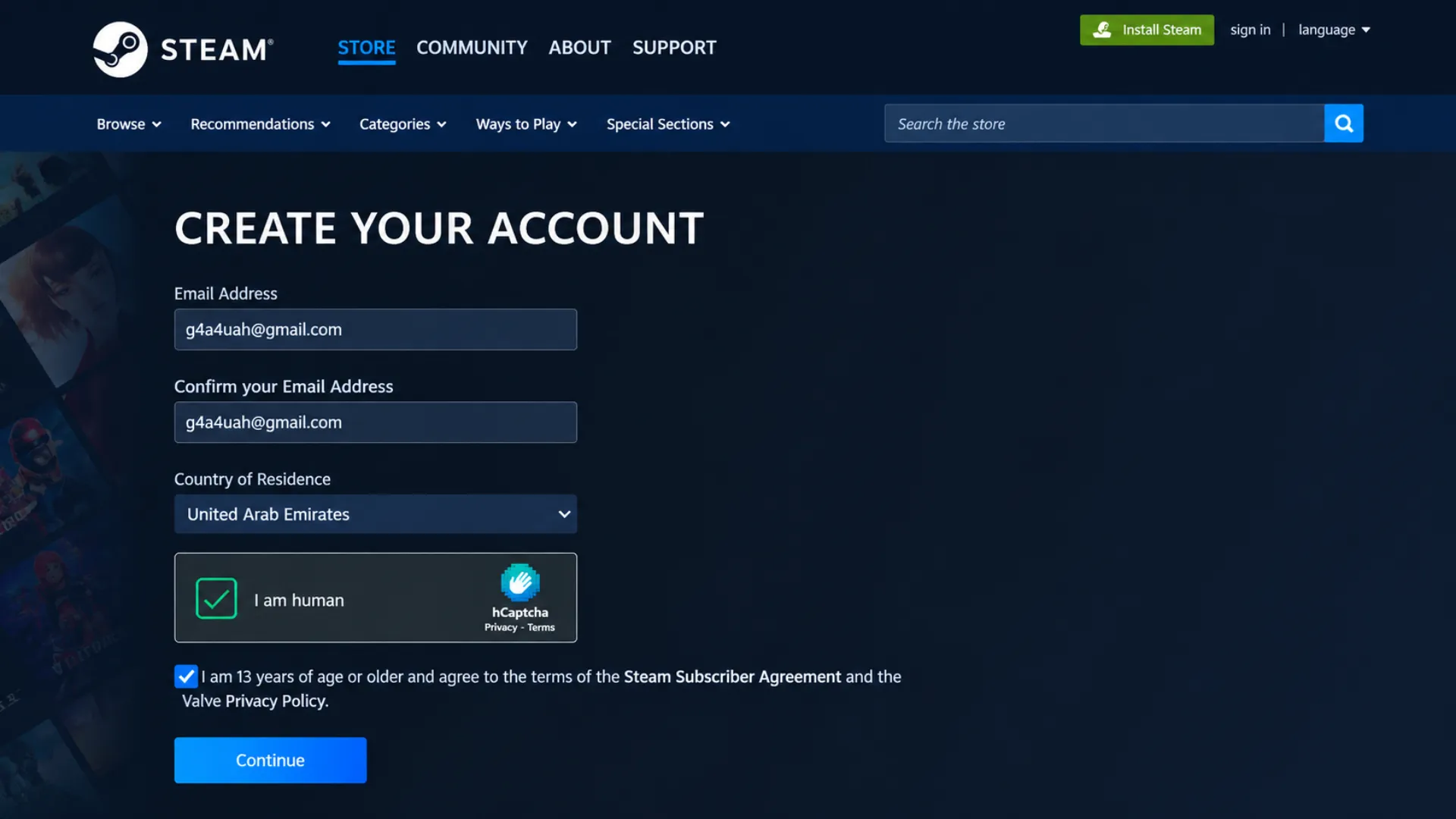
2. Enter Your Email Address and Country of Residence
On the registration page, enter a valid email address and confirm it in the required field. Then select your Country of Residence.
Make sure the selected country accurately reflects your actual country of residence. Your account country and store region can affect available payment methods, currency, and regional pricing. Do not select a different country simply to access lower prices.
3. Complete the CAPTCHA and Accept the Terms
Complete the CAPTCHA verification to confirm that you are not a bot. You must also confirm that you meet Steam’s minimum age requirement and agree to the Steam Subscriber Agreement and Privacy Policy.
Once all required fields are completed, select Continue.
4. Verify Your Email Address
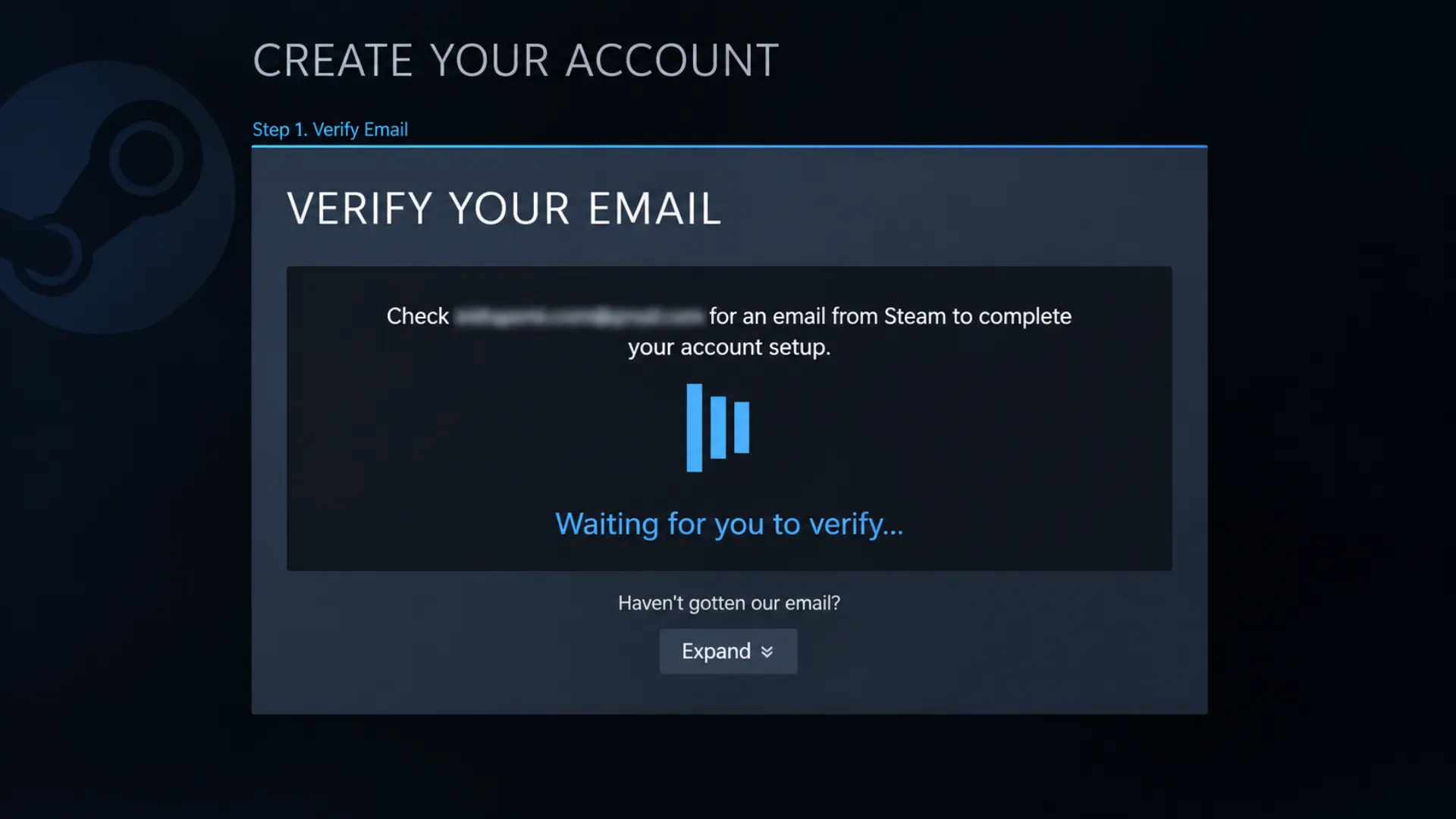
Keep the Steam registration page open. Open a new browser tab, go to your email inbox, and look for the verification message sent by Steam.
Open the email and select Verify My Email Address. If you cannot find the message, check your Spam or Junk folder.
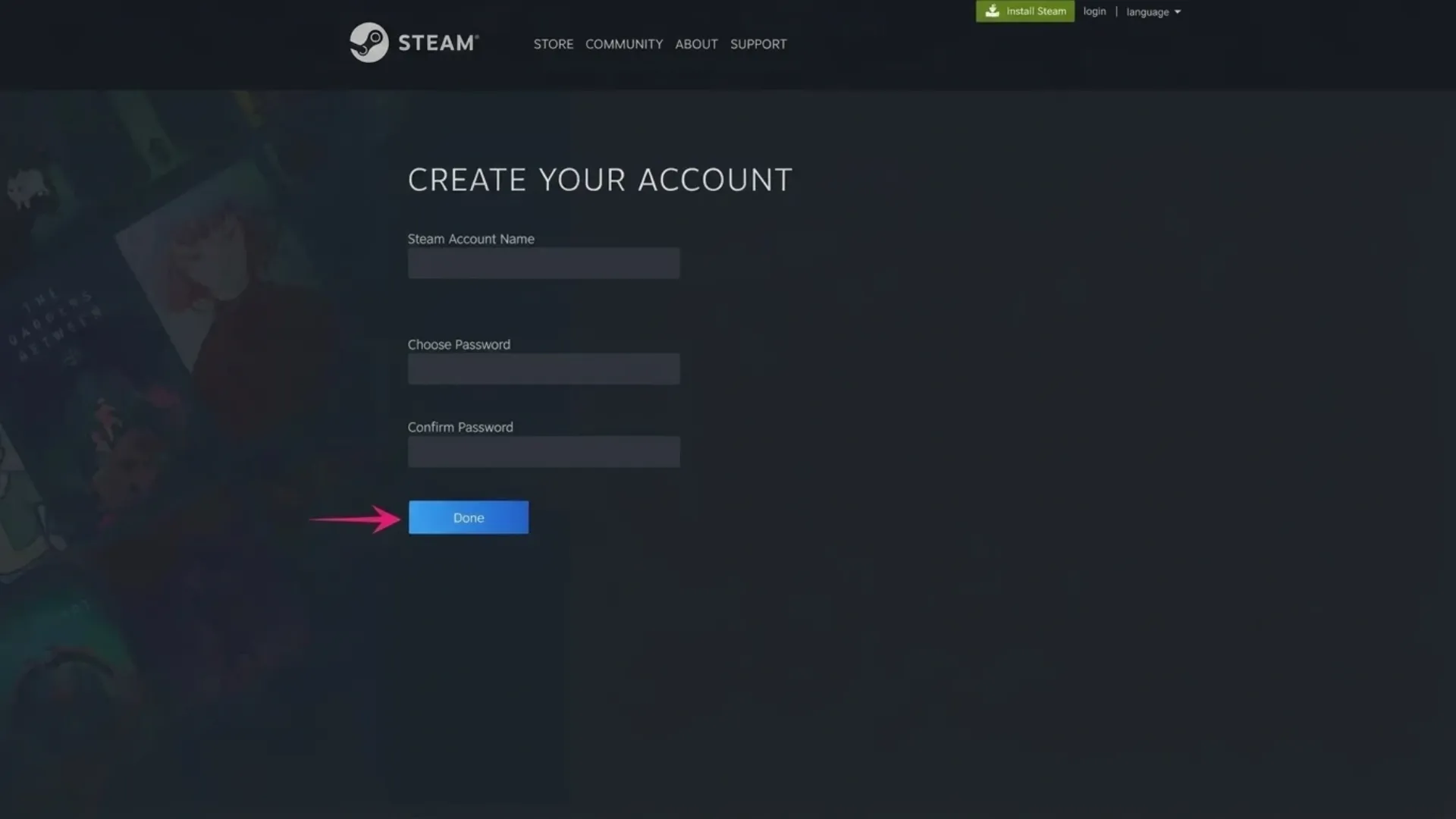
5. Choose Your Steam Account Name and Password
After verifying your email, return to the Steam registration page. Choose a unique Steam Account Name and create a strong password.
Your account name must be available, so you may need to try a different one if your preferred username is already taken. Use a password that is difficult to guess and avoid reusing passwords from other websites.
Select Done to finish creating your account.
Congratulations! Your Steam account is ready. You can now download and install the official Steam desktop client, sign in with your new account, and start exploring the Steam Store.
How to Create a Steam Account on Mobile
You do not need a computer to sign up for Steam. You can create an account using the official Steam mobile app or your phone’s web browser.
1. Download and Install the Steam App
Download the official Steam app from the Google Play Store for Android or the Apple App Store for iPhone.
You can also use your mobile browser to visit the official Steam account creation page: https://store.steampowered.com/join/
2. Start Creating a New Account
Open the Steam app and look for the account creation or sign-up option. Depending on the app version, you may see Create a Free Account or a similar option.
Select it to begin the registration process.
3. Enter Your Email and Country
Enter your email address and confirm it if requested. Select your actual country of residence and complete the required age and CAPTCHA checks.
4. Verify Your Email
Tap Continue and wait for Steam to send a verification email. Open your email app, find the message from Steam, and tap the verification link.
5. Set Your Username and Password
Return to the Steam app or registration page. Choose an available account name and create a strong password. Follow the remaining on-screen instructions to complete the registration.
Your Steam account is now ready to use. Sign in through the mobile app or install the Steam desktop client whenever you want to play on your PC.

Common Steam Sign-Up Errors and How to Fix Them
Although Steam account registration is usually straightforward, you may occasionally run into an error. Here are some common issues and practical ways to troubleshoot them.
CAPTCHA Verification Failed
If the CAPTCHA does not load or cannot be completed, refresh the page and try again. Make sure JavaScript and cookies are enabled in your browser. You can also try a different browser or temporarily disable browser extensions that may interfere with verification.
VPN or Proxy-Related Errors
Steam may encounter connection or verification issues when your network connection changes frequently or when a proxy interferes with the registration process.
Try using a stable internet connection, disable unnecessary proxy settings, and restart the registration process. Make sure your selected country of residence is accurate and consistent with your actual location.
Steam Verification Email Not Received
First, check your Spam, Junk, and Promotions folders. Make sure you entered the correct email address and that your inbox has enough available storage.
If the verification email still does not arrive, return to the registration page and request another verification email if that option is available. Avoid repeatedly requesting codes within a short period.
Steam Account Security: Protect Your Gaming Library
After creating your account, one of the most important steps is securing it with Steam Guard.
Steam Guard adds an extra layer of protection to your account. Depending on your settings, it can use email verification or the Steam mobile app to help confirm sign-in attempts.
For better account security:
- Enable Steam Guard and follow the setup instructions in the official Steam app.
- Use a strong, unique password.
- Never share your password, Steam Guard codes, or recovery information.
- Be careful with suspicious links, fake giveaways, and unofficial login pages.
- Keep your email account secure because it is an important part of recovering access to Steam.
These steps help protect your account, game library, and digital purchases.

Conclusion
Creating a Steam account is your first step toward exploring one of the biggest gaming platforms in the world. As this guide has shown, the registration process is simple on both PC and mobile. By entering accurate account information, verifying your email, and setting a strong password, you can get started in just a few minutes.
Once your account is ready, remember to enable Steam Guard and follow good security practices to protect your games and purchases.
If you are looking for a trusted source of digital gaming products, item4gamer offers a range of gaming products with secure delivery and online support. A properly secured Steam account and a reliable gaming store can make your gaming experience smoother and more enjoyable.
Frequently Asked Questions (FAQ)
1. Is Creating a Steam Account Free?
Yes. Creating a Steam account is completely free. You do not need to purchase a game or add funds to your Steam Wallet during registration. You can create an account and start playing free-to-play games.
2. Which Steam Region Should I Choose?
You should select the country where you actually reside. Your Steam store country can affect regional pricing, currency, and available payment methods. Steam may require a qualifying payment method from the selected country when changing your store country. Do not choose a region solely because its games appear cheaper.
3. Is a Phone Number Required to Create a Steam Account?
No. A phone number is generally not required during the initial Steam account registration process. However, adding a phone number can provide additional account recovery options and help with certain Steam security features.
4. Can I Create Multiple Steam Accounts on One Computer?
Yes. You can use multiple Steam accounts on the same computer. However, each account must have its own email address during registration. You can sign out of one account and sign in to another whenever needed.
5. Can I Create a Steam Account on My Phone?
Yes. You can create a Steam account using the official Steam mobile app or your phone’s web browser. The registration process is similar to the desktop method and requires a valid email address.