
If this is your first time purchasing from Item4Gamer, this guide is for you!
On this page, we explain step‑by‑step how to find your desired product or service, place your order, and receive it in the shortest possible time. With this tutorial, the purchasing process will be completely clear, and you can confidently make your online purchase.
Note: All purchases made in Item4Gamer, once they’re delivered, are non-returnable, non-exchangeable, and non-refundable.
Auto Top-Up products include in-game top-ups and item additions that are delivered directly to your game account via your UID. To complete your order, simply enter your User ID at the time of purchase.
These products are available for titles such as Diamonds in Free Fire, Genesis Crystals in Genshin Impact, UC in PUBG Mobile, and other supported games.
✅ The delivery process for these products is automatic and fast, and your order will be added to your game account within a maximum of 30 minutes.
At Item4Gamer, top-up products are divided into two main categories:
- Region-Locked Products
- Global Products
Below, you’ll find a step-by-step guide for purchasing each category.
Table of contents
1. Top-Up Region-Locked Products
These products are restricted to specific regions or countries. Please check the region limitations mentioned in the product description before purchasing.
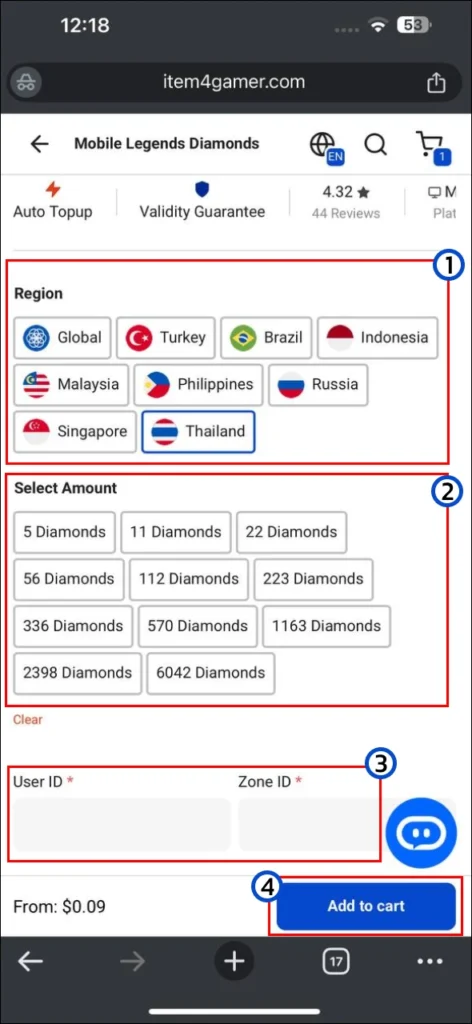
Steps to Purchase:
- Select Region Choose the region or country linked to your game account from the available list. Example: Global, Turkey, Brazil, Indonesia, etc. (unsupported regions are listed in the product details).
- Select Amount From the list, choose your desired top-up package. Example: 86 Diamonds, 514 Diamonds, Weekly Diamond Pass, etc.
- Enter Game Account Details
- In the User ID field, enter your game account’s user ID.
- In the Zone ID field, enter the corresponding Zone number for your account.
- Add to Cart Click Add to cart and proceed to checkout.
2. Top-Up Global Products
These products are not limited to any specific country or region and work across all servers.

Steps to Purchase:
- Select Amount From the list, choose the amount or package you’d like to purchase. Example: 60 Crystals, 980+260 Crystals, Blessing of Welkin Moon, etc.
- Enter Game Account Details
- In the User ID field, enter your user ID.
- From the Server menu, select your game server (e.g., Europe, America).
- Add to Cart Click Add to cart and proceed to the checkout page.
Check Out
At this stage, after reviewing your selected products, quantities, and the total order amount, log in to your Item4Gamer account.
If you do not yet have an account, you can create one by entering the required information.
Next, choose your preferred payment method and complete the payment to place your order.
In the following section, the order placement process will be explained step‑by‑step in more detail.
Step 1: Login to Your Account or Create a New Account
In this step, to proceed with your purchase, you must either log in to your existing account or create a new one. There are two ways to do this:

Login with Email and Password
- In the Username or email field, enter the email or username you previously registered with Item4Gamer.
- In the Password field, enter the password for that account.
- Click the Login button to sign in to your account.
Login with Google (Login with Google)
Sign in to your Google account and grant the necessary permissions to complete your login to Item4Gamer.
4.Click the Login with Google option.
If you do not have an account, you can go to the Billing section on this same page, fill in your details, and a new account will be created automatically.
Step 2: Create a New Account
If you don’t already have an Item4Gamer account, simply complete the Billing details form on this page. Your new account will be automatically created once you enter this information.
Enter Personal Information

- First name: Your first name
- Last name: Your surname
- Country / Region: Select your country or region of residence from the dropdown menu
- Phone Number (optional): Enter your contact number if you wish
- Email address: An active email used to log in and receive order updates
Coupon Code (Optional)
If you have a coupon code, enter it in the Coupon field and click Apply coupon.
💡 After placing your order, you can use this email and password to log in for future purchases.
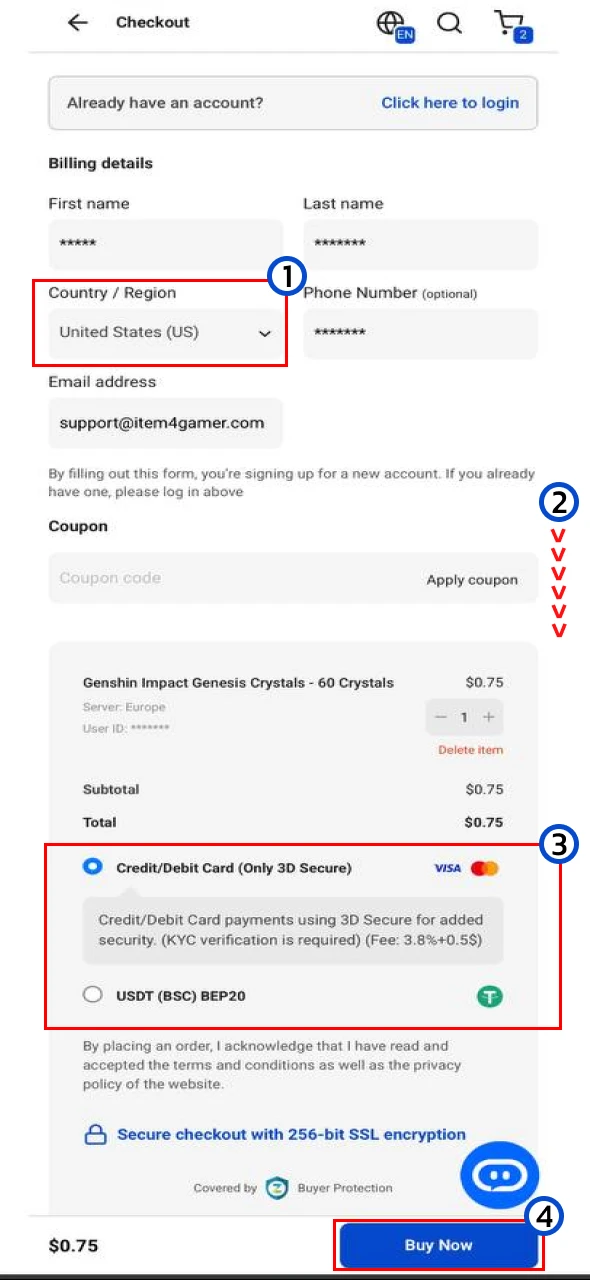
Step 3: Select Country, Payment Method, and Finalize Your Order
1. Select Country / Region
- From the Country / Region dropdown menu, select your country of residence or the country you will use for payment.
- The available payment methods will be displayed based on this selection.
2.Scroll down the page
3. Select Payment Method
Depending on the selected country, you will see the available payment methods.
Examples:
- Credit/Debit Card (Only 3D Secure) – Pay using an international bank card (KYC required)
- USDT (BSC) BEP20) – Pay using cryptocurrency Tether on the BSC network
Step 4:Finalize Purchase (Buy Now)
You’ll be redirected to the payment page, and once completed, your order will be processed and your top-up product delivered to your game account.
4.After choosing your payment method, click Buy Now.
Step 5: Select the Final Payment Gateway & Complete Payment
After clicking Buy Now, you will see a list of available payment gateways for your selected country or region.
Step 6:Select Your Preferred Payment Gateway
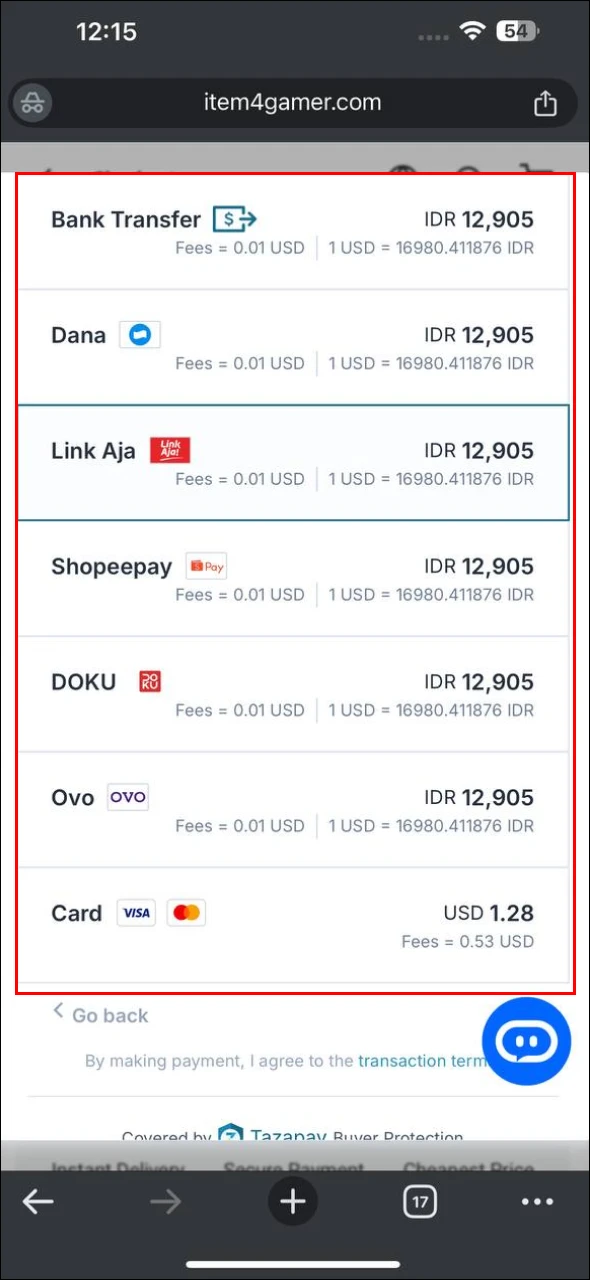
Depending on the country, you may see options like QRIS, Bank Transfer, LinkAja, DOKU, Dana, Shopeepay, Ovo, Card (Visa/Master).
Transaction fees and the final price are displayed next to each option.
Complete the Payment
Enter your payment information and confirm the transaction.
Click on your preferred option to be redirected to the payment page.
Processing Status:
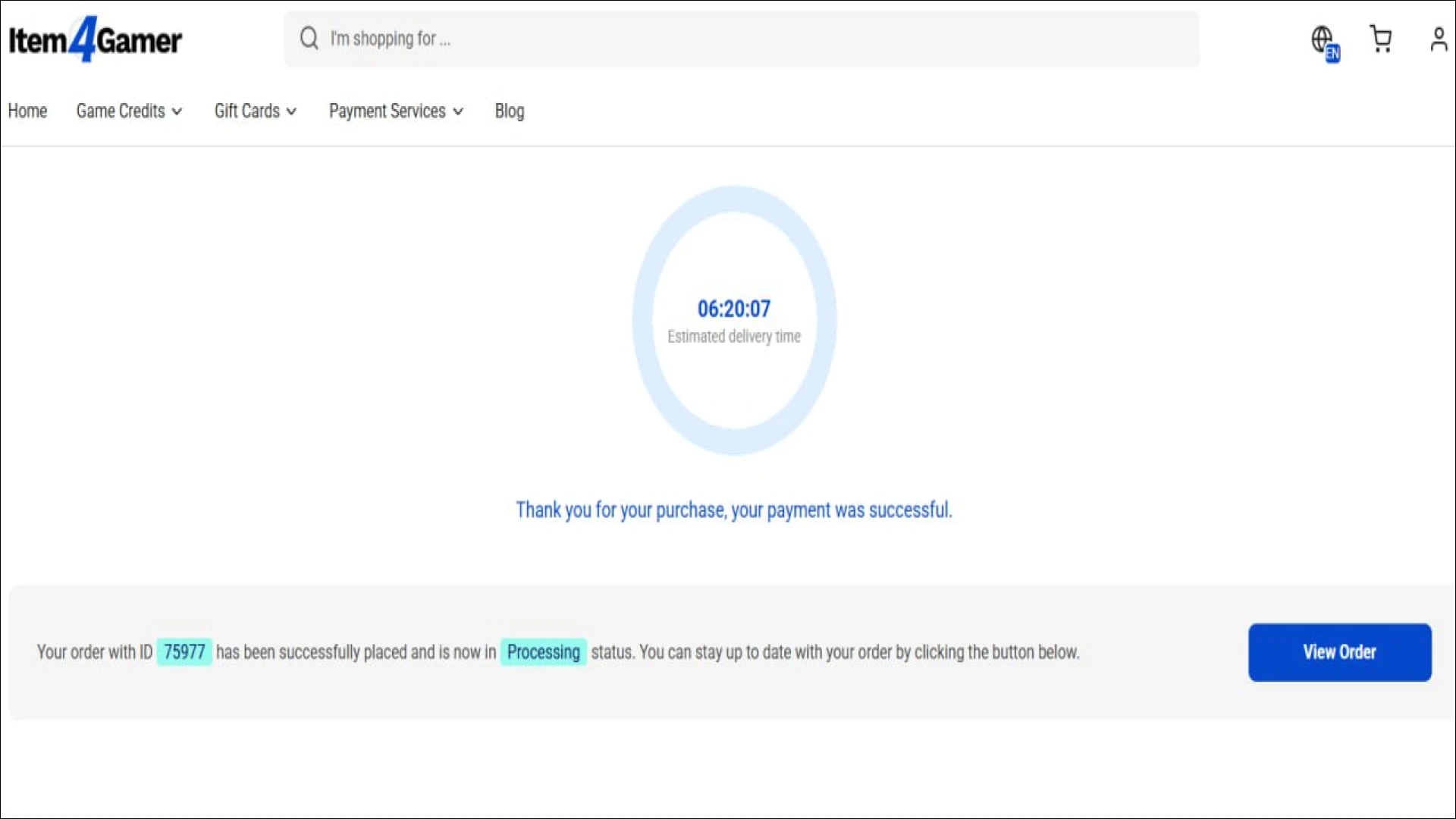
After your payment is successful, your order will appear in Processing status.
This means our team has started the recharge process for your game account.
The estimated delivery time (e.g., 06:20:07) shown on the page indicates approximately how long it may take for the recharge to be completed.
You can click View Order to track the real-time status in your account.
Completed Status:
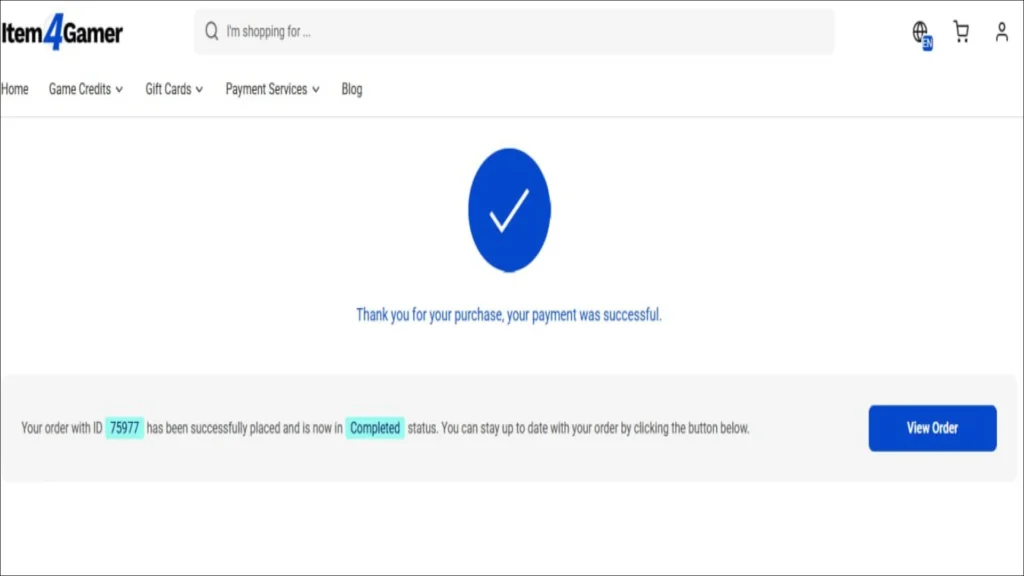
When the status changes to Completed, it means your in-game credits or items have been successfully delivered to your account.
You can now log in to your game to verify the updated balance or received items.
For safety, it’s recommended to refresh your game or re-login to see the changes.
If you’re looking for other products, check our Manual Delivery Products and Instant Delivery Products guides.