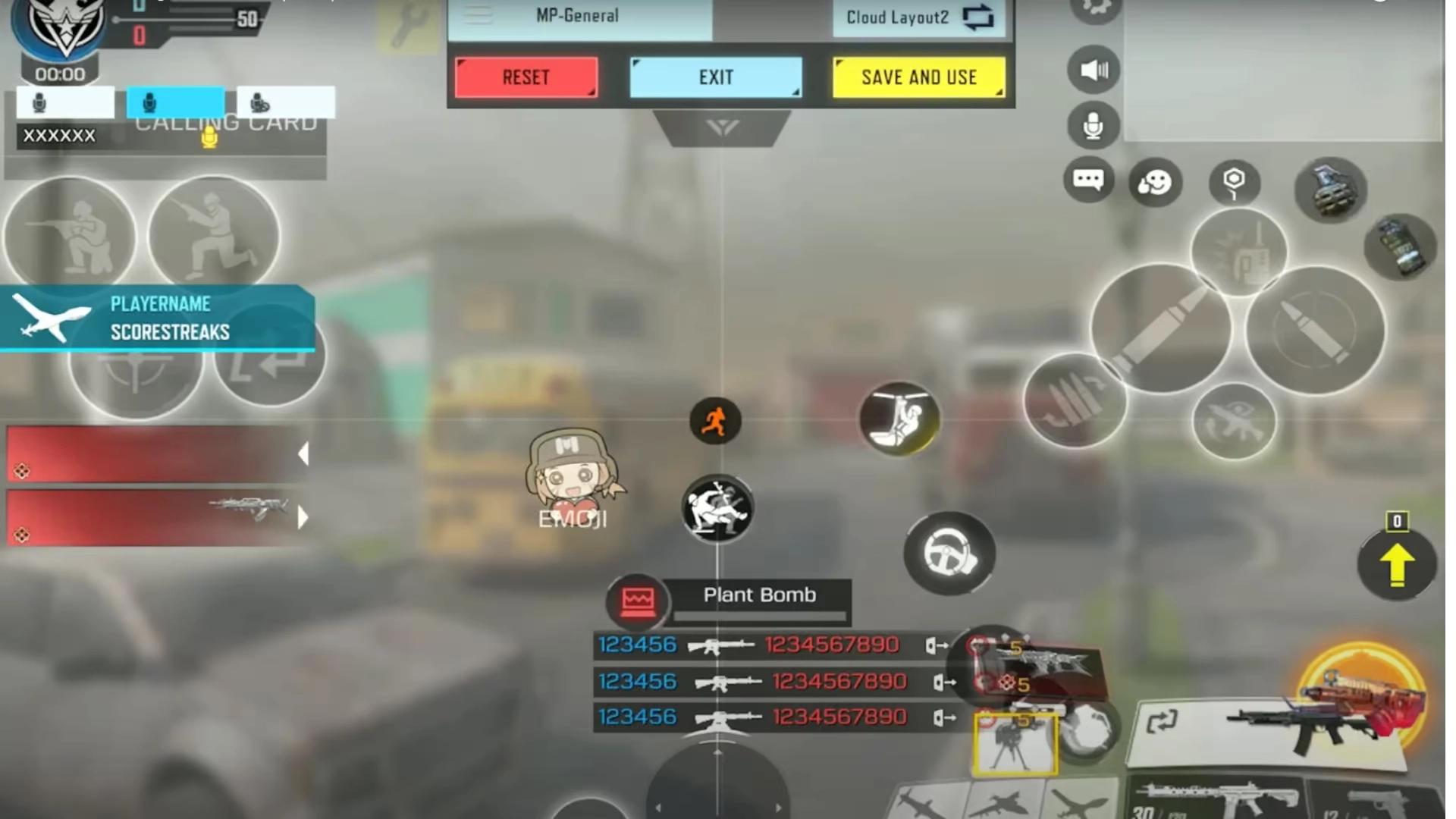
If you want to play like a pro player in CODM, your first mission is to perfect the HUD settings in Call of Duty Mobile. A well‑optimized layout enhances your aim, speeds up reaction time, and gives you complete control of your on‑screen movements. In this step‑by‑step guide, you’ll learn how to customize your HUD like top eSports athletes.

Table of contents
- 🔧 Step‑by‑Step Guide to Optimize Your HUD in CoD Mobile
- 1. Reset Your Layout Before Customizing
- 2. Switch to Advanced Mode
- 3. Adjust Button Position and Size
- 4. Enable Transparent Backgrounds
- 5. Use the 4‑Finger HUD Layout
- 6. Fine‑Tune Sensitivity Settings
- 7. Add a Mini Map and Quick Slot
- 8. Activate Fast Weapon Switching
- 9. Use Crosshair Plus Mode for Accuracy
- 10. Save and Sync Your Settings
- 🎯 Pro Tips for the Best HUD Setup
- 🕹️ Why HUD Settings Matter in CoD Mobile
- ⚡ Conclusion
🔧 Step‑by‑Step Guide to Optimize Your HUD in CoD Mobile
1. Reset Your Layout Before Customizing
Start by resetting the default layout in the HUD section. A clean base helps you redesign everything from scratch and avoid overlapping buttons.
2. Switch to Advanced Mode
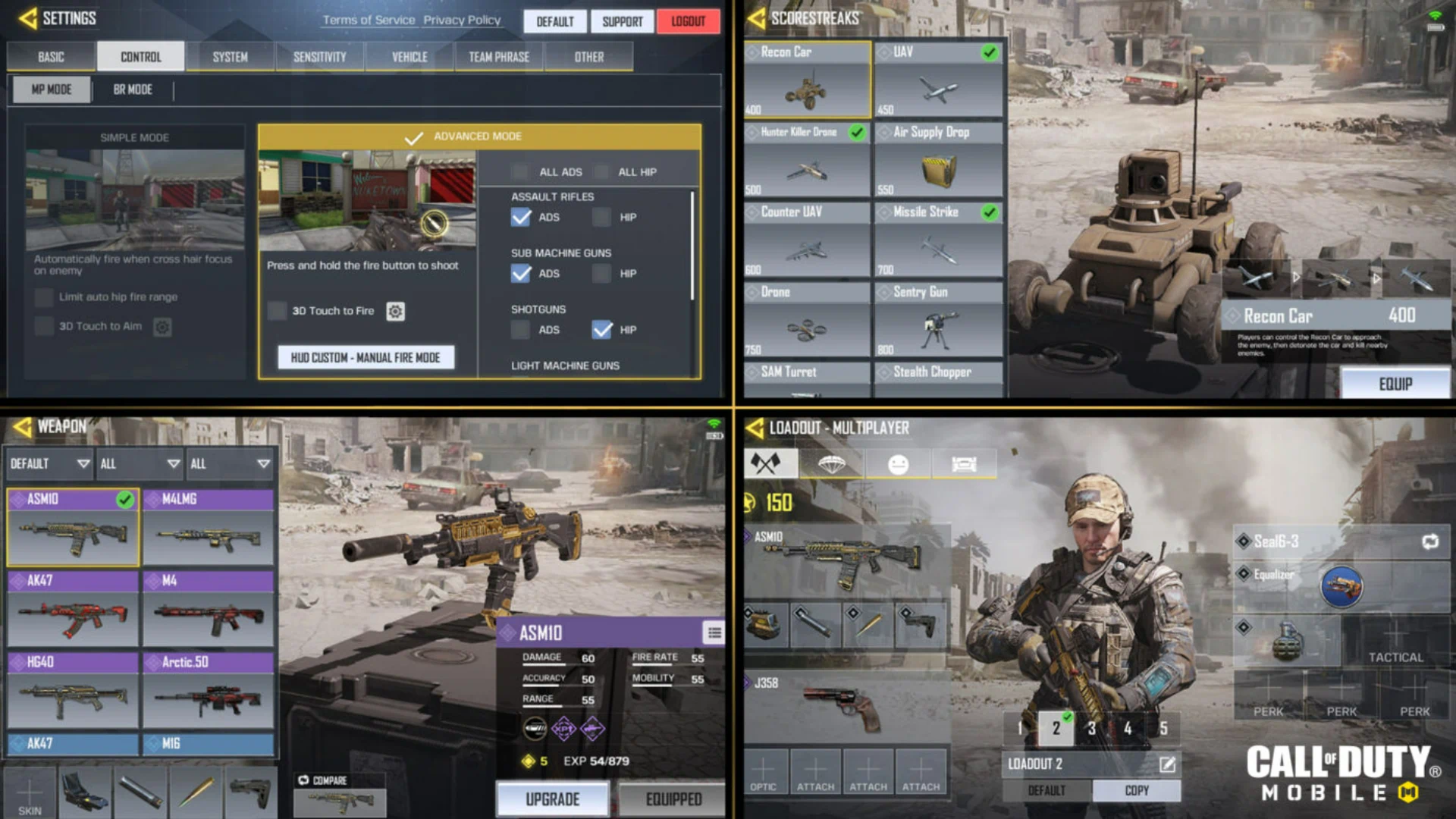
Go to Controls → Advanced Mode. This gives you manual control over shooting, aiming (ADS), and movement, allowing full customization.
3. Adjust Button Position and Size
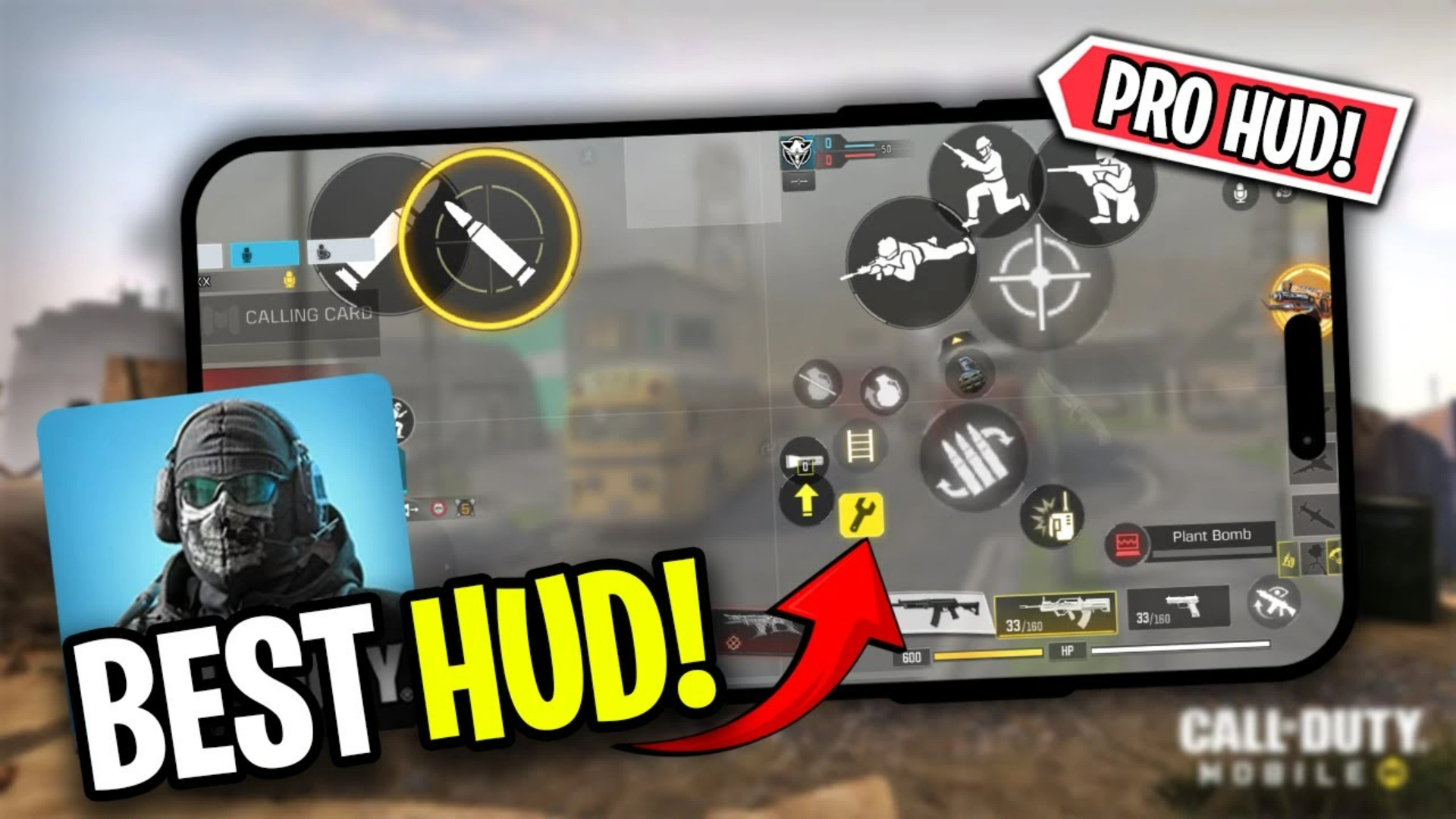
Move frequently used buttons — such as the aim, shoot, crouch, and jump icons — to comfortable screen zones. Increase button size slightly for smoother tapping.
4. Enable Transparent Backgrounds
Set button opacity between 60–80 %. It keeps visibility without blocking the gameplay view, especially during close combat or sniping.
5. Use the 4‑Finger HUD Layout
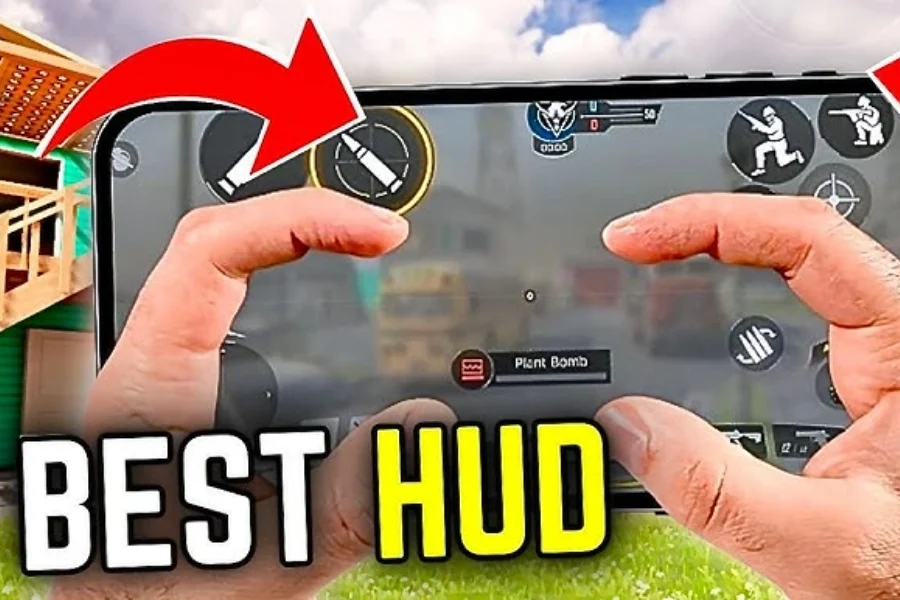
Professional players favor the HUD four‑finger setup, using thumbs and index fingers simultaneously. This helps fire, aim, and move all at once — boosting reaction speed and multitasking efficiency.
6. Fine‑Tune Sensitivity Settings
Go to Sensitivity Settings → Custom. Set different levels for Standard, ADS, and Gyroscope according to your preferred playstyle. Balanced sensitivity ensures consistent aim and recoil control.
7. Add a Mini Map and Quick Slot
Make sure your mini map and quick‑switch areas are easily visible. This improves situational awareness and allows faster equipment changes mid‑fight.
8. Activate Fast Weapon Switching
Turn on Fast Switch to swap guns instantly without opening the full inventory. It’s critical in clutch moments when milliseconds decide the match.
Related article: Call of Duty Mobile Season 10 – Vault AU79 Complete Breakdown
9. Use Crosshair Plus Mode for Accuracy
Activate Crosshair Plus inside the Display settings. It creates a more stable aiming point, letting you line up targets even while moving.
Top Up Call of Duty: Mobile fast & secure from I4G
10. Save and Sync Your Settings
Once done, save your personalized HUD and link it to your Activision account. That way you won’t lose your custom layout when switching devices.
🎯 Pro Tips for the Best HUD Setup
- Keep attack and movement buttons separate to avoid mis‑taps.
- Test new layouts in Practice Mode before entering Ranked matches.
- Adjust HUD regularly as your playstyle evolves.
- Record gameplay to observe finger movement and refine placement.
🕹️ Why HUD Settings Matter in CoD Mobile
Your HUD layout defines how fast you aim, react, and control the game. Even small optimizations can increase kill efficiency and improve decision‑making under pressure. A professional HUD setup bridges the gap between casual and competitive play.
⚡ Conclusion
Perfecting your HUD settings in Call of Duty Mobile isn’t just about aesthetics — it’s about maximizing speed, precision, and comfort. Follow this guide to create your own optimized layout and start dominating the battlefield like a real Pro Player.
Follow us on social media and stay one step ahead of the game! 🚀






❓ FAQ — HUD Settings in Call of Duty Mobile
The best HUD settings depend on your playstyle, but most pro players use a custom layout with the shoot button placed near the thumbs and movement controls slightly lowered for quicker reactions.
Go to Settings → Controls → Customize HUD, then tap Reset to start from the default layout. It’s the easiest way to rebuild your layout from scratch.
A 4‑finger HUD uses both thumbs and index fingers to control shooting, aiming, and movement at the same time. It gives you faster reaction time and more effective multitasking during gunfights.
Adjust the Sensitivity Settings under Controls → Sensitivity and test them in Practice Mode. Finding a balanced sensitivity level helps you keep stable aim and reduce recoil.
You can start by studying pro players’ HUD setups, but it’s best to customize according to your own grip, device size, and comfort. Personal adjustment always performs better in the long run.
That usually happens if icons are placed too close to the screen edges. Try reducing button size to 90–95 % or repositioning them manually before saving your layout.
Yes. Link your game to an Activision or Facebook account and enable cloud sync so that your personalized HUD and sensitivity preferences save automatically across all your devices.