If your reticle constantly sticks to environment edges or your tracking feels floaty in ARC Raiders, the culprit isn’t necessarily your mechanical skill. Default control options in modern tactical shooters often ship with built-in smoothing that cripples precision. By dialing in your settings and rebuilding your crosshair, you can dramatically improve your tracking, flicking, and reaction times in both high-stakes PvP engagements and chaotic PvE missions. Here is how to fix your ARC Raiders aim settings in under 60 seconds.
Table of contents
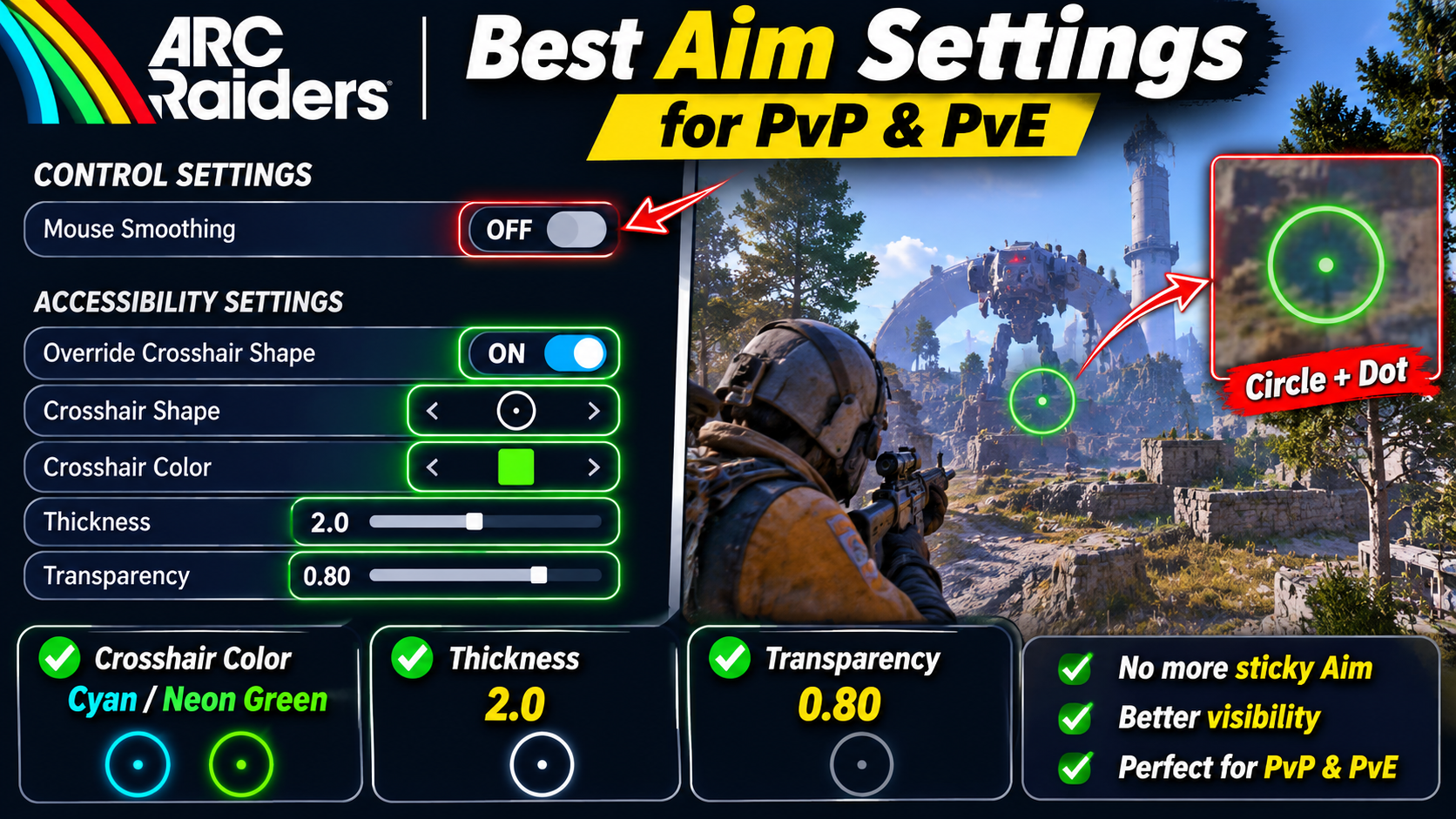
Disable Mouse Smoothing
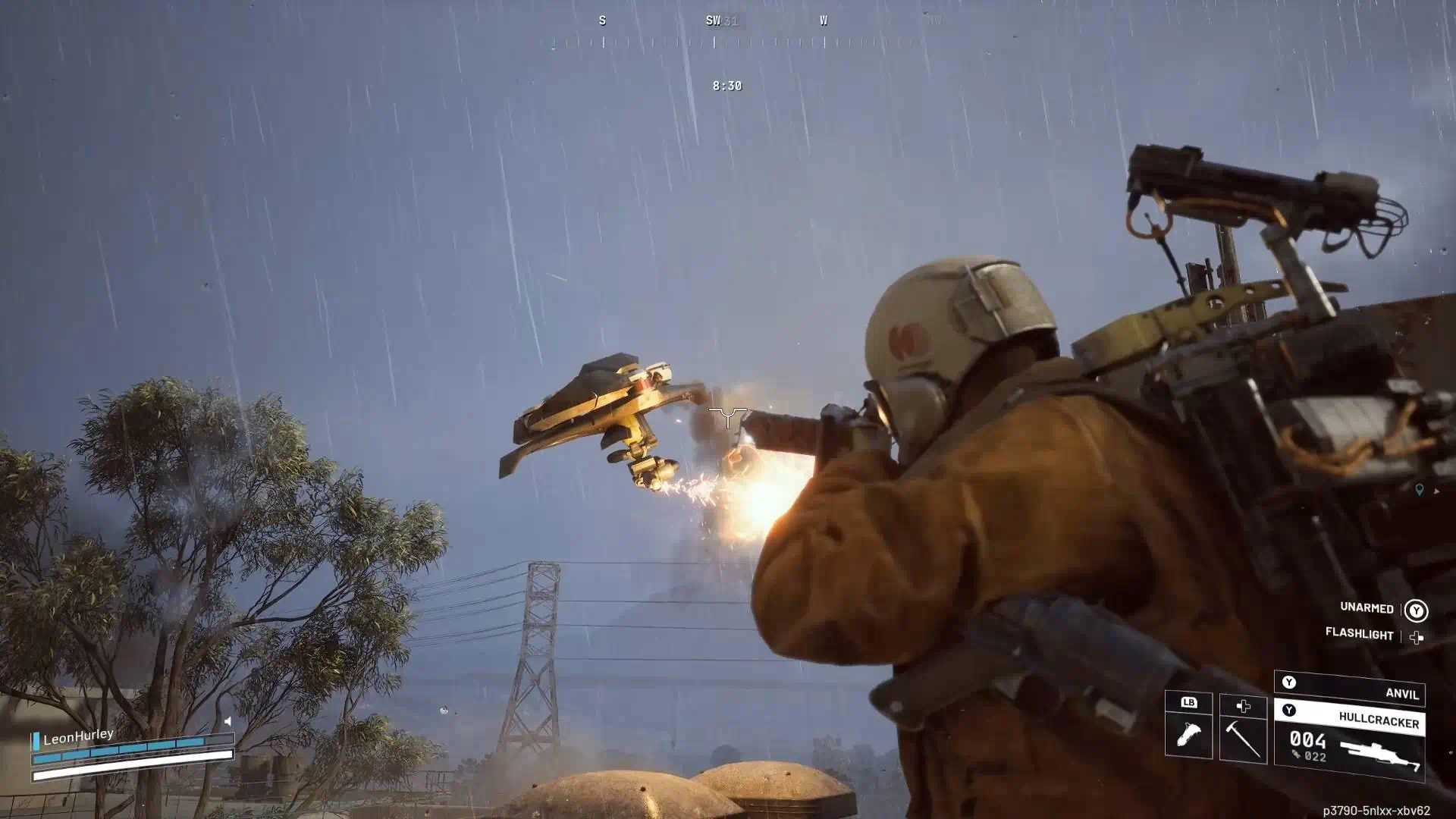
The first and most crucial adjustment is located in the Control Settings:
- Navigate to the Controls tab and toggle Mouse Smoothing completely OFF.
- Built-in mouse smoothing attempts to artificially buffer cursor movement, which results in a floaty, sticky, and delayed cursor feel.
- Disabling this feature eliminates latency buffering and ensures raw, direct input from your mouse sensor straight to the engine.
- This raw input prevents your crosshair from dragging or sticking against map geometries during tight peek angles.

Avoid the Default Crosshair
Never rely on the default in-game crosshair. In the visually dense environments of ARC Raiders, the factory reticle frequently washes out and blends into terrain, complex machinery, and gloomy interiors.
- Head over to the Accessibility Settings menu.
- Turn on the Override Crosshair Shape toggle to take full custom control of your aiming reticle.
Optimal Crosshair Shape: Circle with Center Dot
Selecting the right reticle geometry makes tracking running enemies and landing headshots significantly easier:
- The undisputed community setup across both competitive PvP and challenging PvE encounters is a Circle with a Dot in the Center.
- The outer circle defines target acquisition bounds and assists with quick hip fire alignment.
- The center dot gives you a sharp, pinpoint reference mark for micro-adjustments and critical hits.
Maximize Visibility with Bright Colors
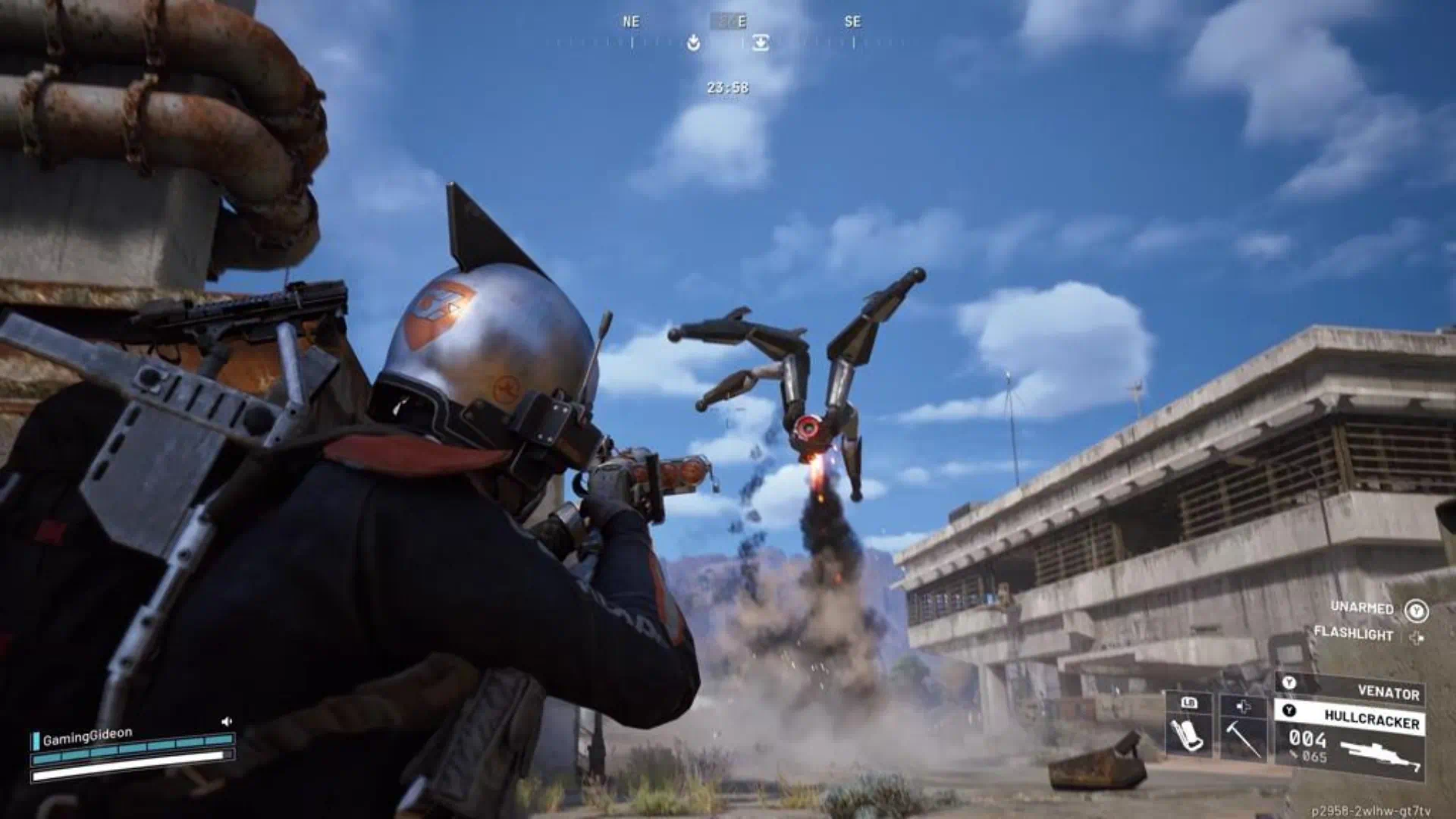
Picking the right color profile prevents your reticle from disappearing against dark compounds, rusted metallic scrap, or blown-out daylight environments:
- Switch away from white or neutral tones.
- Choose ultra-bright shades: Cyan or Neon Green.
- These vibrant hues create an immediate visual contrast against both urban concrete and wilderness foliage.
Balance Thickness and Transparency
A clear crosshair shouldn’t obstruct your view down-range:
- Fine-tune the Thickness and Transparency sliders.
- Keep the outline bold enough to track through intense smoke, muzzle flash, and visual debris during long shootouts.
- Avoid maxing out thickness so the reticle does not cover up distant enemy heads or peeking targets.
Gearing Up: Blueprints and Crafting Mats
Securing top-tier weapon blueprints and raw crafting materials accelerates progression through challenging raids:
- You can acquire blueprints and crafting materials directly via timesaver.gg.
- Apply promo code arc1 at checkout to claim 20% off your order.
- Check the comments section for direct access links.
Related article:PUBG Satisfying Headshots: Ultimate Gunplay & BR Guide
Conclusion
A great mechanical aim starts with optimal in-game configurations. Turning off Mouse Smoothing cleans up input latency, while an overridden, high-contrast crosshair guarantees you never lose track of targets during chaotic gunfights. Apply these simple tweaks right away to dominate every raid in ARC Raiders!






faq
Turn off Mouse Smoothing in the Control Settings, enable Override Crosshair Shape under Accessibility, choose a Circle with a Dot in the center, and pick high-visibility colors like Cyan or Neon Green.
The game ships with Mouse Smoothing enabled by default. This buffers cursor trajectory and causes an unnatural drag around geometric edges. Disabling it restores crisp, 1:1 raw mouse input.