

If you are one of those gamers struggling with severe lag, high ping, sudden game freezes, or device overheating during intense clan wars and fights, this article of Call of Duty is written precisely for you. Let’s skip the boring introductions and get straight to the point so you can effortlessly get rid of these stutters and secure a stable frame rate.
Table of contents
The Harsh Truth About Low Graphics and Proper Game Cleanup

The biggest lie you have probably heard is that lowering the in-game graphics settings can completely eliminate lag in one go! The truth is that reducing graphics alone cannot delete hidden extra game files. To get rid of lag once and for all, you need to completely uninstall and clean the game from scratch.

Completely uninstall the app from your App Store or Google Play, and download it again. Once you enter the game, do not let all the bulky resource packages download automatically. Your total game size should ideally hover around 5.6 GB. The only things you actually need are ranked maps, battle royale maps (if you play them), high-quality audio, your operator skin, and your favorite gun or mythic weapon—leave all the extra legendary videos uninstalled.
Crucial In-Game Settings to Fix Freezes and Frame Drop
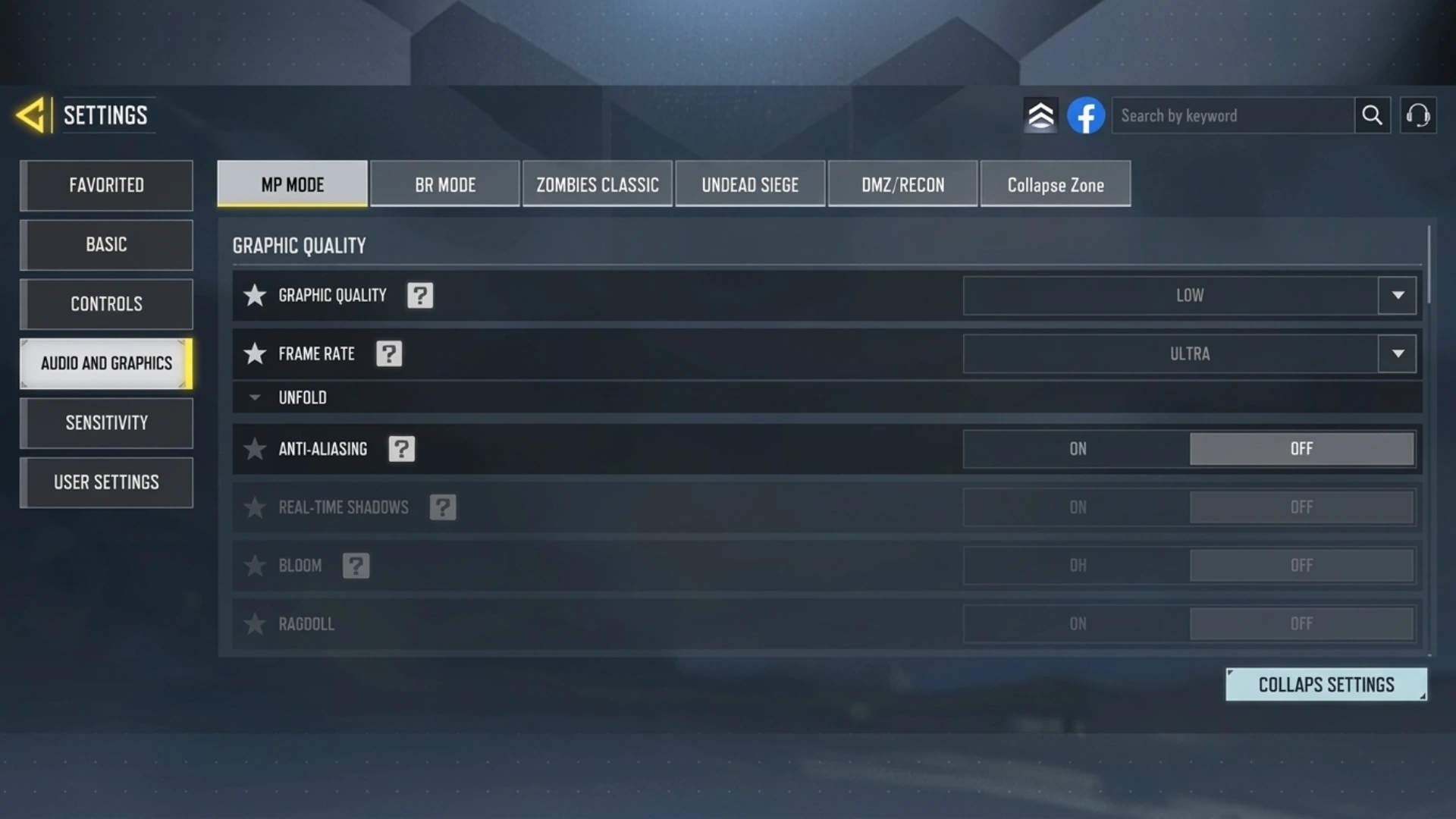
When you enter the game menu, make sure you use the non-HD configuration and immediately go to the download section to turn off Automatic Download. This prevents the game from downloading unnecessary data.
- Disable Heavy Effects: If you have simulation settings like Kill Effects or Mythic Projections enabled, turn them off immediately in both Multiplayer and Battle Royale. Don’t worry, this does not affect your ability to inspect your mythic gun.
- Lower Your FOV: If your Field of View (FOV) is set too high, lower it slightly to reduce the rendering burden on your device’s processor.
- Turn Off Kill Replay: This feature forces your device to record all your matches and fights, which is a primary culprit behind device overheating and sudden frame drops.
- Manage Mythic Weapons: Many users have reported that using mythic weapons can introduce stuttering. If you experience lag, use a standard character with your mythic weapon, or disable the mythic weapon’s effect in the weapon settings.
Always restart your device before launching the game to give your RAM a fresh start. Finally, if none of these methods work, some advanced users resort to rooting their device and applying super-aggressive settings to completely overhaul the game structure.
Related article:Mythic Ram-7 Is Back! The Ultimate Weapon in Call of Duty Mobile
Conclusion
Experiencing a smooth, stutter-free battle royale or multiplayer match in COD Mobile requires disciplined optimization. By cleaning up junk files, optimizing graphic settings, managing resources, and keeping the game size lightweight, freezes and lag will be a thing of the past, letting you clutch your matches with total peace of mind.






Frequently Asked Questions
No, reducing graphics from the menu does not delete hidden bulky files. For a definitive fix, you must completely reinstall the game and only download essential packages.
Because this feature forces the game to record every moment of your match, heavily straining the processor and causing device overheating and frame drops.