Ever get stuck in the middle of a heated close-quarters fight? Most players blame lag or device issues, but more often than not, it’s just a bad configuration. Whether you are struggling with movement, jittery aim, or visibility, your settings are likely holding you back. Today, we are breaking down the best Call of duty:Mobile settings to help you optimize your joystick, shooting mechanics, and FOV, bringing your gameplay up to the level of pro players.
1. Fixing Joystick & Movement Glitches
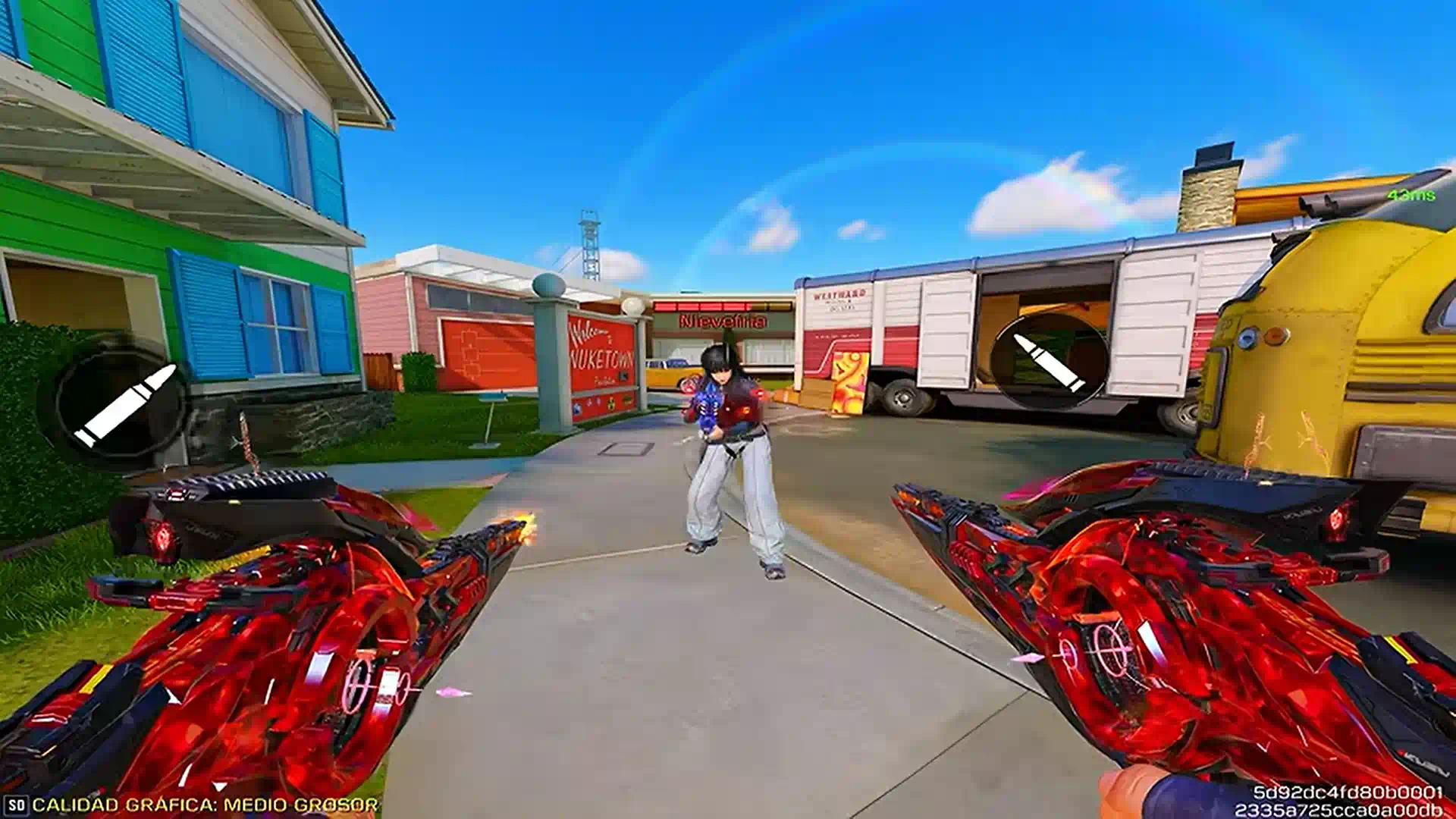
The main reason characters get stuck during a slide or sprint is a misconfigured joystick setup.
- Joystick Mode: For aggressive players (Rushers), always choose Left Control. In “Fixed” mode, if you touch slightly outside the joystick area, your screen will rotate instead of your character moving, which causes you to get stuck. “Left Control” keeps working even if your finger drifts.
- Display Correction: Always enable this to keep your joystick stable and prevent it from jumping around on your screen.
- Mobile Joystick Settings: Avoid “Locked” mode at all costs. It is the #1 reason players accidentally walk backward during a rush. Set it to Follow to ensure your character moves in the direction you actually intended.
2. Optimizing Aim & Shooting Mechanics
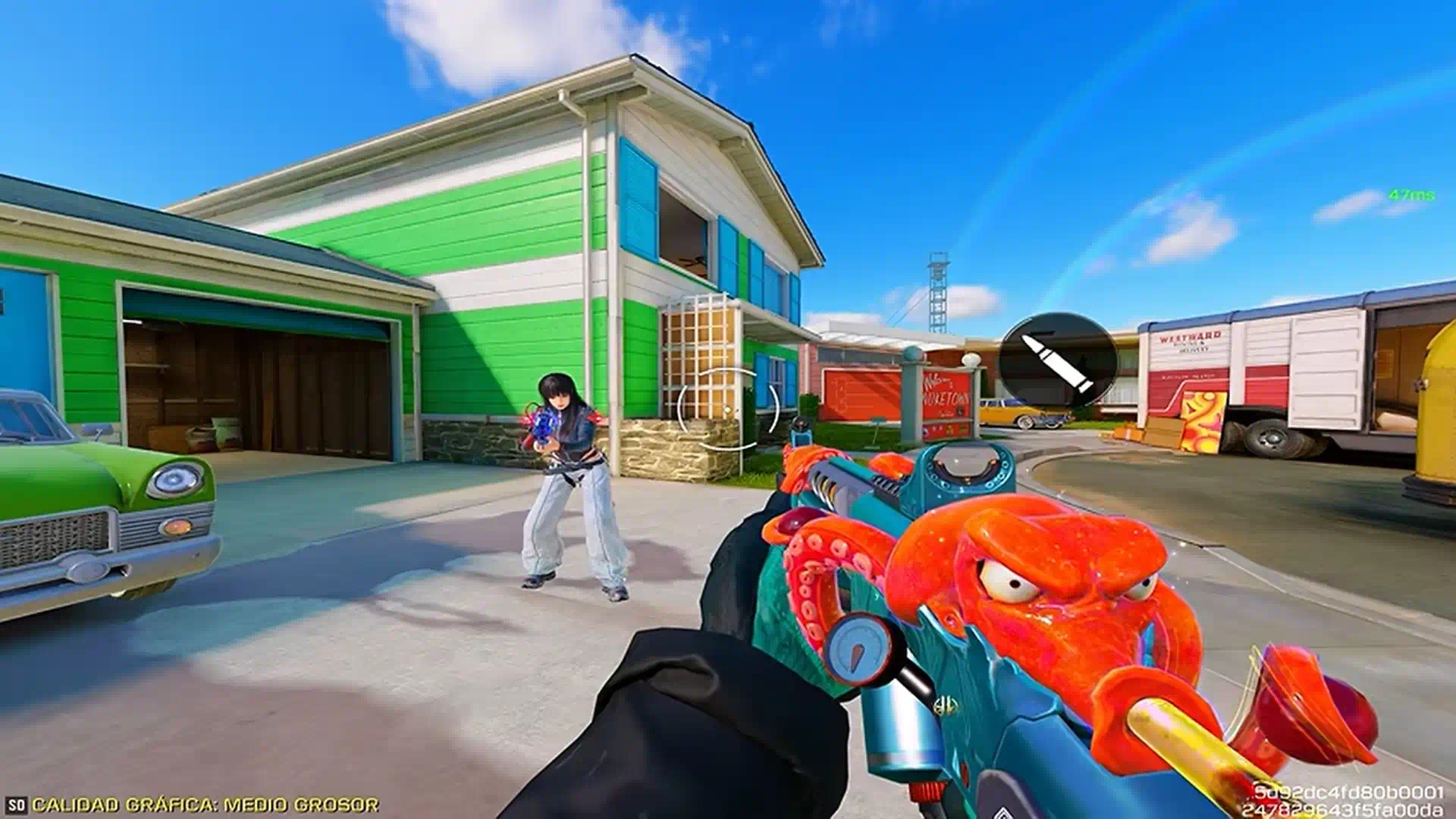
To get the most out of your loadout, tweak these essentials:
- Aim Assist: Keep this On. It provides the necessary magnetism to keep your crosshair tight on the target.
- Left Fire Button: Keep this visible at all times. It is essential for high-level play, especially if you are using snipers or shotguns to fire quickly while aiming with the other hand.
- Shotgun Hip Fire: Always set this to Tap to Fire. “Release to Fire” creates a delay that can cost you the gunfight.
- Aim with Sight for Rotation: If you are still mastering 3 or 4-finger play, keep this Off. It prevents your crosshair from drifting away when you take your first shot.
- Aim and Fire with One Tap: Highly recommended for 2-finger players using SMGs or Assault Rifles. It eliminates the delay between pressing the button and the scope opening.
- Trigger Pre-Activation: Enable this for weapons with Red Dot mechanisms. It allows for continuous fire when holding the button, rather than firing just once.
3. FOV & ADS Control
Your visibility and recoil control depend entirely on your Field of View (FOV).
- Camera FOV: If you are on an iPad or tablet, max it out. For mobile phone users, keep it between 70 and 80. Going higher makes enemies look too small to hit.
- Sync FOV to ADS: This setting controls how much zoom you get when aiming. While it provides a wider view, it can make targets harder to see on small mobile screens. Keep it Off if you are on a phone, or On if you want better visual recoil control on a tablet.
- Sway Reduction: Always keep this On. It doesn’t change your stats, but it reduces the annoying weapon shake that makes long-range shots difficult.
Related article: DMZ Dynamic Ops Guide: Complete Objectives & Exfil
Conclusion
By fine-tuning your joystick settings, optimizing your FOV for your specific device, and choosing the right shooting mechanics, you eliminate unnecessary technical errors. Implementing these best COD Mobile settings is the first step toward mastering your movement and consistently winning your 1v1 duels.






Frequently Asked Questions (FAQ)
This is almost always caused by setting your Mobile Joystick to “Locked.” Change it to “Follow” to prevent unintended backward movement.
Keep your FOV between 70 and 80. Going above 80 makes the game look better, but it makes your enemies look too small to track accurately on a small screen.
This is great for iPad/tablet users for better recoil control. However, for mobile phone users, it might make long-range enemies harder to spot, so keep it off if you struggle with long-range aim.