

If you want to have better control over your Movement, Aim, Fire, and Scope during close-range fights and fast-paced battles, using the right 4-finger claw settings in Call Of Duty:Mobile is one of the best HUD upgrades you can make.
This layout allows you to react faster, perform multiple actions at the same time, and maintain better control over your character and weapon during every fight.
In recent years, many professional CODM players have switched to 4 Finger Claw HUD layouts because this control style improves movement, speeds up firing, and provides more stable Aim in critical situations.
Why Is 4 Finger Claw Important in CODM?

A professional HUD should allow you to move freely, aim accurately, fire quickly, and activate Scope without unnecessary hand movement.
In a proper 4 Finger Claw layout, each finger has a specific responsibility and stays focused on its assigned buttons. As a result, you gain more flexibility, faster reaction time, and better control during every fight.
Once you get used to this control style, performing different actions becomes much more natural, allowing you to manage battles faster and more accurately.
Master the 4-finger claw settings in Call of Duty: Mobile for faster Movement, sharper Aim, and better control in every fight. Then, buy a PSN Gift Card from Item4Gamer to top up your account and unlock exciting games, items, and digital content!
How to Convert a Two-Finger HUD into a 4-Finger Claw Layout
Changing your regular two-finger HUD into a 4 Finger Claw layout is easier than many players think. You only need to adjust the position of the main buttons and assign specific actions to your index fingers.
1. Positioning the Fire Buttons
Move both Fire buttons to the upper-left corner of the screen and increase their size so they can be pressed more easily with your left index finger.
This adjustment helps you fire faster and more consistently while reducing delays during intense fights.
2. Positioning the Scope Button
Move the Scope button to the upper-right corner and increase its size as well. This allows your right index finger to activate Scope quickly without unnecessary movement.
This layout is especially useful for fast Aim and sudden close-range encounters.
How to Use Your Fingers in a 4 Finger Claw Layout
After applying these HUD changes, it is important to assign a clear role to each finger:
- Left index finger: Controls the Fire buttons
- Right index finger: Controls Scope
- Thumbs: Control Movement, Aim, and other main actions
After setting up your HUD, enter the Training Ground and practice this layout every day. In most cases, your index fingers will begin to adapt to the new control structure after 3 to 4 days, making your gameplay smoother and more comfortable.
The Best Position for Jump, Slide, and Reload
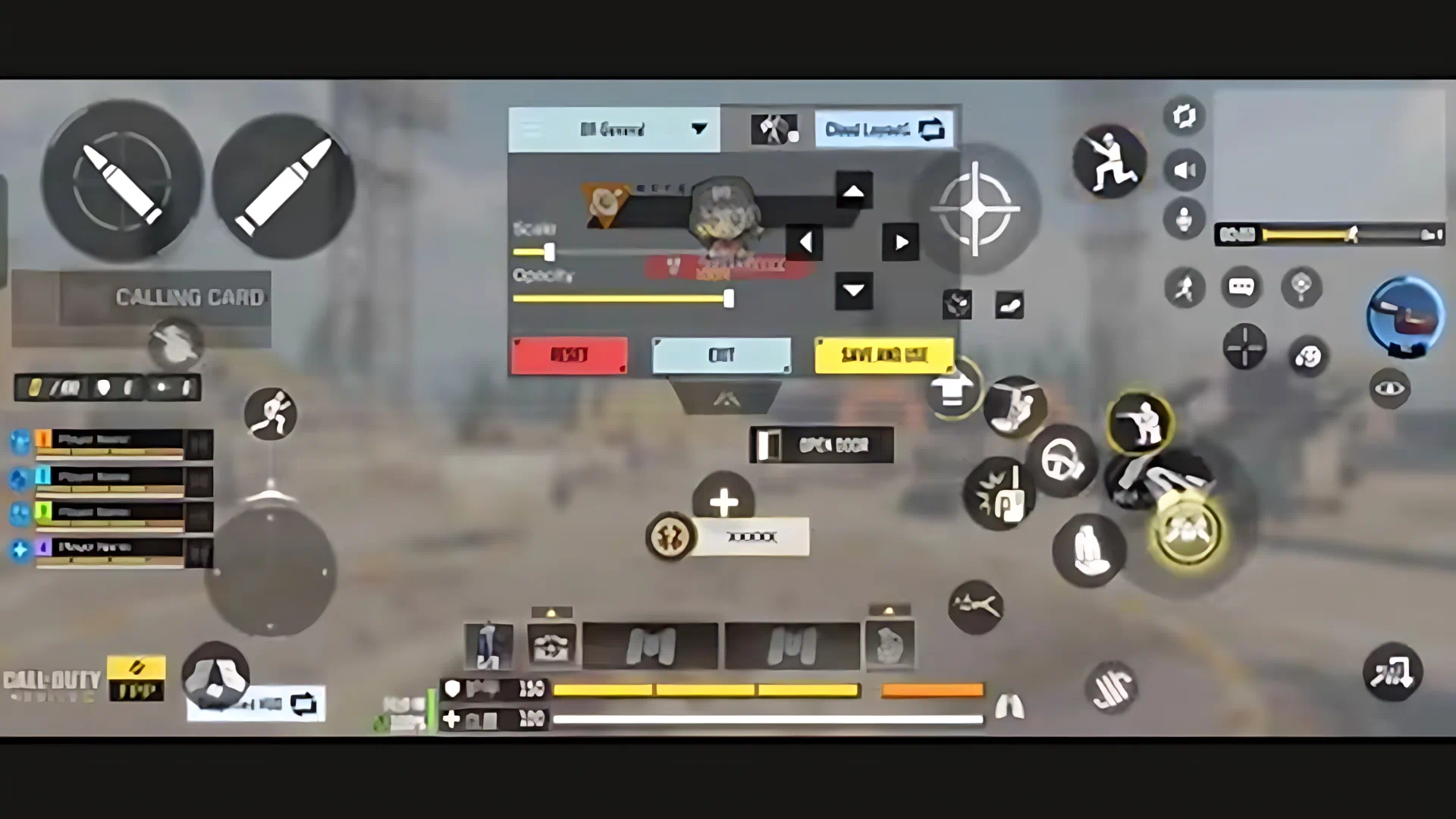
One of the most important parts of the 4-finger claw settings in Call of Duty: Mobile is the positioning of the Jump, Slide, and Reload buttons.
Jump and Slide
It is recommended to place the Jump and Slide buttons near the Scope button in the upper-right section of the screen.
This position allows you to switch quickly between Jump, Slide, and Aim during critical moments. Increasing the size of these buttons can also reduce accidental touches.
Reload
Place the Reload button directly below the Fire buttons in the upper-left corner.
With this layout, your left index finger can manage Reload without leaving the main control area.
The Advantage of This Layout
With this structure:
- Your left index finger controls three main buttons.
- Your right index finger also controls three main buttons.
As a result, you can perform Slide, Shoot, Jump, and Reload almost simultaneously. This advantage can make a major difference in close-range fights and determine the outcome of a battle.
How to Organize the Remaining Buttons for a Cleaner HUD
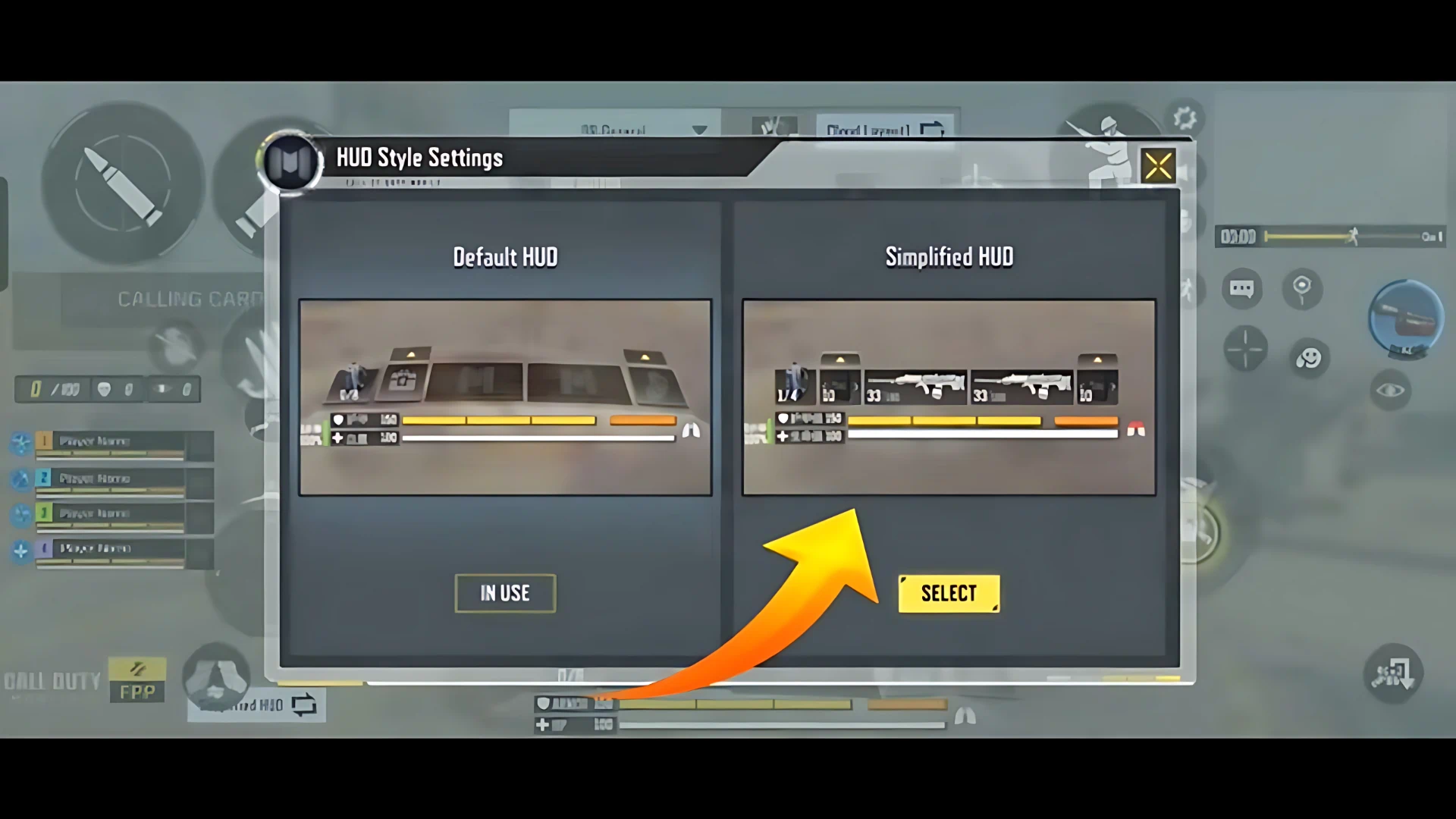
After placing the main buttons, you should also optimize the overall HUD layout to prevent the screen from becoming too crowded.
Enable Simplified HUD
First, open the HUD settings and select the Simplified HUD option.
This setting makes the buttons look cleaner and more organized, giving you better visual space and helping you focus on the fight.
Positioning the Map
Place the Map in the upper-middle section of the screen. This position usually provides easy access while keeping the main view clear.
Adjusting the Other Buttons
Arrange the remaining buttons in a way that allows you to access them quickly whenever needed.
The most important point is that your final HUD should match your personal comfort and playstyle. A professional layout does not have to be exactly the same for every player. You should customize it based on your hand position, screen size, and gameplay preferences.
How to Adapt to 4 Finger Claw Faster
To master this layout more quickly, you need to practice every day. The best places to practice are the Training Ground and Rebirth Island.
During the first few days, this HUD may feel strange or even uncomfortable. You may make mistakes, lose several fights, and even regret changing your layout. This is completely normal.
If you practice consistently for around 15 days, your hand muscles will gradually adapt to the new control structure. Once your Muscle Memory develops:
- Your Movement will feel more natural.
- Your Reaction Time will improve.
- Your Aim will become more stable.
- Your overall performance in
COD Mobilewill improve noticeably.
Related article: Call of Duty Mobile Season 7: Free CP and Terminator Collab!
Conclusion
If your goal is to react faster in CODM, improve your Movement, and perform multiple actions smoothly during fights, using the right 4-finger claw settings in Call of Duty: Mobile is a professional choice.
By correctly positioning the Fire, Scope, Jump, Slide, and Reload buttons and practicing every day, you will soon notice a clear improvement in your Aim, movement control, and overall performance during battles.






Frequently Asked Questions
The biggest advantage is the ability to perform Movement, Fire, Scope, Jump, and Slide at the same time. This gives you faster reactions and better control during fights.
The Fire buttons are usually placed in the upper-left corner, while Scope, Jump, and Slide are positioned in the upper-right section. This allows your index fingers to control them directly.
Most players begin to adapt after 3 to 4 days, but real mastery usually requires around 15 days of consistent practice.




1 comentario
Alex –
Alex