
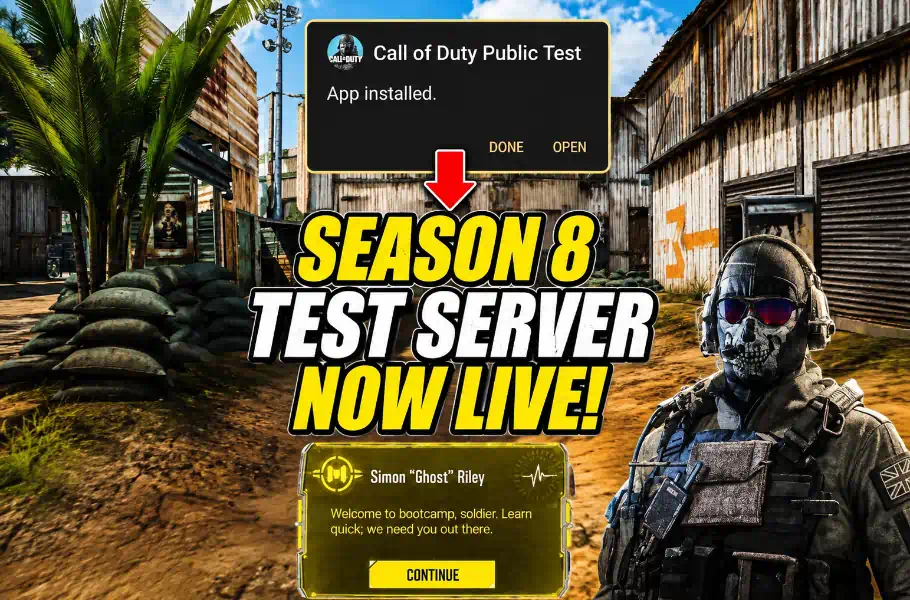
As Season 8 of Call of Duty:Mobile approaches, the most effective way to experience upcoming content is through the beta environment. Learning how to download the COD Mobile Season 8 test server allows players to explore new features, upcoming weapons, and balancing changes well before the official launch. A major highlight this season is the return of the Odin Mythic skin. Many players use the test server to evaluate these high-value items before spending their hard-earned CP, ensuring they make a wise purchase decision.
Why Use the Test Server?

The test server acts as an isolated environment, letting you experiment without impacting your primary account. Here, you can claim the latest Mythic and Legendary weapons to assess their performance in combat. Given the high cost of premium items, testing them beforehand is a strategic approach for any serious player looking to optimize their Loadout.
Installation Guide for iOS and Android
It is critical to note that the test server is a separate application. You do not need to delete your existing COD Mobile game; this APK exists as a standalone server.
Steps for iOS:
- Obtain the download link from official sources.
- Tap the “iOS” option to be redirected to the app page.
- Click “Download” and allow the data to install.
- Crucial: Once the app is installed, always use Guest mode to sign in. Never link your primary personal account.
The Season 8 test server is the perfect sandbox to master the new Mythic Odin and get ahead of the meta. Once you’ve experienced its true power and are ready to dominate the live servers. Whether you need to top up your PSN Gift Card to expand your digital library, we’ve got you covered with the best rates in the market
Steps for Android:
- Open the download link and choose the option corresponding to your device (most modern devices are 64-bit).
- If you experience technical issues on the 64-bit version, try the 32-bit option.
- The download will begin automatically. Once the APK is downloaded, proceed to install it.
- If you face trouble downloading the game data, use a VPN to stabilize the connection.
- After launching, select Guest mode to finalize your entry.
Vital Tips for Beta Testers

- Storage Space: Before initiating the download, ensure your device has sufficient free memory.
- Guest Mode Only: Never use your primary email login. All data and progress on the test server remain within that environment; nothing is transferred to your main account.
- Report Bugs: Your primary duty as a beta tester is to identify glitches and report them to the support team so they can be addressed for the final release.
Related article:Best Sniper Loadout in CoD Mobile; The Golden Combo
Conclusion
Utilizing the Season 8 test server is an excellent opportunity for players to test the performance of new gear, such as the Odin Mythic, without additional cost. By following security practices—such as using Guest mode and utilizing a VPN for data downloads—you can have a smooth experience while contributing to the quality of the final COD Mobile update.






Frequently Asked Questions (FAQ)
No, the test server is a completely separate application and will not interfere with your main COD Mobile installation.
No. All progress, weapons, and items obtained in the test server are restricted to that beta environment.
Check your VPN connection and ensure you have enough storage space. Additionally, try switching between the 32-bit and 64-bit versions of the APK.



6 Yorum
Richmond Belar –
I didn’t expect to find so many different game products in one place 👀 That’s actually pretty cool
Mitra Mohammadpour –
We’re glad you like the selection! 😎💙 We’re always working to bring gamers more options.
88* –
My wallet is never safe when it comes to Love and Deepspace 😂💎
Mitra Mohammadpour –
The struggle is real 😂💎 Hope you find something you’ll love! 💙
9902**** –
Mobile gamers deserve good deals too Nice to see more options available.
Mitra Mohammadpour –
Absolutely✨ Every gamer deserves more ways to enjoy their favorite games. 💙