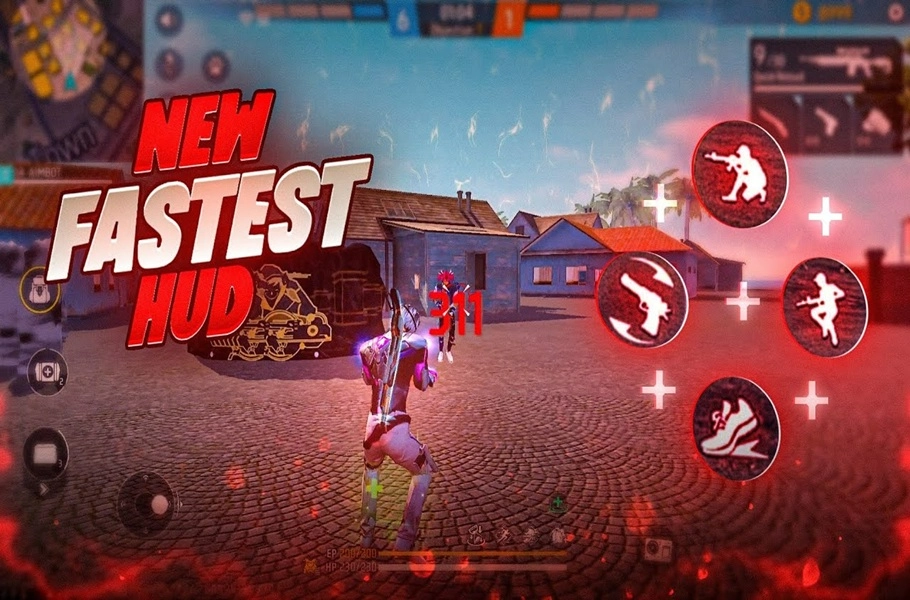
Having the Best Free Fire HUD can dramatically improve your gameplay. Many players struggle not because of poor skills, but because their HUD setup limits their movement, aim control, and reaction time.
This complete guide walks you step‑by‑step through essential base settings, optimal Fire Button placement, and professional layouts for 2‑finger, 3‑finger, and 4‑finger players.

Table of contents
Step 1: Activate Essential Settings
Before building your HUD, you must enable key game settings.
Enable Left Fire Button
Go to:
Settings → Controls
Set Left Fire Button to Always.
This gives you an additional Fire Button on the left side for better control.
Assistance Settings
Turn ON:
- Quick Weapon Switch
- Quick Reload
- Free Look Camera
- Ability Cooldown Timer
The cooldown timer shows how many seconds remain before you can use your ability again.
Throwables Settings
- Enable Double Slot
- Disable the two lower options
Running Mode
Set Run Mode to Tap.
Shield Display
In the Information tab, enable Show Shield First.
This adjusts how EP and HP are displayed for better combat awareness.
Scoreboard
Under Scoreboard, set access type to Press.
These are the essential foundational settings before creating the Best Free Fire HUD.
Step 2: The Most Important Button – Fire Button
The Fire Button is the most critical part of your HUD.
Avoid placing it:
- On the entire left half of the screen
- Too high on the screen
- On side areas already occupied by other buttons
- Too low at the bottom edge

Free Fire Diamonds
✅ Best Fire Button Position
The ideal placement is on the lower-right area of the screen.
The lower you position it (within reason), the more space you gain for pulling up your aim for headshots.
Step 3: Choose Your HUD Type
There are three main HUD styles:
- 2-Finger HUD
- 3-Finger HUD
- 4-Finger HUD
Choose the section that matches your playstyle.
🔥 2-Finger HUD Layout
Ideal for beginners and players who prefer simplicity.
Priority Buttons
- Run
- Jump
- Crouch
- Aim
- Weapon Switch
- Reload
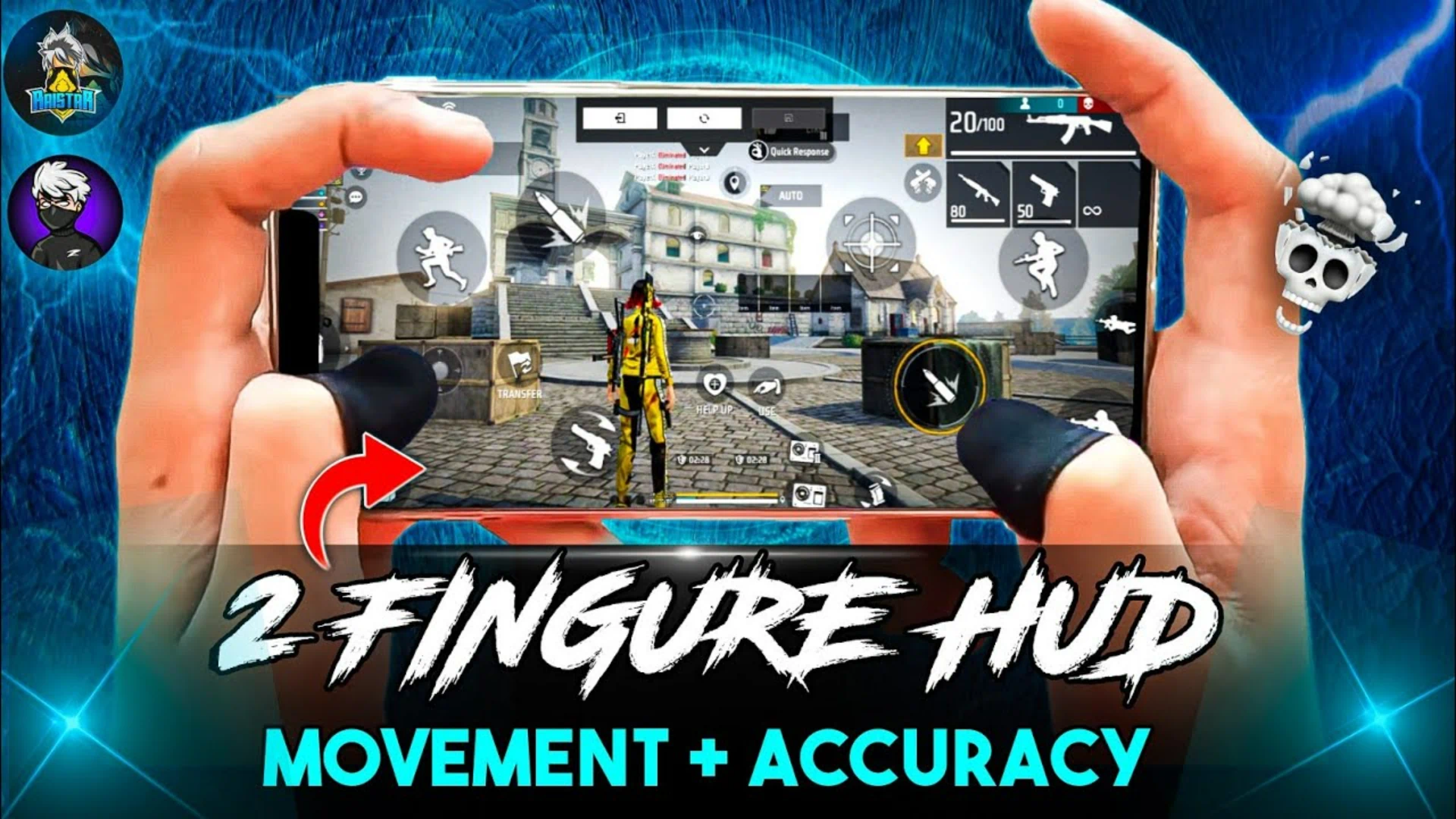
Recommended Placement
Run Button
Left side near the Analog. Place the secondary Fire Button next to it.
Jump Button
Position it where you can use it simultaneously with the Analog.
Crouch Button
Right side of the Analog for smooth movement control.
Aim Button
Standard right-side position.
Weapon Switch
Close to the Analog for quick movement plays.
Reload
Near the Analog for faster reaction.
Pro Tip: Clean Screen Trick
Reduce the Analog size, make it invisible, and place it behind the Minimap.
Your screen becomes cleaner without affecting performance.
Ability, Gloo Wall, and Med Kit can be placed in comfortable empty areas.
💎 Want faster progress with weapon skins and OB51 items?
Get Cheap Free Fire Diamonds from Item4Gamer, now offering:
⚡️Instant delivery
💸Secure and Diverse Payment Methods
✔️Reliable and Legitimate
⚡ 3-Finger HUD Layout
A balanced and highly popular setup offering more control.
Priority Buttons
- Run
- Jump
- Crouch
- Aim
- Weapon Switch
- Reload
Recommended Placement
Run Button
Left side near Analog.
Jump Button
Top area for the third finger or on the right side.
Do NOT place it next to the Analog.
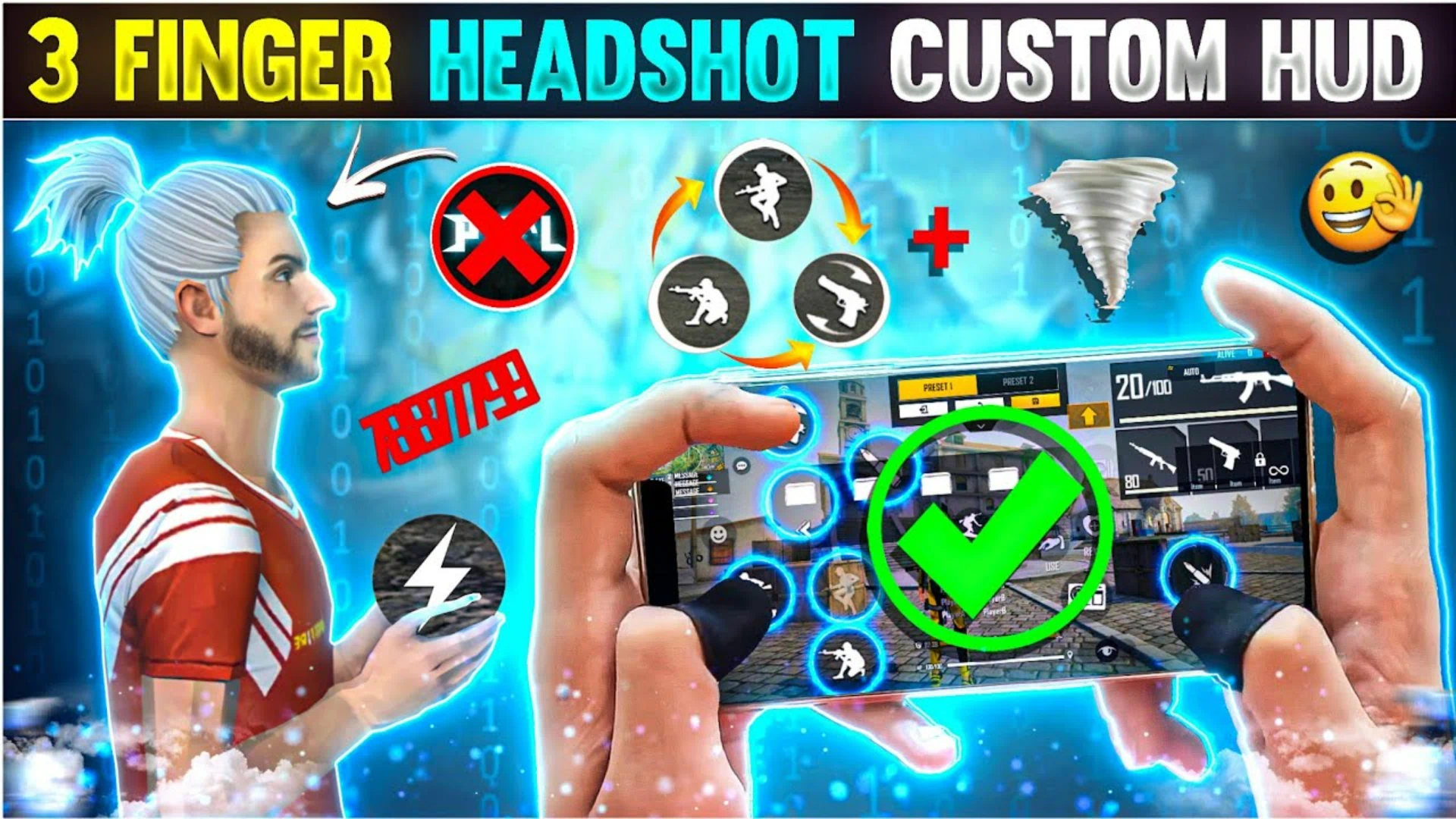
Crouch Button
Top area or right side.
Aim Button
Can be placed:
- On the right
- Around the Analog
- Under the third finger
Weapon Switch
Around the Analog.
Reload
Near the Analog for advanced movement plays.
Again, use the invisible Analog trick behind the Minimap.
Backpack, Gloo, and Kit buttons can stay in familiar positions.
The 3-finger HUD is highly flexible and allows multiple variations.
To truly take advantage of those smooth drag headshots and pro‑level controls, upgrading your Free Fire account is a must. With affordable prices, instant delivery, and guaranteed safety, item4gamer is the best place to top up Free Fire Diamonds fast and securely. Unlock premium skins, Elite Pass, powerful characters and more — trusted by thousands of players worldwide. ✅ Boost your account today and dominate every lobby with confidence! 🔥
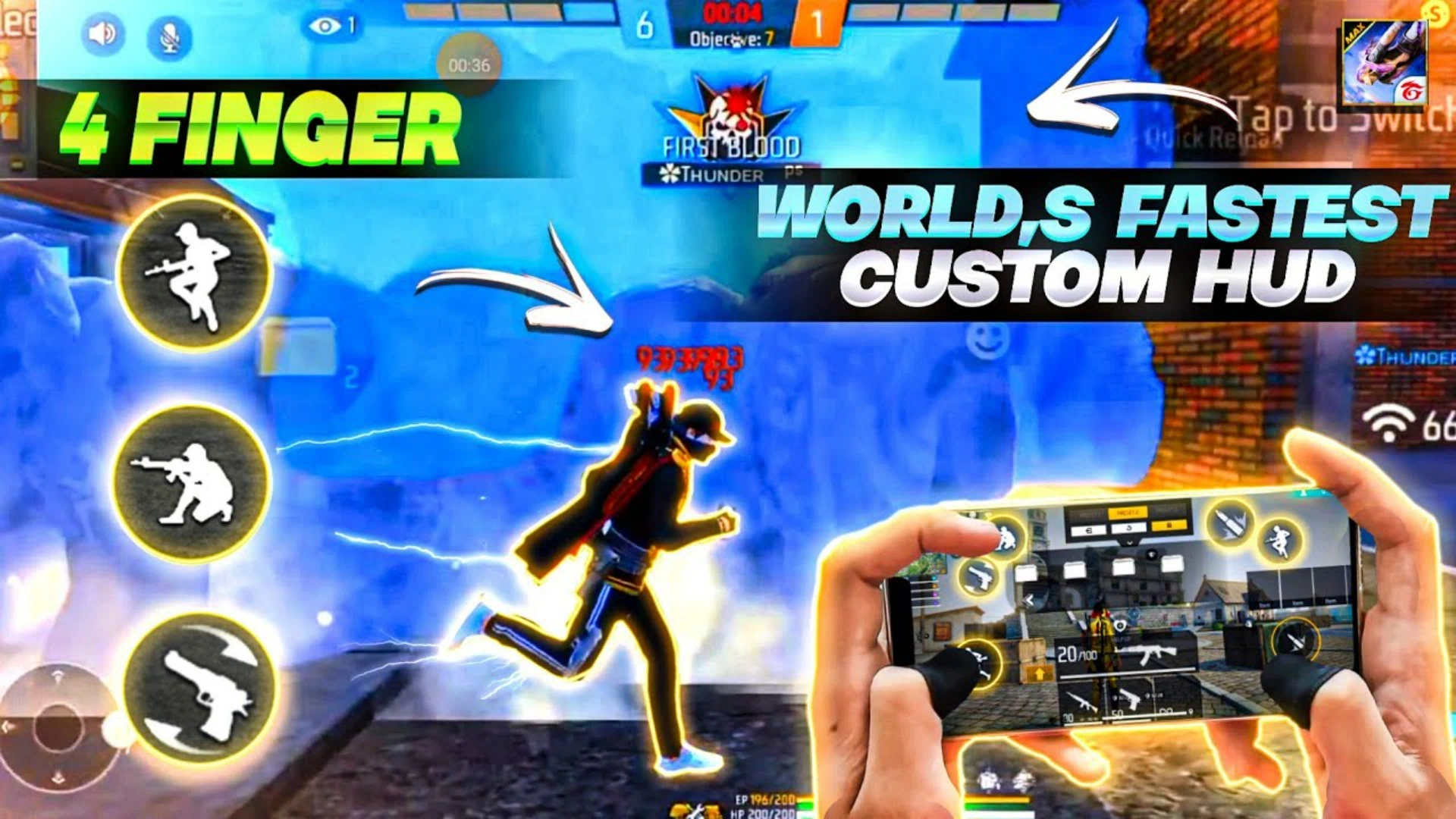
🚀 4-Finger HUD Layout
Used mostly by advanced and competitive players.
Priority Buttons
- Run
- Jump
- Crouch
- Aim
- Weapon Switch
- Reload
Recommended Placement
Run Button
Left side near Analog.
Jump Button
Top-left or top-right.
Crouch Button
Opposite side of Jump.
Aim Button
Very flexible — can be placed almost anywhere.
Weapon Switch
Left side near Analog or under the third finger.
Reload
Near Analog for better movement combos.
Keep the screen clean using the invisible Analog method.
This layout offers maximum flexibility and customization.
Related article: Best Free Fire Headshot Sensitivity 2026 (Pro Setup)
Step 4: Adaptation Phase
After building your HUD, the most important step is adaptation.
At first:
- You will press the wrong buttons
- Movement may feel uncomfortable
This is normal.
Important Rule:
Do NOT constantly change your HUD.
Instead:
- Play several matches
- Identify real discomfort
- Make small adjustments only
Muscle memory takes time. Once adapted, your HUD will feel natural and consistent.
That’s the secret to mastering the Best Free Fire HUD.
Final Thoughts
Creating the Best Free Fire HUD is not about copying a random layout. It’s about activating the right base settings, placing the Fire Button strategically, choosing the right finger style, and allowing time for adaptation.
With consistency and small adjustments, your HUD can become a powerful advantage in every match.






Frequently Asked Questions
A layout with the Fire Button placed in the lower-right area generally gives better control for upward aim pulls.
4-finger offers more control, but 2-finger is simpler and better for beginners.
Because muscle memory cannot develop properly.
To keep the screen clean while maintaining full movement functionality.